

Create Your First Test
1
Sign in to AutoProctor
Sign in at AutoProctor. You land on the Tests page.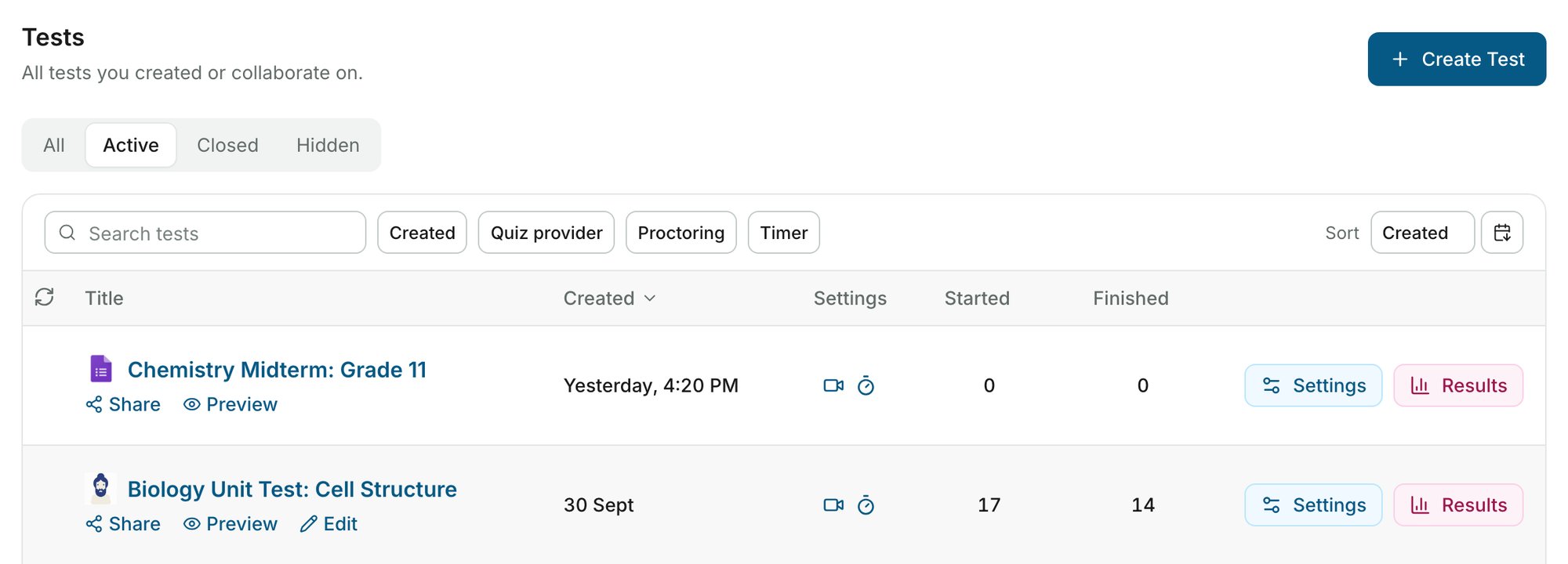
2
Click Create Test
Click Create Test at the top right. Pick a quiz provider, paste your quiz link and give the test a title. For Socratease, you build the quiz on the next screen instead.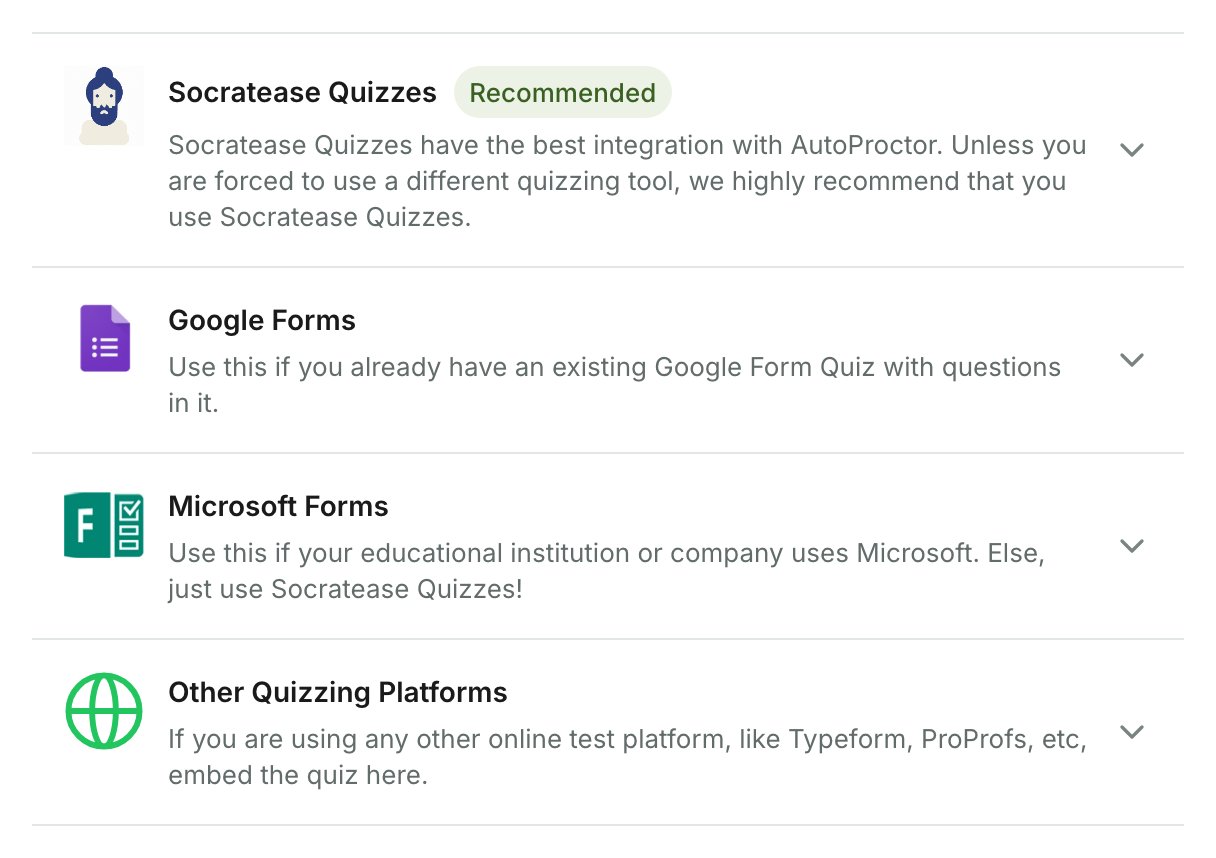
3
Review the test settings
The test’s settings page opens. Open Timer and Proctoring to adjust them, then click Save settings. The defaults work for a first test.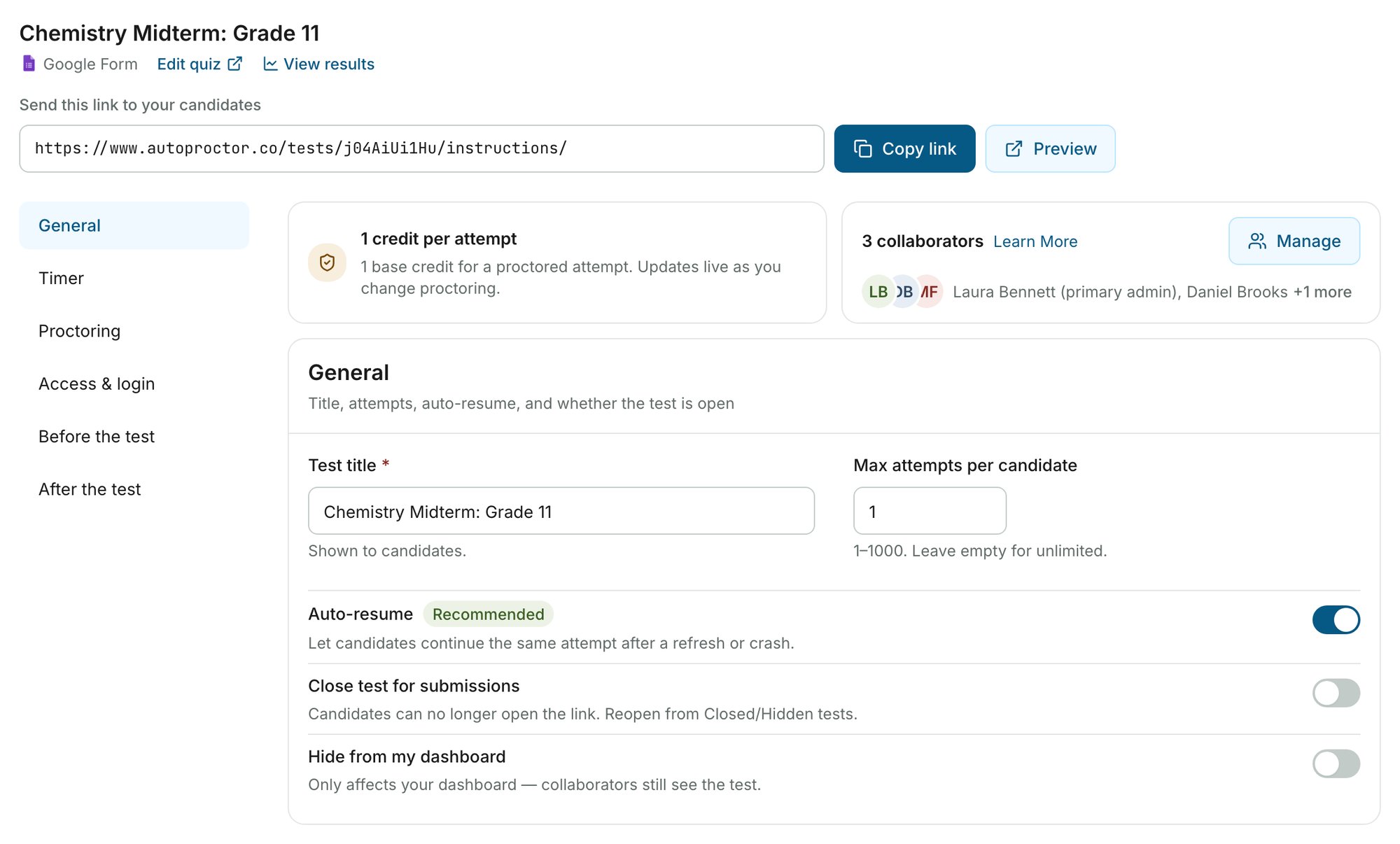
General holds the maximum attempts per candidate. Login methods, restrictions and candidate instructions are under Advanced Settings.
4
Share the test link
Click Preview next to the test link to check it the way a candidate sees it, then click Copy link.Share the link however you reach your candidates, or use Invite via Email. See Best Practices for tips on distributing links.
5
View results
On the Tests page, click Results next to the test. Each attempt has a Trust score and a report with its proctoring evidence.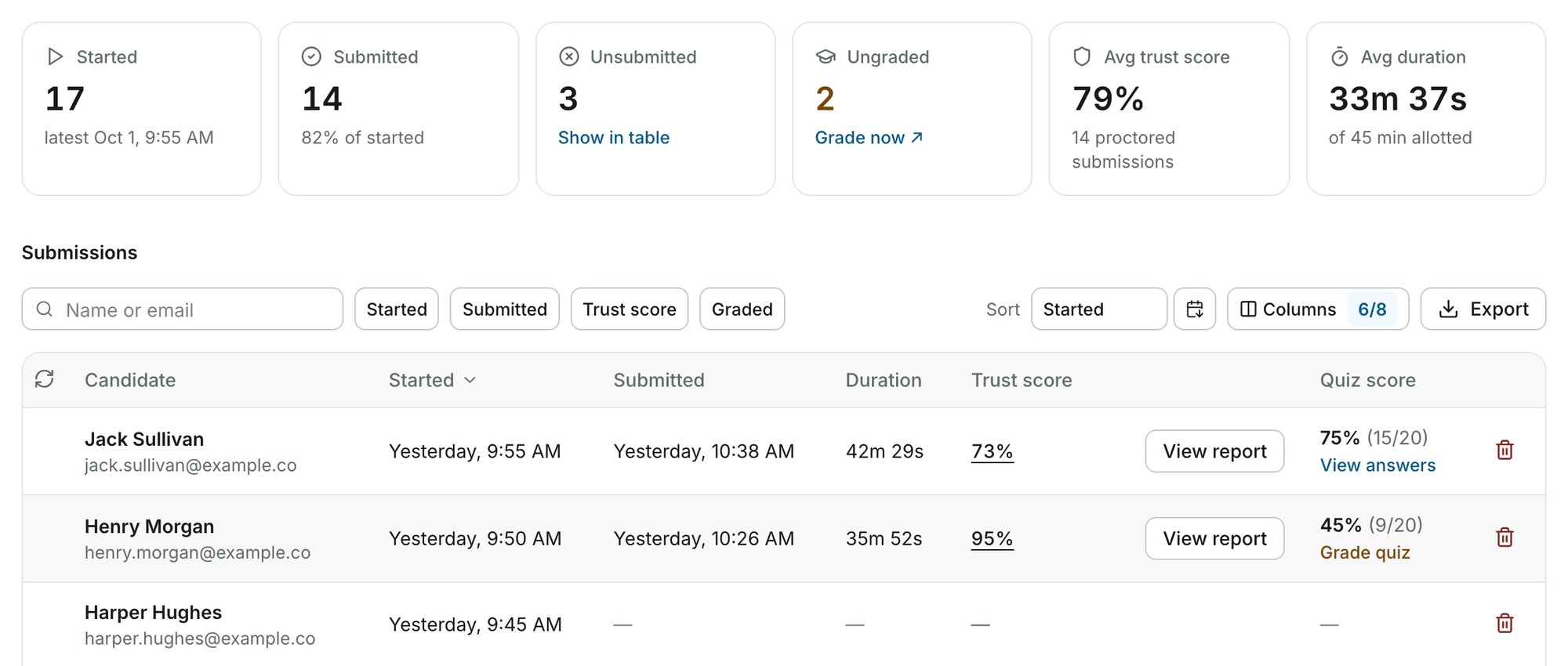
Related Resources
- Quiz Providers - All supported quiz platforms
- Timer Settings - Configure test duration and time windows
- Proctoring Settings - Configure what gets monitored
- Closing, Hiding and Deleting Tests - Manage the tests on your Tests page
- FAQs - Common questions about AutoProctor
- Best Practices for Test Creators - Tips for running proctored tests