

How to Configure Maximum Attempts
1
Open test settings
Go to your Tests page and click Settings next to the test.
2
Set the limit
In the General section, enter a number from 1 to 1000 in Max attempts per candidate. Leave the field empty to allow unlimited attempts.
3
Save
Click Save settings.

Max attempts per candidate set to 1 in the General section
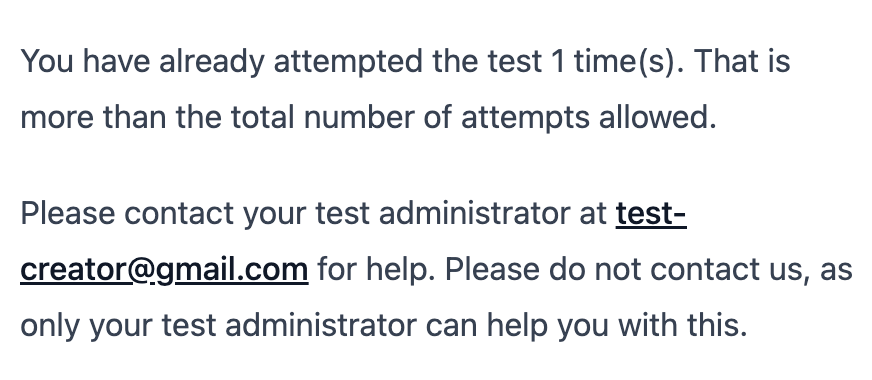
Restriction message shown to candidates
Recommended Configuration
For Google Forms and Socratease Quizzes, set Max attempts per candidate to 1. AutoProctor automatically resumes these tests if candidates reload the page or revisit the link, so multiple attempts are not needed for resumption.
How Attempts Are Tracked
AutoProctor tracks attempts by the email address used to sign in. This means:- Each unique email address counts as a separate candidate, regardless of who is behind it.
- If a candidate signs in with different email addresses across attempts (for example, using Sign in with Google once and Sign in with Email another time with a different address), each email counts separately, effectively bypassing the attempt limit.
Preventing Attempt Limit Bypass
To prevent candidates from circumventing the maximum attempts setting:- Restrict login methods: Choose a test type that supports only one sign-in option. Google Forms restricts candidates to Google sign-in only, and Microsoft Forms restricts to Microsoft sign-in only. See Candidate Login Methods.
- Use email restrictions: Limit access to specific email domains or addresses so candidates cannot use alternative accounts. See Restrict Test Access by Email Address.
- Use unique invitation links: Generate per-candidate URLs that enforce email verification. See Inviting Candidates via Email.
Related Resources
- Candidate Login Methods - How login methods affect attempt tracking
- Resuming Test Attempts - How test resumption works across test types
- Restrict Test Access by Email Address - Limit access by email domain or address
- Timer Settings - Configure test duration and time windows
- Inviting Candidates via Email - Send unique test links to candidates