

How to Configure Timer Settings
1
Open the Timer Section
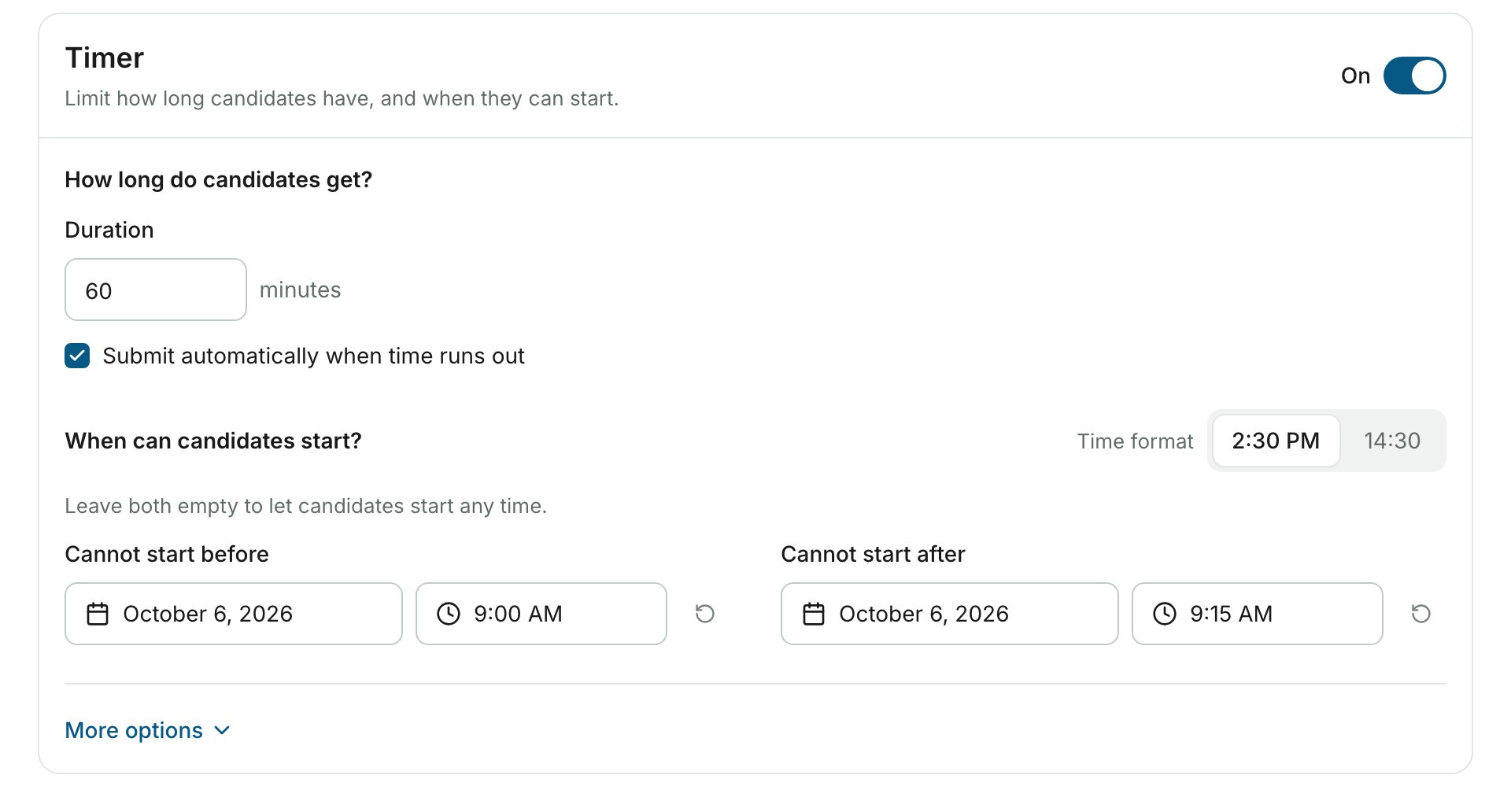
Go to your Tests page, click Settings next to the test, and choose Timer.
2
Turn the Timer On
Turn on the switch at the top right of the Timer section.
3
Set the Duration
Enter the Duration in minutes. The countdown starts when the candidate sees the questions.
4
Choose What Happens When Time Runs Out (Optional)
Tick Submit automatically when time runs out to submit the test when the duration ends. If you leave it unticked, candidates can still submit after the timer runs out.
5
Set a Start Window (Optional)
Under When can candidates start?, pick a date and time for either or both of these:
- Cannot start before: the earliest date and time a candidate can start
- Cannot start after: the latest date and time a candidate can start
If a Socratease quiz shows questions one-by-one with no question navigation, each question is timed separately. Duration, auto-submit and Hard stop do not apply to that quiz, but the start window still does. You can change the display mode from Quiz behaviour in the test’s Settings.
More Options
Click More options at the bottom of the Timer section to show two less common settings. Both need a Cannot start after date to be set first.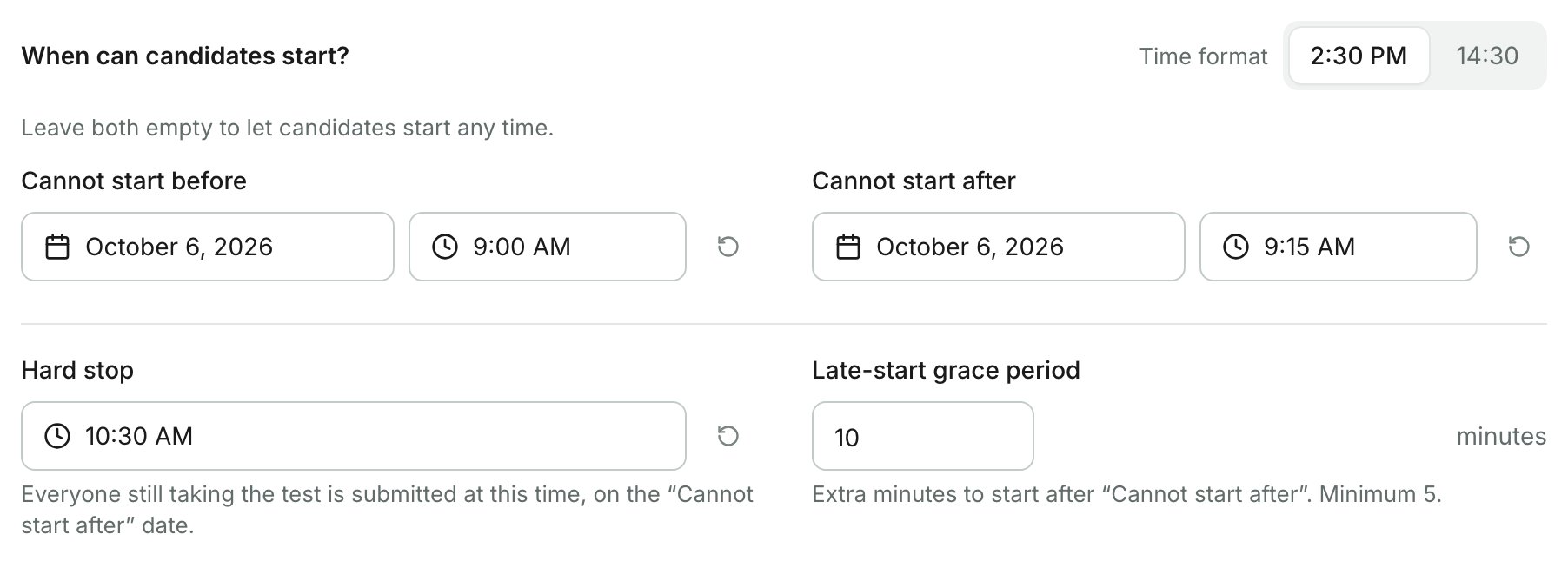
Hard stop
A Hard stop shortens the time of candidates who start late. For example, if the duration is 30 minutes and the Hard stop is 12:30 PM, a candidate starting at 12:15 PM gets only 15 minutes. The Hard stop cannot be earlier than Cannot start before or Cannot start after.Late-start grace period
The grace period gives candidates time to complete the demo test and set up their device. AutoProctor adds a default 5-minute grace period when start and end times are set.The grace period does not apply to the Hard stop.
Related Resources
- Proctoring Settings - Configure camera, microphone, and tab-switching detection
- Advanced Settings - Login providers, restrictions, and integrations
- Quiz Settings - Settings specific to Socratease quizzes
- Resuming Test Attempts - How auto-resume works with timed tests
- What Gets Tracked - Overview of all proctoring capabilities