

How to Add Query Arguments
1
Open the Access & Login Section
Go to your Tests page, click Settings next to the test, and choose Access & login.
2
Enter Your Query Arguments
Type your parameters in the Query string field, in the format
key1=val1&key2=val2. Then click Save settings.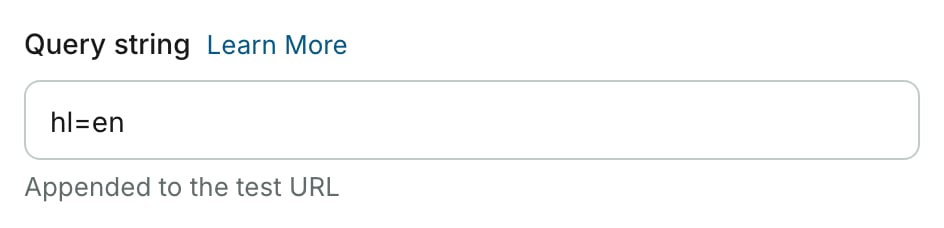
Do not include the
? prefix in your query arguments. AutoProctor adds it automatically when constructing the link.How It Works
AutoProctor adds your parameters to the quiz link when it loads the iframe.
If the quiz link already has parameters, they are kept. When one of your parameters has the same name as an existing one, your value is used.
Common Parameters
Related Resources
- Quiz Providers - All supported quiz platforms
- Advanced Settings - Login providers, collaborators, and other advanced options
- Timer Settings - Configure test duration and time windows
- Proctoring Settings - Camera, microphone, and tab-switching options