

Close or Hide a Test
Closing and hiding both move a test out of your Active view, but they do different things.1
Open Test Settings
Go to your Tests page and click Settings next to the test.
2
Turn On the Switch
In the General section, turn on Close test for submissions or Hide from my dashboard, then click Save settings.
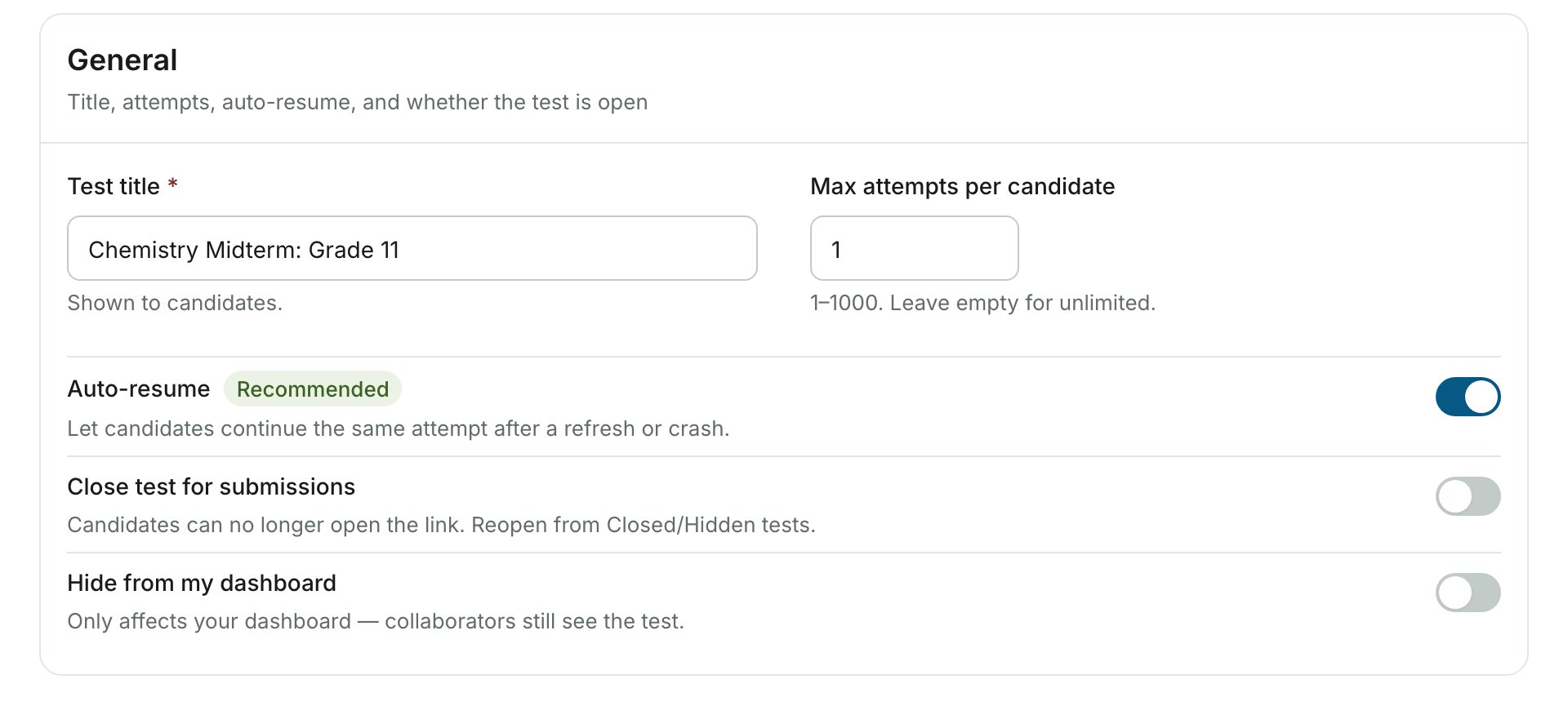
You can turn on both switches for the same test. A test that is closed and hidden appears in both the Closed and Hidden views.
Find Closed and Hidden Tests
The Tests page has four views at the top. Active is selected by default.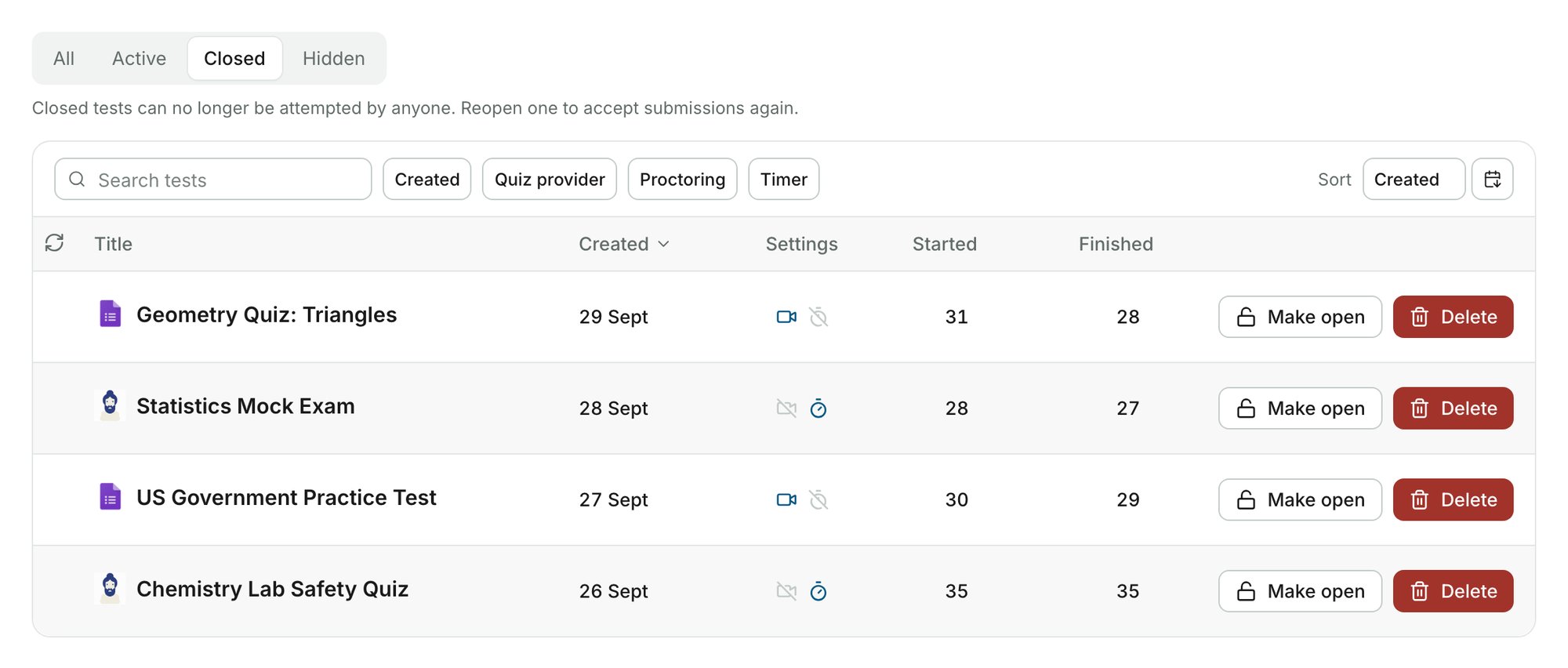
Reopen or Unhide a Test
You can bring a closed or hidden test back at any time.2
Restore the Test
Click Make open on a closed test, or Unhide on a hidden test, and confirm.
Delete a Test
You can permanently delete a test from the Closed view.1
Close the Test
If the test is still open, close it first using the steps above.
3
Delete the Test
Click Delete next to the test and confirm.
After you delete a Google Forms test, you can create a new test from the same Google Form.
Related Resources
- Where Can I See My Quiz Results? - Access quiz and proctoring results
- Sharing Test Results - Share results with stakeholders
- Adding Collaborators - Share test management with team members
- Timer Settings - Configure test duration and time windows