

Add a Collaborator
A collaborator sees the test on their own Tests page and can open its results and proctoring reports.1
Open the Test's Settings
Go to your Tests page and click Settings next to the test.
2
Copy the Collaborate Link
Click Manage on the collaborators card, then copy the Collaborate link at the bottom of the dialog.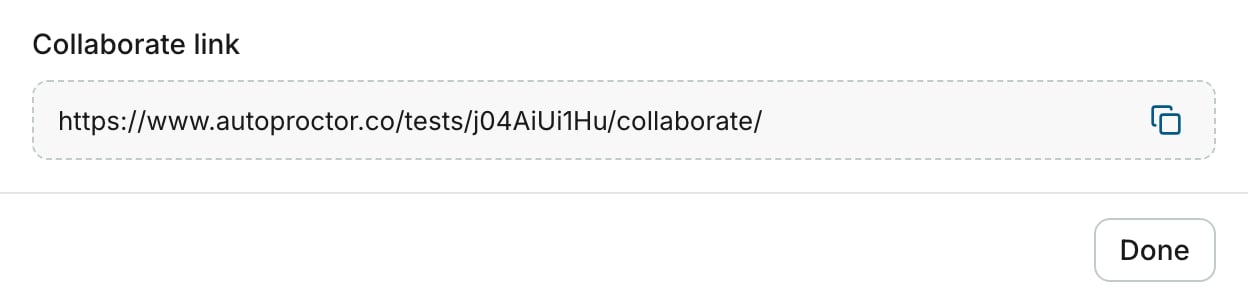
3
Send the Link
When the person opens the link while signed in to AutoProctor, they are added to the test and land on its results.
Managing collaborators needs a Premium or Elite plan, and the person must be a member of your team. Collaborators get full access to the test, including its settings. See Adding Collaborators for the details.
For Google Forms
Anyone with edit access to the Google Form can reach the same AutoProctor test and its results.1
Share the Google Form
Share the Google Form with Editor permissions.
2
Open the Timer + Proctor add-on
Ask the other users to open the Timer + Proctor add-on from the shared form. The test then appears on their own Tests page, where they click Results.
Sharing the form alone is not enough. Each person must open the add-on at least once to be linked to the test.
Related Resources
- Adding Collaborators - Grant test management access to other users
- Export to Excel - Download results as a spreadsheet
- Google Sheets Integration - Automatically sync results to Google Sheets
- Where Can I See My Quiz Results? - Overview of quiz results vs. proctoring results
- What is a Team? - Share billing and collaborate across your organization