

For Socratease Quizzes
1
Open the Results Page
Go to your Tests page and click Results next to the test.
2
Find the Candidate
The Quiz score column shows each candidate’s score, with a link under it.
3
Check Scores and Responses
The link under the score shows one of two states: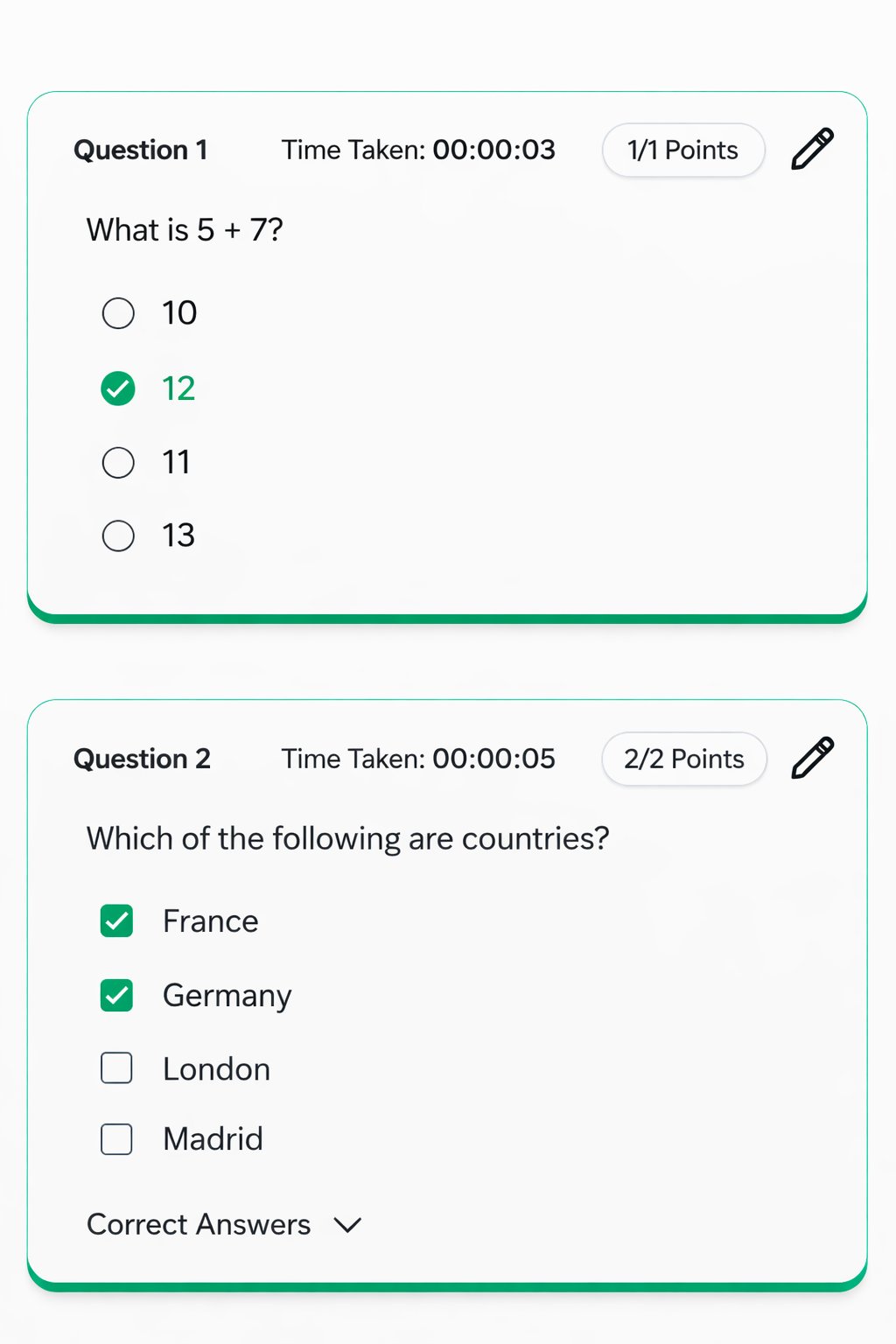
Either link opens the candidate’s report on the Results tab.
Grading Responses Manually
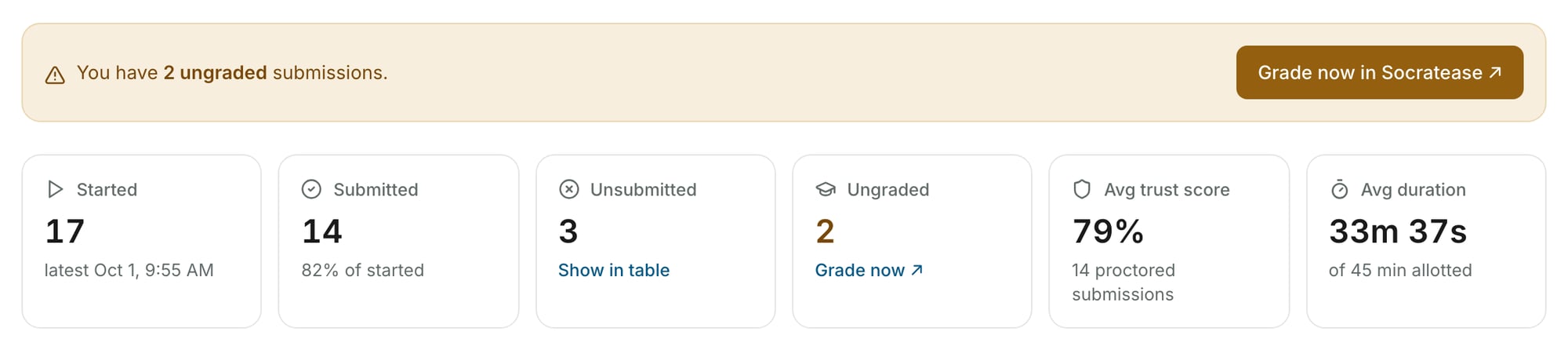
The Results page of a Socratease quiz gives you three ways to start grading.
To list only the attempts that need grading, click the Graded filter above the table and choose Not graded.
Question Insights and Individual Analytics
Socratease gives you three analytics views for a quiz: Overall Analytics, Question Insights and Individual Analytics. To open them, click Users’ answers at the top right of the test’s Results page.
Question Insights
Question Insights shows a per-question breakdown of how all candidates answered, with the percentage and count of candidates who picked each option.Individual Analytics
Individual Analytics shows one candidate’s full submission at a time: points scored, questions answered correctly, submission time, and time taken.- Use the pencil icon next to any question’s points to adjust that candidate’s score.
- Use Add Evaluator Feedback to leave a note on their submission.
- Use Prioritize Ungraded to jump straight to submissions that still need manual grading.
- Use Filter by Result to show only correct, incorrect, or ungraded responses.
- Use Download All Responses to export every candidate’s answers.
Group By and Filter by Tag are also available here. See Using Tags for how to set up and use tags in your results.
For Google Forms
Google Forms keeps its own responses, outside AutoProctor.1
Click the Responses Tab
Open the Google Form you used for the test and click Responses at the top.
2
View Individual Responses
Click Individual and use the arrows to move between candidates.
If you can’t see responses in Google Forms, see the guide on Google Forms responses not visible. For Microsoft Forms and IFrame tests, see Where Can I See My Quiz Results?.
Related Resources
- Where Can I See My Quiz Results? - Overview of quiz results vs. proctoring results
- Where Can I See Proctoring Results? - View proctoring reports for candidates
- Export to Excel - Download all results as a spreadsheet
- Showing Results to Candidates - Control what candidates see after submission
- Google Sheets Integration - Automatically sync results to a Google Sheet
- Using Tags - Filter and group results by tags