


Viewing Unsubmitted Tests on the Results Page
1
Open the Results Page
Go to your Tests page and click Results next to the test.
2
Check the Unsubmitted Tile
The tiles at the top of the page count the attempts that were Started, Submitted and Unsubmitted.
3
Click Show in Table
Click Show in table on the Unsubmitted tile. The Submissions table below then lists only the unsubmitted attempts.
How an Unsubmitted Attempt Appears in the Table
An unsubmitted attempt has a start time and nothing else. Its other columns show a dash until the candidate submits. On a proctored test, it still has a View report button. On a test without proctoring, it has no report, so it cannot be marked as finished.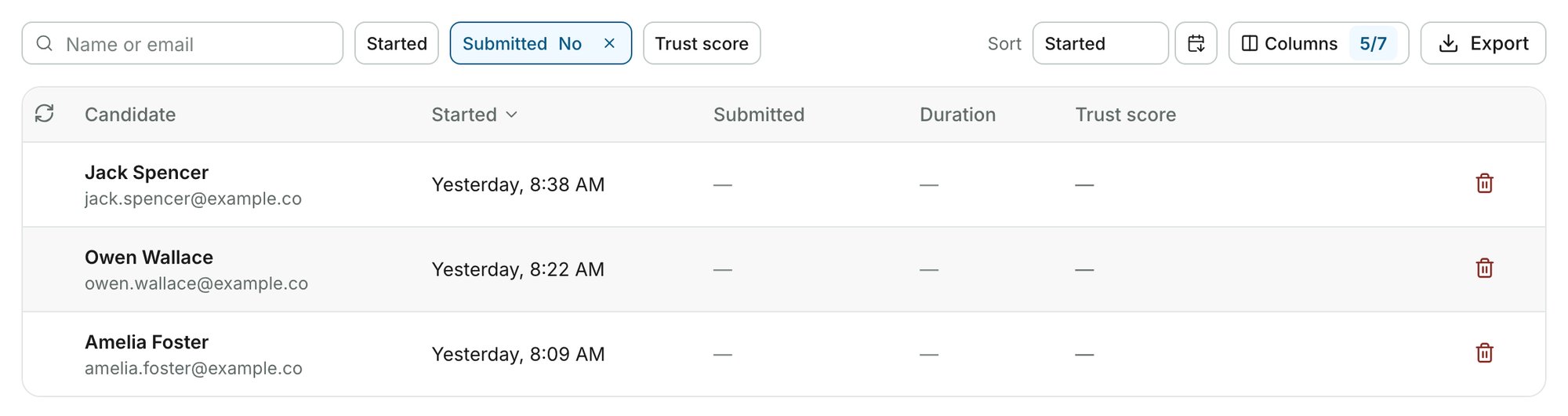
The Latest attempts page lists submitted attempts only. Unsubmitted attempts appear only on the Results page of their own test.
Proctoring Report for an Unsubmitted Test
The proctoring report is created after an attempt is submitted. Click View report on an unsubmitted attempt, and its Proctoring tab says the test has not been marked as finished yet. An attempt counts as submitted once the candidate submits it, or once the timer submits it automatically. See Timer Settings for automatic submission. To generate the proctoring report, click Mark as Finished. The report loads a few seconds later.Quiz Answers for an Unsubmitted Test
For Socratease quizzes, an unsubmitted attempt has no answers to view. Its report’s Results tab reads “No answers recorded for this attempt yet.”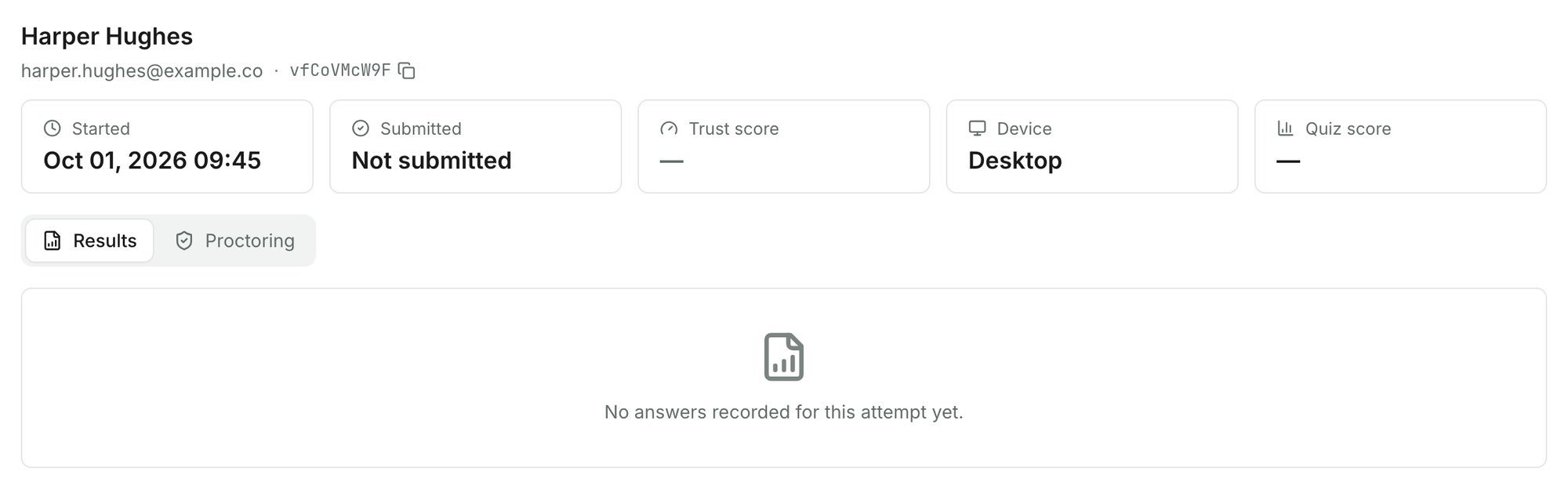
Related Resources
- Resuming Test Attempts - How test resumption works when candidates leave mid-test
- Where Can I See Proctoring Results? - View submitted proctoring reports
- Before You Get Started - Critical requirements including the submit button process
- Where Can I See My Quiz Results? - Overview of quiz results vs. proctoring results