

Viewing Proctoring Results
1
Open the Results Page
Go to your Tests page and click Results next to the test.
2
Review the Submissions Table
The Submissions table lists one row per attempt, with the Trust Score of each attempt when proctoring is on.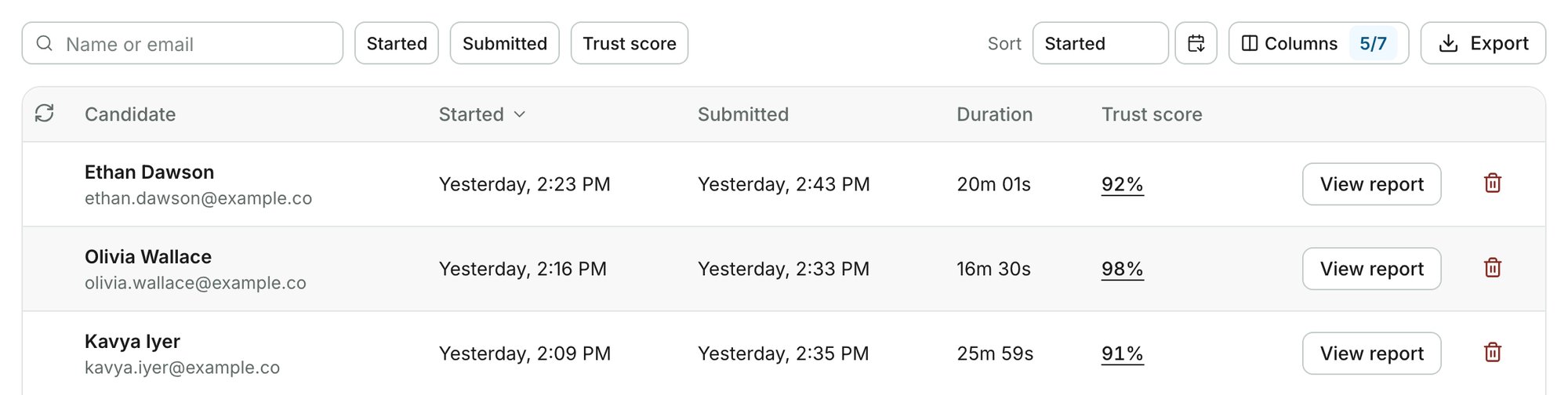
3
Open the Report
Click a candidate’s Trust score, or click View report at the end of the row. The report opens on the Proctoring tab.
The proctoring report appears a few minutes after the attempt is submitted. For attempts that were started but never submitted, see Unsubmitted Tests.
Finding the Attempts to Review
The controls above the Submissions table narrow and reorder the list.What the Report Shows
The report is split into tabs, one for each kind of evidence.
The last three tabs belong to enhanced proctoring.
The Proctoring tab for each candidate includes:
Proctoring Results Across All Your Tests
The Latest attempts page lists every submitted attempt across all your tests, newest first. Click the Trust score, or View report under the test title, to open that attempt’s report.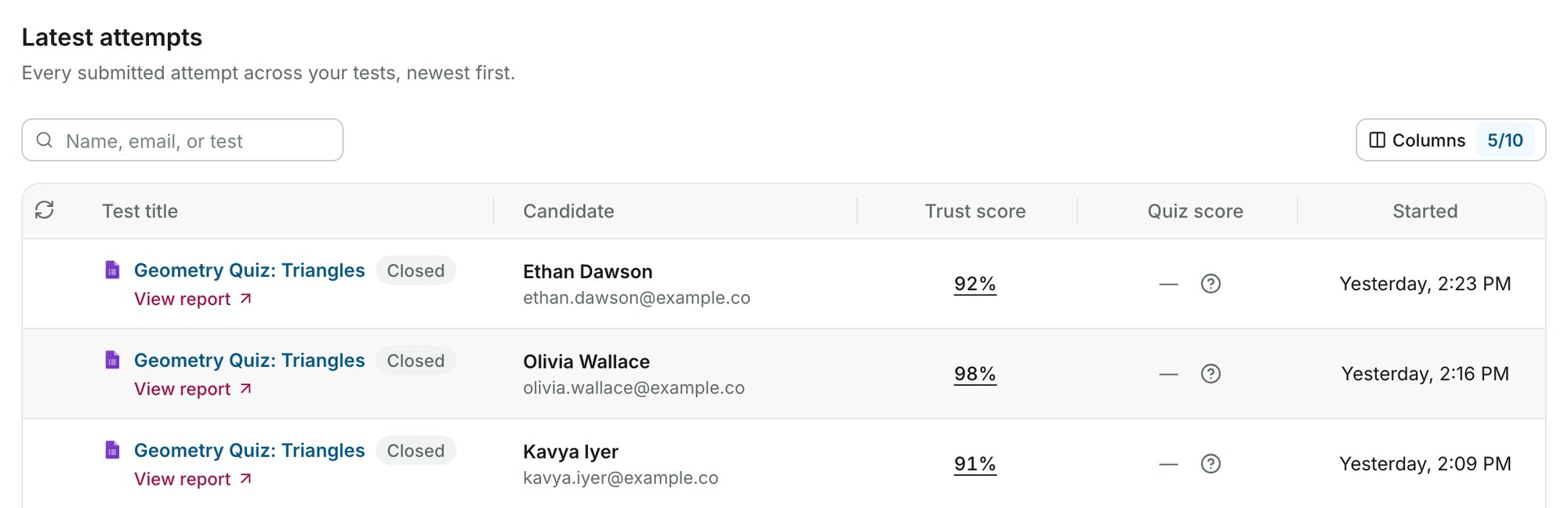
Related Resources
- Where Can I See My Quiz Results? - Overview of quiz results vs. proctoring results
- Trust Score Explained - How Trust Scores are calculated
- What Gets Tracked - What AutoProctor monitors during a proctored test
- Export to Excel - Download proctoring results as a spreadsheet
- Unsubmitted Tests - View details of tests started but not submitted