

Quiz Results
If you use Google Forms and cannot see responses, refer to the troubleshooting guide on missing Google Forms responses.
Quiz Scores for Socratease Quizzes
1
Open the Results Page
Go to your Tests page and click Results next to the test.
2
Find the Candidate
The Quiz score column shows each candidate’s percentage and points, for example 88% (7/8). Search by name or email to find one candidate.
3
Open the Answers
Click View answers under the score to see every response and the points scored. If the attempt still needs grading, the link reads Grade quiz instead.
Results Across All Your Tests
The Latest attempts page lists every submitted attempt across all your tests, newest first. Its Quiz score column depends on the quiz platform of each test: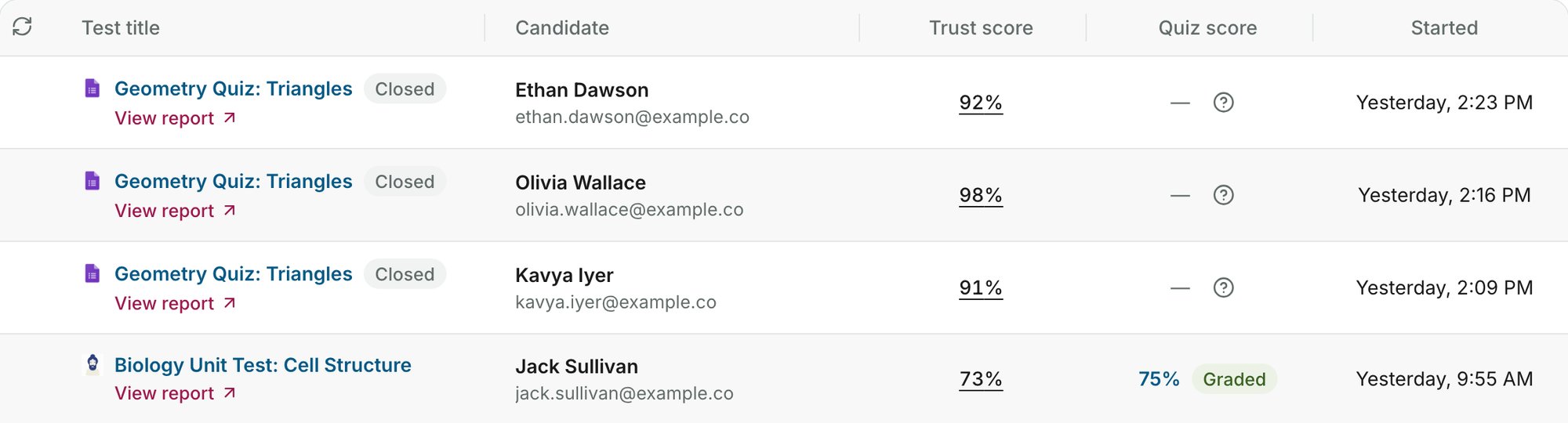
Proctoring Results
Proctoring results are a separate report for each attempt, with a Trust Score. See Where Can I See Proctoring Results? to open them.Proctoring results are only available when you enable proctoring in your test settings. Tests configured with only a timer do not generate proctoring reports.
Related Resources
- Where Can I See Proctoring Results? - Step-by-step guide to viewing proctoring reports
- Access Answers and Candidate Responses - View specific candidate responses and scores
- Export to Excel - Download results as a spreadsheet
- Trust Score Explained - Understand how Trust Scores are calculated
- What Gets Tracked - Learn what AutoProctor monitors during a test