

Understanding the Two Submit Buttons
Candidates must click two separate submit buttons to complete a Google Forms-based test on AutoProctor:- Purple Submit button (inside the Google Form): submits answers to the Google Forms Responses section
- Green Submit button (at the top of the page): submits the proctoring or timed session to AutoProctor
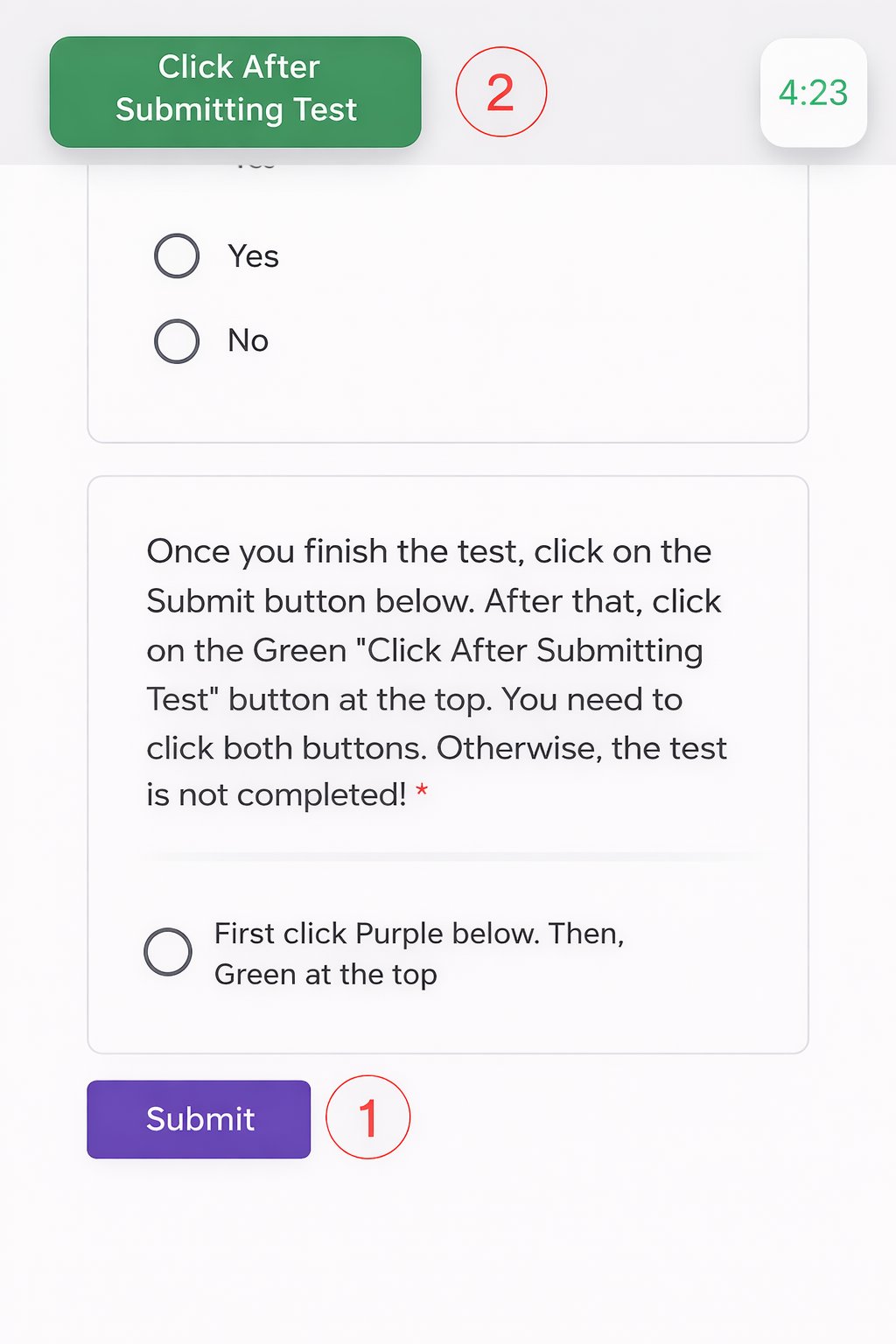
The two submit buttons: purple for Google Forms, green for AutoProctor
If the Candidate Skips the Green Submit Button
You will see the candidate’s answers in the Google Forms Responses section but will not see any results on AutoProctor. The proctoring session was not finalized.If the Candidate Skips the Purple Submit Button
You will see the test marked as submitted on AutoProctor, but the candidate’s answers will not appear in Google Forms Responses. The form answers were never sent to Google.Ensure You Share the AutoProctor Link
You must send candidates the AutoProctor link (containingautoproctor.co in the URL). If you send the direct Google Form link instead, candidates will bypass AutoProctor entirely and no proctoring data will be recorded.
Why AutoProctor Cannot Fix This
AutoProctor embeds Google Forms similarly to how websites embed YouTube videos. Google does not allow AutoProctor to access or control anything that happens inside the form. If a submission issue occurs within the Google Form, only Google controls that behavior.To avoid confusion with two submit buttons, consider using Socratease quizzes instead of Google Forms. Socratease has a single submit button that handles both quiz answers and proctoring in one step.
Related Resources
- Submit Button Differences - Full comparison of Socratease vs other quiz types
- Cannot See Questions on Google Forms - Google Form access issues
- Proctoring Results - How to review proctoring reports
- Why Socratease? - Benefits of using Socratease over Google Forms
- Contact Us - Reach out if you need further help