

Why This Happens
AutoProctor retrieves candidate names from the authentication provider they used to sign in:
If the name on their Google or Microsoft account is incorrect, misspelled, or uses a nickname, that same name will appear in AutoProctor results.
AutoProctor pulls candidate names directly from their account profile. If the name is wrong in results, the candidate needs to update their profile on AutoProctor directly.
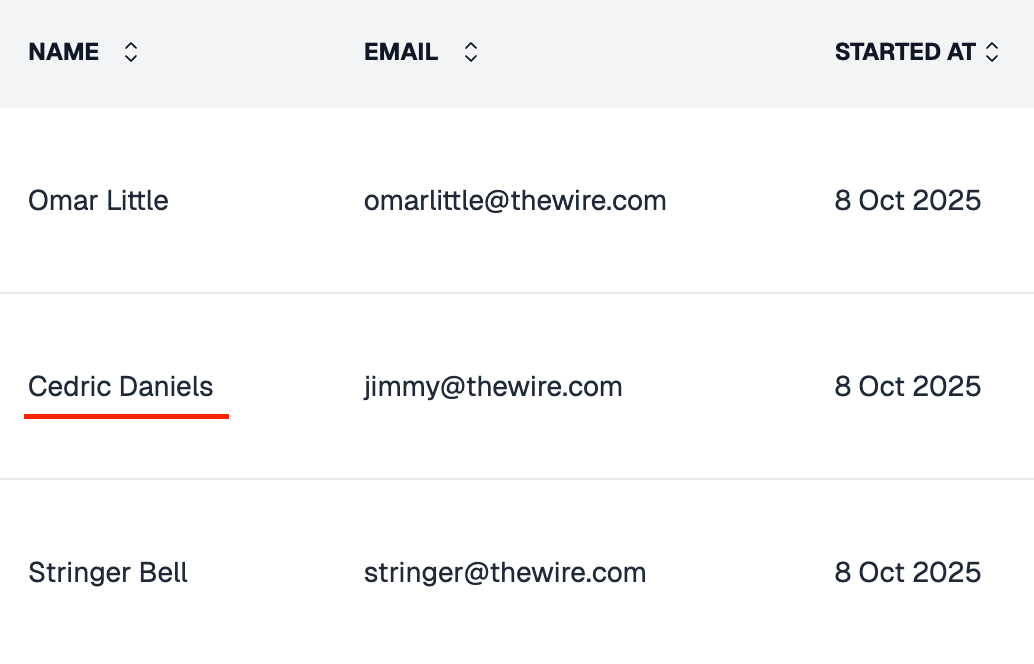
Example of an incorrect candidate name displayed in AutoProctor results
How to Fix It
1
Identify the candidate's email
On your Tests page, click Results next to the test. Find the email address associated with the candidate’s attempt.
2
Direct the candidate to update their profile
Have the candidate visit autoproctor.co/account/edit-profile and update their name. Share this link with the candidate along with a note identifying which email address needs the correction.
3
Verify the change
Once the candidate updates their name on their AutoProctor profile, the change automatically reflects across all existing test reports. No further action is needed from the test administrator.
Related Resources
- Proctoring Results - How to review proctoring reports
- How to Logout - Switch accounts if the wrong one was used
- Candidate Login Methods - Understand sign-in options
- Instructions for Taking a Proctored Test - Setup guide for candidates
- Contact Us - Reach out if you need further help