

How to Export
1
Open the Results Page
Go to your Tests page and click Results next to the test you want to export.
2
Choose Which Attempts to Export (Optional)
The file contains the attempts listed in the Submissions table, in the same order. Use the search box, the filters and Sort above the table to narrow the list first. For example, set the Submitted filter to Yes to leave out unsubmitted attempts.
3
Click Export
Click Export above the Submissions table.
4
Pick the Columns
Tick the columns you want in the file, then click Export.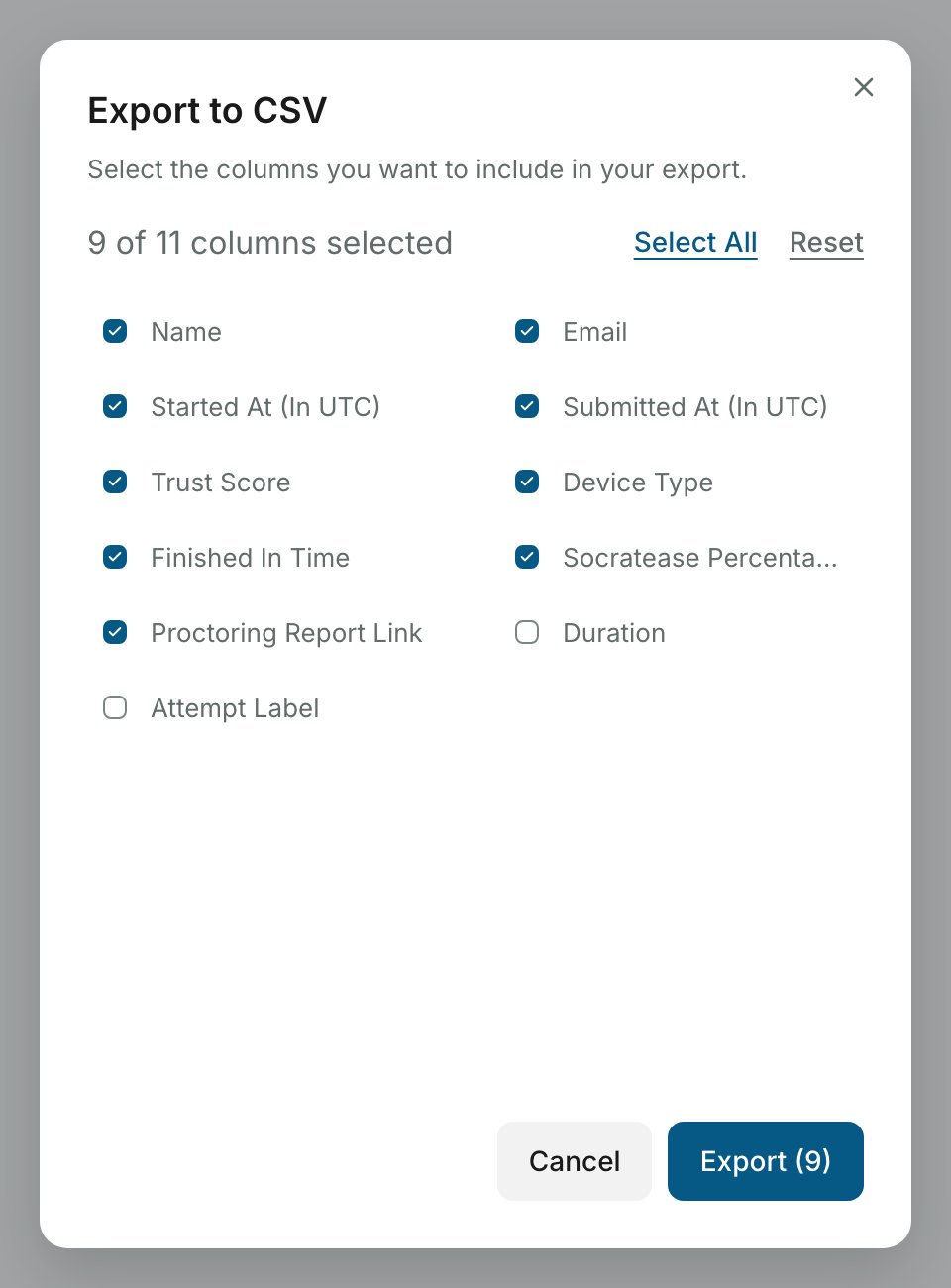
5
Open the File
The file downloads to your device, named after the test and ending in
_results.csv.Export downloads every attempt that matches your search and filters, not only the rows loaded on screen. The button is hidden on accounts without an active plan or trial.
What the Export Includes
Each row of the file is one attempt. These columns are ticked by default:
Two more columns are available in the dialog and are unticked by default:
You can view a sample exported spreadsheet to see the format.
For automatic exports without manual downloads, use the Google Sheets integration.
Related Resources
- Google Sheets Integration - Automatically write results to a Google Sheet
- Where Can I See My Quiz Results? - Overview of quiz results vs. proctoring results
- Sharing Test Results - Grant other users access to test results
- Where Can I See Proctoring Results? - View detailed proctoring reports