Generate a unique test link for each candidate’s email address on the Unique test URLs page, with email verification, on AutoProctor.
Unique test URLs give every candidate their own test link, tied to their email address. Each link works only for that email and only once. By default, AutoProctor sends the candidate a one-time verification code to confirm their identity before the test starts.
This feature is available only on the Elite Plan and works exclusively with Socratease Quizzes and IFrame Tests. It is not compatible with Google Forms or Microsoft Forms, as those require platform-specific sign-in. See Payments and Credits for plan details.
Go to your Tests page, click Settings next to the test, and choose Access & login from the list of sections.
2
Turn On Unique Test URLs
Turn on the Unique test URLs switch, then click Save settings. Links can be generated only after the setting is saved. If your plan does not include the feature, the switch shows an Elite badge.
Unique test URLs switched on and saved, with the Generate unique links link below it
3
Open the Unique Test URLs Page
In the Access & login section, click Generate unique links under the switch. You can also click Get unique links next to the test link at the top of the Settings page.
4
Add the Email Addresses
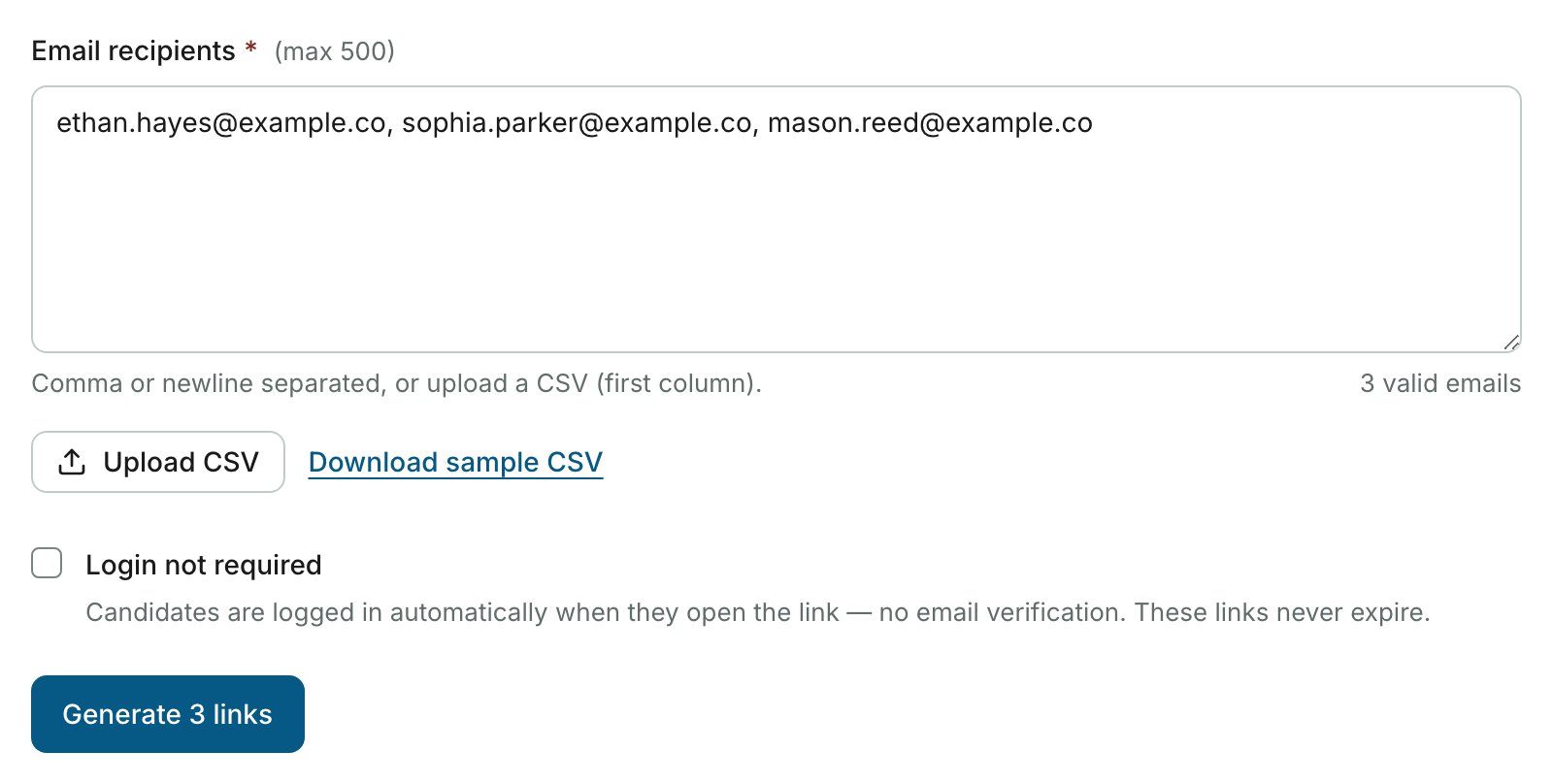
On the Generate tab, enter the candidates’ addresses in Email recipients, separated by commas or new lines. To load them from a file, click Upload CSV. Only the first column of the file is read, and Download sample CSV gives you a template.You can add up to 500 addresses in one batch, and each address can appear only once.
Three email addresses entered on the Generate tab of Unique test URLs
5
Choose How Candidates Sign In (Optional)
Leave Login not required unticked to make each candidate verify their email. Tick it to log candidates in automatically when they open the link.
6
Generate the Links
Click Generate links. The button shows how many links it will create, for example Generate 3 links. The page then opens the Links tab with the new links.
7
Send the Links
On the Links tab, click Copy link next to an address, or click Export to download every link as a CSV file. Send each candidate their own link by email, your learning management system, or another private channel.
How a candidate gets into the test depends on whether you ticked Login not required when generating the link.
Link type
What the candidate does
Standard link
Opens the link, then enters a one-time verification code sent to the email address tied to that link
Login not required link
Is logged in automatically on opening the link. There is no email verification, and these links never expire
The verification code ensures only the intended recipient can use each link. A link stops working once the candidate has submitted the test. To let a candidate take the test again, generate a new link for the same address.
A Login not required link lets anyone who has it start the test as that candidate. Share these links only with the candidate they belong to.
While Unique test URLs is on, the shared test link at the top of the Settings page only opens a preview. Only the unique per-candidate links grant access.
Email login only
Candidates can sign in only with email. Under Login providers, Google and Microsoft are switched off.
No revocation
You cannot invalidate sent invitations after they are generated.
No free trial
This feature cannot be tested before purchasing the Elite Plan.
Batch limit
You can generate at most 500 links at a time. Generate another batch for more candidates.
Once you save the test with Unique test URLs on, the common test link stops working for candidates. Make sure you are ready to distribute the individual links before you save.
For large-scale campaigns exceeding 5,000 candidates, AutoProctor offers an email distribution service at $100 per 5,000 messages. This requires sufficient account balance and submission of your CSV file and email content to the AutoProctor team. Contact us for details.
Elite Features - All features available on the Elite Plan
Was this page helpful?
⌘I
{"docsConfig":{"theme":"maple","$schema":"https://mintlify.com/docs.json","name":"AutoProctor Help Center","colors":{"primary":"#1f398a","light":"#5dbd84","dark":"#1f398a"},"logo":{"light":"https://mintcdn.com/autoproctor/W-xf3W76sMq0h8jF/logo/light.svg?fit=max\u0026auto=format\u0026n=W-xf3W76sMq0h8jF\u0026q=85\u0026s=3e6e1b165ff9dcf79c4a97b161c4a116","dark":"https://mintcdn.com/autoproctor/W-xf3W76sMq0h8jF/logo/dark.svg?fit=max\u0026auto=format\u0026n=W-xf3W76sMq0h8jF\u0026q=85\u0026s=4998e30d272cd83fe55c7780bd016cd5","href":"/"},"favicon":"https://mintcdn.com/autoproctor/ppA8ifNdbhTkKwqD/favicon.svg?fit=max\u0026auto=format\u0026n=ppA8ifNdbhTkKwqD\u0026q=85\u0026s=c12901c16b16ea6e6467434d2e38e71f","appearance":{"default":"light","strict":true},"background":{"decoration":"grid"},"navbar":{},"footer":{"socials":{"website":"https://www.autoproctor.co/","linkedin":"https://www.linkedin.com/company/autoproctorhq","youtube":"https://www.youtube.com/@autoproctor1043"}},"seo":{"metatags":{"og:site_name":"AutoProctor Help Center"}},"integrations":{"telemetry":{"enabled":true}},"styling":{"latex":false},"navigation":{"global":{},"languages":[{"language":"en","default":true,"href":"create-proctored-exam"},{"language":"es","href":"es/create-proctored-exam"},{"language":"pt","href":"pt/create-proctored-exam"}]}},"deployment":{"deploymentMetadataValue":{"subdomain":"autoproctor","hasAudioNarration":false,"actualSubdomain":"autoproctor","customDomains":["help.autoproctor.co"],"gitSource":{"type":"github","owner":"socrateasehq","repo":"autoproctor-mintlify-docs","deployBranch":"main","contentDirectory":"","isPrivate":true,"mountPath":"","label":""},"chroma":{"liveDeploymentHistoryId":"6ace3fe0d480d6cbf574dab2","collectionId":"b60ac5bf-03c9-4ba4-963c-777a76776736","schemaVersion":"v3","latestBuiltDeploymentHistoryId":"6ace3fe0d480d6cbf574dab2"},"feedback":{"thumbs":true},"entitlements":{},"buildId":"6ace3fe0d480d6cbf574dab2","clientVersion":"0.0.3939","searchFilterCounts":[{"language":"en","tag":"Tests \u0026 Results","count":34},{"language":"es","tag":"Exámenes y Resultados","count":34},{"language":"pt","tag":"Testes e Resultados","count":34},{"language":"en","tag":"Issues","count":14},{"language":"es","tag":"Problemas","count":14},{"language":"pt","tag":"Problemas","count":14},{"language":"en","tag":"Create","count":12},{"language":"en","tag":"Candidate Guide","count":12},{"language":"en","tag":"Pricing \u0026 Account","count":12},{"language":"en","tag":"Socratease Quizzes","count":12},{"language":"es","tag":"Crear","count":12},{"language":"es","tag":"Guía del Candidato","count":12},{"language":"es","tag":"Precios y Cuenta","count":12},{"language":"es","tag":"Cuestionarios Socratease","count":12},{"language":"pt","tag":"Criar","count":12},{"language":"pt","tag":"Guia do Candidato","count":12},{"language":"pt","tag":"Preços e Conta","count":12},{"language":"pt","tag":"Questionários Socratease","count":12},{"language":"en","tag":"Results","count":7},{"language":"en","tag":"Understanding AutoProctor","count":7},{"language":"en","tag":"Attempting Tests","count":7},{"language":"en","tag":"Create \u0026 Questions","count":7},{"language":"es","tag":"Resultados","count":7},{"language":"es","tag":"Conociendo AutoProctor","count":7},{"language":"es","tag":"Intentar Exámenes","count":7},{"language":"es","tag":"Crear y Preguntas","count":7},{"language":"pt","tag":"Resultados","count":7},{"language":"pt","tag":"Conhecendo o AutoProctor","count":7},{"language":"pt","tag":"Realizando Testes","count":7},{"language":"pt","tag":"Criar e Perguntas","count":7}]},"assistantConfig":{"enableAskAiButton":false,"enableStarterQuestions":false,"enableContextualStarterQuestions":false,"enableAskAiSearchBar":true},"hasChatPermissions":false,"hasWebMcpPermissions":false,"toggles":[{"name":"kill-isr","enabled":true,"variant":{"name":"disabled","enabled":false,"feature_enabled":true},"impressionData":false},{"name":"agent-mintlify-slack","enabled":true,"variant":{"name":"disabled","enabled":false,"feature_enabled":true},"impressionData":false},{"name":"editor-v7-file-tree","enabled":true,"variant":{"name":"disabled","enabled":false,"feature_enabled":true},"impressionData":false},{"name":"agent-integrations-settings","enabled":true,"variant":{"name":"disabled","enabled":false,"feature_enabled":true},"impressionData":false},{"name":"automations-pr-grouping","enabled":true,"variant":{"name":"disabled","enabled":false,"feature_enabled":true},"impressionData":false},{"name":"custom-prefix","enabled":true,"variant":{"name":"disabled","enabled":false,"feature_enabled":true},"impressionData":false},{"name":"analytics-v7","enabled":true,"variant":{"name":"disabled","enabled":false,"feature_enabled":true},"impressionData":false},{"name":"user-flows-analytics","enabled":true,"variant":{"name":"disabled","enabled":false,"feature_enabled":true},"impressionData":false},{"name":"no-publish-flow","enabled":true,"variant":{"name":"disabled","enabled":false,"feature_enabled":true},"impressionData":false},{"name":"workos-onboarding","enabled":true,"variant":{"name":"disabled","enabled":false,"feature_enabled":true},"impressionData":false},{"name":"llms-txt-v2","enabled":true,"variant":{"name":"disabled","enabled":false,"feature_enabled":true},"impressionData":false},{"name":"pause-universal-search-reconcile","enabled":true,"variant":{"name":"disabled","enabled":false,"feature_enabled":true},"impressionData":false},{"name":"snapshot-serving-live","enabled":true,"variant":{"name":"disabled","enabled":false,"feature_enabled":true},"impressionData":false},{"name":"stripTemperatureMiddleware","enabled":true,"variant":{"name":"disabled","enabled":false,"feature_enabled":true},"impressionData":false},{"name":"per-site-search-delta","enabled":true,"variant":{"name":"disabled","enabled":false,"feature_enabled":true},"impressionData":false},{"name":"support-platform-pylon-zendesk","enabled":true,"variant":{"name":"disabled","enabled":false,"feature_enabled":true},"impressionData":false},{"name":"snapshot-serving","enabled":true,"variant":{"name":"disabled","enabled":false,"feature_enabled":true},"impressionData":false},{"name":"instant-rollback","enabled":true,"variant":{"name":"disabled","enabled":false,"feature_enabled":true},"impressionData":false},{"name":"granular-notifications-server","enabled":true,"variant":{"name":"disabled","enabled":false,"feature_enabled":true},"impressionData":false},{"name":"granular-notifications","enabled":true,"variant":{"name":"disabled","enabled":false,"feature_enabled":true},"impressionData":false},{"name":"editor-private-page-search","enabled":true,"variant":{"name":"disabled","enabled":false,"feature_enabled":true},"impressionData":false},{"name":"automations-fable","enabled":true,"variant":{"name":"disabled","enabled":false,"feature_enabled":true},"impressionData":false},{"name":"fixed-ai-action-pricing","enabled":true,"variant":{"name":"disabled","enabled":false,"feature_enabled":true},"impressionData":false},{"name":"automation-resolve-merge-conflict","enabled":true,"variant":{"name":"disabled","enabled":false,"feature_enabled":true},"impressionData":false},{"name":"scoped-publishing","enabled":true,"variant":{"name":"disabled","enabled":false,"feature_enabled":true},"impressionData":false},{"name":"mintql","enabled":true,"variant":{"name":"disabled","enabled":false,"feature_enabled":true},"impressionData":false},{"name":"page-level-analytics","enabled":true,"variant":{"name":"disabled","enabled":false,"feature_enabled":true},"impressionData":false},{"name":"editor-version-history-v2","enabled":true,"variant":{"name":"disabled","enabled":false,"feature_enabled":true},"impressionData":false},{"name":"editor-nav-generations","enabled":true,"variant":{"name":"disabled","enabled":false,"feature_enabled":true},"impressionData":false},{"name":"billing-page-v2","enabled":true,"variant":{"name":"disabled","enabled":false,"feature_enabled":true},"impressionData":false},{"name":"workspace-projects","enabled":true,"variant":{"name":"disabled","enabled":false,"feature_enabled":true},"impressionData":false},{"name":"assistant-v5","enabled":true,"variant":{"name":"disabled","enabled":false,"feature_enabled":true},"impressionData":false},{"name":"byok-sep-25","enabled":true,"variant":{"name":"disabled","enabled":false,"feature_enabled":true},"impressionData":false},{"name":"fork-pr-previews","enabled":true,"variant":{"name":"disabled","enabled":false,"feature_enabled":true},"impressionData":false},{"name":"revalidation-jwt","enabled":true,"variant":{"name":"disabled","enabled":false,"feature_enabled":true},"impressionData":false},{"name":"vite-origin","enabled":true,"variant":{"name":"disabled","enabled":false,"feature_enabled":true},"impressionData":false},{"name":"editor-agent-model-picker","enabled":true,"variant":{"name":"disabled","enabled":false,"feature_enabled":true},"impressionData":false},{"name":"billing-updated-9-15","enabled":true,"variant":{"name":"disabled","enabled":false,"feature_enabled":true},"impressionData":false},{"name":"hobby-abuse-scan","enabled":true,"variant":{"name":"disabled","enabled":false,"feature_enabled":true},"impressionData":false},{"name":"dashboard-inbox","enabled":true,"variant":{"name":"disabled","enabled":false,"feature_enabled":true},"impressionData":false}],"isAtlas":false,"googleFontsInlined":false},"customCss":[{"filePath":"custom.css","content":".eyebrow,footer a[href*=\"mintlify.com\"],nav[aria-label=Pages]>ul{display:none!important}#content-area{max-width:64rem;container-type:inline-size}@media (min-width:1024px){.lg\\:ml-\\[19rem\\]{padding-left:3rem!important;padding-right:2rem!important}}#content-area h2{margin-top:1.5rem}#content-area h3{padding-left:.75rem;border-left:2px solid #d1d5db}#content.mdx-content{margin-top:1rem}main .mt-2.text-lg.prose,main [role=banner]>div.prose,main header>div.prose{color:#9ca3af!important;font-weight:400;font-size:1.125rem;line-height:1.6;margin-bottom:.5rem}img.nav-logo{height:2rem!important}.custom-sidebar-icons{flex-shrink:0}#content-area a.link{color:#2563eb;text-decoration-color:#2563eb;border-bottom-color:#2563eb}#content-area a.link:hover{color:#1d4ed8}#related-resources{margin-top:3.5rem;padding-top:1.5rem;border-top:1px solid #e5e7eb;font-size:.95rem;color:#6b7280}#related-resources+ul{color:#6b7280;font-size:.9rem}#content-area .frame{width:fit-content;max-width:100%;min-width:200px;margin-left:auto;margin-right:auto}#content-area .frame img,#content-area .frame video{max-width:70cqi;height:auto;display:block}#content-area .frame iframe{width:70cqi;display:block}#sidebar-content>div.mt-6{margin-top:1rem;display:flex;justify-content:center}"}],"page":{"pagePath":"invite-candidates-via-email","slug":"/invite-candidates-via-email","pageMetadata":{"title":"Inviting Candidates via Email","description":"Generate a unique test link for each candidate's email address on the Unique test URLs page, with email verification, on AutoProctor.","href":"/invite-candidates-via-email"},"description":{"compiledSource":"\"use strict\";\nconst {jsx: _jsx} = arguments[0];\nconst {useMDXComponents: _provideComponents} = arguments[0];\nfunction _createMdxContent(props) {\n const _components = {\n p: \"p\",\n ..._provideComponents(),\n ...props.components\n };\n return _jsx(_components.p, {\n children: \"Generate a unique test link for each candidate’s email address on the Unique test URLs page, with email verification, on AutoProctor.\"\n });\n}\nfunction MDXContent(props = {}) {\n const {wrapper: MDXLayout} = {\n ..._provideComponents(),\n ...props.components\n };\n return MDXLayout ? _jsx(MDXLayout, {\n ...props,\n children: _jsx(_createMdxContent, {\n ...props\n })\n }) : _createMdxContent(props);\n}\nreturn {\n default: MDXContent\n};\n","frontmatter":{},"scope":{}},"pageType":"default","mdx":{"mdxSource":{"compiledSource":"\"use strict\";const{Fragment:_Fragment,jsx:_jsx,jsxs:_jsxs}=arguments[0];const{useMDXComponents:_provideComponents}=arguments[0];function _createMdxContent(props){const _components={a:`a`,li:`li`,p:`p`,strong:`strong`,tbody:`tbody`,td:`td`,th:`th`,thead:`thead`,tr:`tr`,ul:`ul`,..._provideComponents(),...props.components},{Frame,Heading,Note,OptimizedImage,Step,Steps,Table,Warning}=_components;if(!Frame)_missingMdxReference(`Frame`,true);if(!Heading)_missingMdxReference(`Heading`,true);if(!Note)_missingMdxReference(`Note`,true);if(!OptimizedImage)_missingMdxReference(`OptimizedImage`,true);if(!Step)_missingMdxReference(`Step`,true);if(!Steps)_missingMdxReference(`Steps`,true);if(!Table)_missingMdxReference(`Table`,true);if(!Warning)_missingMdxReference(`Warning`,true);return _jsxs(_Fragment,{children:[_jsxs(_components.p,{children:[_jsx(_components.strong,{children:`Unique test URLs`}),` give every candidate their own test link, tied to their email address. Each link works only for that email and only once. By default, AutoProctor sends the candidate a one-time verification code to confirm their identity before the test starts.`]}),`\n`,_jsx(Note,{children:_jsxs(_components.p,{children:[`This feature is available only on the `,_jsx(_components.strong,{children:`Elite Plan`}),` and works exclusively with `,_jsx(_components.strong,{children:`Socratease Quizzes`}),` and `,_jsx(_components.strong,{children:`IFrame Tests`}),`. It is not compatible with Google Forms or Microsoft Forms, as those require platform-specific sign-in. See `,_jsx(_components.a,{href:`/payments-and-credits`,children:`Payments and Credits`}),` for plan details.`]})}),`\n`,_jsx(Heading,{level:`2`,id:`how-to-generate-unique-links`,children:`How to Generate Unique Links`}),`\n`,_jsxs(Steps,{children:[_jsx(Step,{title:`Open the Access \u0026 login Section`,children:_jsxs(_components.p,{children:[`Go to your `,_jsx(_components.a,{href:`https://www.autoproctor.co/test-admin/home/`,children:_jsx(_components.strong,{children:`Tests`})}),` page, click `,_jsx(_components.strong,{children:`Settings`}),` next to the test, and choose `,_jsx(_components.strong,{children:`Access \u0026 login`}),` from the list of sections.`]})}),_jsxs(Step,{title:`Turn On Unique Test URLs`,children:[_jsxs(_components.p,{children:[`Turn on the `,_jsx(_components.strong,{children:`Unique test URLs`}),` switch, then click `,_jsx(_components.strong,{children:`Save settings`}),`. Links can be generated only after the setting is saved. If your plan does not include the feature, the switch shows an `,_jsx(_components.strong,{children:`Elite`}),` badge.`]}),_jsx(Frame,{caption:`Unique test URLs switched on and saved, with the Generate unique links link below it`,children:_jsx(OptimizedImage,{src:`https://mintcdn.com/autoproctor/4bsvsaJCp4E0AK7P/images/invite-candidates-via-email/unique-test-urls-on.png?fit=max\u0026auto=format\u0026n=4bsvsaJCp4E0AK7P\u0026q=85\u0026s=a1e8919831a6e2010c19ec402729e15d`,alt:`Unique test URLs switch turned on, with a Learn More link, the hint Generate one link per candidate. Forces email login, and a Generate unique links link underneath`,\"data-og-width\":`1804`,width:`1804`,\"data-og-height\":`222`,height:`222`,\"data-path\":`images/invite-candidates-via-email/unique-test-urls-on.png`,\"data-optimize\":`true`,\"data-opv\":`3`,srcset:`https://mintcdn.com/autoproctor/4bsvsaJCp4E0AK7P/images/invite-candidates-via-email/unique-test-urls-on.png?w=280\u0026fit=max\u0026auto=format\u0026n=4bsvsaJCp4E0AK7P\u0026q=85\u0026s=1907edda2a8c609e21aee4d8887b31e7 280w, https://mintcdn.com/autoproctor/4bsvsaJCp4E0AK7P/images/invite-candidates-via-email/unique-test-urls-on.png?w=560\u0026fit=max\u0026auto=format\u0026n=4bsvsaJCp4E0AK7P\u0026q=85\u0026s=212c565259cfeb318ea0197d100bfba8 560w, https://mintcdn.com/autoproctor/4bsvsaJCp4E0AK7P/images/invite-candidates-via-email/unique-test-urls-on.png?w=840\u0026fit=max\u0026auto=format\u0026n=4bsvsaJCp4E0AK7P\u0026q=85\u0026s=3122f9c0786ce0b7e2e45856c6ed3812 840w, https://mintcdn.com/autoproctor/4bsvsaJCp4E0AK7P/images/invite-candidates-via-email/unique-test-urls-on.png?w=1100\u0026fit=max\u0026auto=format\u0026n=4bsvsaJCp4E0AK7P\u0026q=85\u0026s=991a0b63fd82865741ce39bb6bbde349 1100w, https://mintcdn.com/autoproctor/4bsvsaJCp4E0AK7P/images/invite-candidates-via-email/unique-test-urls-on.png?w=1650\u0026fit=max\u0026auto=format\u0026n=4bsvsaJCp4E0AK7P\u0026q=85\u0026s=142ff3bc1ea5e27f2d74a5bf2e75b3f8 1650w, https://mintcdn.com/autoproctor/4bsvsaJCp4E0AK7P/images/invite-candidates-via-email/unique-test-urls-on.png?w=2500\u0026fit=max\u0026auto=format\u0026n=4bsvsaJCp4E0AK7P\u0026q=85\u0026s=469d576030bd04929190a8da476a6a2b 2500w`})})]}),_jsx(Step,{title:`Open the Unique Test URLs Page`,children:_jsxs(_components.p,{children:[`In the `,_jsx(_components.strong,{children:`Access \u0026 login`}),` section, click `,_jsx(_components.strong,{children:`Generate unique links`}),` under the switch. You can also click `,_jsx(_components.strong,{children:`Get unique links`}),` next to the test link at the top of the Settings page.`]})}),_jsxs(Step,{title:`Add the Email Addresses`,children:[_jsxs(_components.p,{children:[`On the `,_jsx(_components.strong,{children:`Generate`}),` tab, enter the candidates’ addresses in `,_jsx(_components.strong,{children:`Email recipients`}),`, separated by commas or new lines. To load them from a file, click `,_jsx(_components.strong,{children:`Upload CSV`}),`. Only the first column of the file is read, and `,_jsx(_components.strong,{children:`Download sample CSV`}),` gives you a template.`]}),_jsx(_components.p,{children:`You can add up to 500 addresses in one batch, and each address can appear only once.`}),_jsx(Frame,{caption:`Three email addresses entered on the Generate tab of Unique test URLs`,children:_jsx(OptimizedImage,{src:`https://mintcdn.com/autoproctor/4bsvsaJCp4E0AK7P/images/invite-candidates-via-email/generate-unique-links.png?fit=max\u0026auto=format\u0026n=4bsvsaJCp4E0AK7P\u0026q=85\u0026s=f6ac11b41c925ea98c6dfb3b83e56566`,alt:`Email recipients box holding three email addresses, with an Upload CSV button, a Download sample CSV link, an unticked Login not required checkbox and a Generate 3 links button`,\"data-og-width\":`1600`,width:`1600`,\"data-og-height\":`808`,height:`808`,\"data-path\":`images/invite-candidates-via-email/generate-unique-links.png`,\"data-optimize\":`true`,\"data-opv\":`3`,srcset:`https://mintcdn.com/autoproctor/4bsvsaJCp4E0AK7P/images/invite-candidates-via-email/generate-unique-links.png?w=280\u0026fit=max\u0026auto=format\u0026n=4bsvsaJCp4E0AK7P\u0026q=85\u0026s=7fcbc85f52dcc310b263ca01b5ac6359 280w, https://mintcdn.com/autoproctor/4bsvsaJCp4E0AK7P/images/invite-candidates-via-email/generate-unique-links.png?w=560\u0026fit=max\u0026auto=format\u0026n=4bsvsaJCp4E0AK7P\u0026q=85\u0026s=269a1ad2a6998516fa1da4b234ab7099 560w, https://mintcdn.com/autoproctor/4bsvsaJCp4E0AK7P/images/invite-candidates-via-email/generate-unique-links.png?w=840\u0026fit=max\u0026auto=format\u0026n=4bsvsaJCp4E0AK7P\u0026q=85\u0026s=e125f8e5afab451a38a9d6e97042a8fb 840w, https://mintcdn.com/autoproctor/4bsvsaJCp4E0AK7P/images/invite-candidates-via-email/generate-unique-links.png?w=1100\u0026fit=max\u0026auto=format\u0026n=4bsvsaJCp4E0AK7P\u0026q=85\u0026s=7ecf84b05881cf949d37578bb82c85de 1100w, https://mintcdn.com/autoproctor/4bsvsaJCp4E0AK7P/images/invite-candidates-via-email/generate-unique-links.png?w=1650\u0026fit=max\u0026auto=format\u0026n=4bsvsaJCp4E0AK7P\u0026q=85\u0026s=1366fccc49f1a200b578e6d6eae21ce8 1650w, https://mintcdn.com/autoproctor/4bsvsaJCp4E0AK7P/images/invite-candidates-via-email/generate-unique-links.png?w=2500\u0026fit=max\u0026auto=format\u0026n=4bsvsaJCp4E0AK7P\u0026q=85\u0026s=625d39f18604e2e014624bd6041cb64e 2500w`})})]}),_jsx(Step,{title:`Choose How Candidates Sign In (Optional)`,children:_jsxs(_components.p,{children:[`Leave `,_jsx(_components.strong,{children:`Login not required`}),` unticked to make each candidate verify their email. Tick it to log candidates in automatically when they open the link.`]})}),_jsx(Step,{title:`Generate the Links`,children:_jsxs(_components.p,{children:[`Click `,_jsx(_components.strong,{children:`Generate links`}),`. The button shows how many links it will create, for example `,_jsx(_components.strong,{children:`Generate 3 links`}),`. The page then opens the `,_jsx(_components.strong,{children:`Links`}),` tab with the new links.`]})}),_jsx(Step,{title:`Send the Links`,children:_jsxs(_components.p,{children:[`On the `,_jsx(_components.strong,{children:`Links`}),` tab, click `,_jsx(_components.strong,{children:`Copy link`}),` next to an address, or click `,_jsx(_components.strong,{children:`Export`}),` to download every link as a CSV file. Send each candidate their own link by email, your learning management system, or another private channel.`]})})]}),`\n`,_jsx(Heading,{level:`2`,id:`the-links-tab`,children:`The Links Tab`}),`\n`,_jsxs(_components.p,{children:[`The `,_jsx(_components.strong,{children:`Links`}),` tab lists every unique link generated for the test. You can search by email and filter by `,_jsx(_components.strong,{children:`Status`}),` or `,_jsx(_components.strong,{children:`Login`}),`.`]}),`\n`,_jsxs(Table,{children:[_jsx(_components.thead,{children:_jsxs(_components.tr,{children:[_jsx(_components.th,{children:`Column`}),_jsx(_components.th,{children:`What it shows`})]})}),_jsxs(_components.tbody,{children:[_jsxs(_components.tr,{children:[_jsx(_components.td,{children:_jsx(_components.strong,{children:`Email`})}),_jsx(_components.td,{children:`The address the link belongs to`})]}),_jsxs(_components.tr,{children:[_jsx(_components.td,{children:_jsx(_components.strong,{children:`Status`})}),_jsxs(_components.td,{children:[_jsx(_components.strong,{children:`Not used`}),`, `,_jsx(_components.strong,{children:`Started`}),`, or `,_jsx(_components.strong,{children:`Submitted`})]})]}),_jsxs(_components.tr,{children:[_jsx(_components.td,{children:_jsx(_components.strong,{children:`Login`})}),_jsxs(_components.td,{children:[_jsx(_components.strong,{children:`No login`}),` for links generated with `,_jsx(_components.strong,{children:`Login not required`}),`. A dash means the candidate verifies their email first`]})]}),_jsxs(_components.tr,{children:[_jsx(_components.td,{children:_jsx(_components.strong,{children:`Created`})}),_jsx(_components.td,{children:`When the link was generated`})]}),_jsxs(_components.tr,{children:[_jsx(_components.td,{children:_jsx(_components.strong,{children:`Used at`})}),_jsx(_components.td,{children:`When the candidate used the link`})]}),_jsxs(_components.tr,{children:[_jsx(_components.td,{children:_jsx(_components.strong,{children:`Link`})}),_jsxs(_components.td,{children:[`The unique link, with a `,_jsx(_components.strong,{children:`Copy link`}),` button`]})]})]})]}),`\n`,_jsx(Frame,{caption:`The Links tab, with one row per candidate and the status of each link`,children:_jsx(OptimizedImage,{src:`https://mintcdn.com/autoproctor/4bsvsaJCp4E0AK7P/images/invite-candidates-via-email/links-tab.png?fit=max\u0026auto=format\u0026n=4bsvsaJCp4E0AK7P\u0026q=85\u0026s=4b9f038fc3c3490c0f8db6bafbbdc79c`,alt:`Table of five links with the columns Email, Status, Login, Created, Used at and Link. The statuses are Submitted, Not used and Started, one row has a No login badge, each row has a Copy link button, and an Export button sits above the table`,\"data-og-width\":`2000`,width:`2000`,\"data-og-height\":`660`,height:`660`,\"data-path\":`images/invite-candidates-via-email/links-tab.png`,\"data-optimize\":`true`,\"data-opv\":`3`,srcset:`https://mintcdn.com/autoproctor/4bsvsaJCp4E0AK7P/images/invite-candidates-via-email/links-tab.png?w=280\u0026fit=max\u0026auto=format\u0026n=4bsvsaJCp4E0AK7P\u0026q=85\u0026s=c61a742ba78710c63cb3594a196b7d8b 280w, https://mintcdn.com/autoproctor/4bsvsaJCp4E0AK7P/images/invite-candidates-via-email/links-tab.png?w=560\u0026fit=max\u0026auto=format\u0026n=4bsvsaJCp4E0AK7P\u0026q=85\u0026s=ed65d973da5698f0db7788d65d10152c 560w, https://mintcdn.com/autoproctor/4bsvsaJCp4E0AK7P/images/invite-candidates-via-email/links-tab.png?w=840\u0026fit=max\u0026auto=format\u0026n=4bsvsaJCp4E0AK7P\u0026q=85\u0026s=dbe883f79490509a021505562d100860 840w, https://mintcdn.com/autoproctor/4bsvsaJCp4E0AK7P/images/invite-candidates-via-email/links-tab.png?w=1100\u0026fit=max\u0026auto=format\u0026n=4bsvsaJCp4E0AK7P\u0026q=85\u0026s=ac5942c2d7383837841ebd729a64b2df 1100w, https://mintcdn.com/autoproctor/4bsvsaJCp4E0AK7P/images/invite-candidates-via-email/links-tab.png?w=1650\u0026fit=max\u0026auto=format\u0026n=4bsvsaJCp4E0AK7P\u0026q=85\u0026s=4e943d928ae8cd80a3a4dca180bdfe7a 1650w, https://mintcdn.com/autoproctor/4bsvsaJCp4E0AK7P/images/invite-candidates-via-email/links-tab.png?w=2500\u0026fit=max\u0026auto=format\u0026n=4bsvsaJCp4E0AK7P\u0026q=85\u0026s=a3ebec5779d04326778b2d33e89f2824 2500w`})}),`\n`,_jsx(Heading,{level:`2`,id:`how-verification-works`,children:`How Verification Works`}),`\n`,_jsxs(_components.p,{children:[`How a candidate gets into the test depends on whether you ticked `,_jsx(_components.strong,{children:`Login not required`}),` when generating the link.`]}),`\n`,_jsxs(Table,{children:[_jsx(_components.thead,{children:_jsxs(_components.tr,{children:[_jsx(_components.th,{children:`Link type`}),_jsx(_components.th,{children:`What the candidate does`})]})}),_jsxs(_components.tbody,{children:[_jsxs(_components.tr,{children:[_jsx(_components.td,{children:`Standard link`}),_jsx(_components.td,{children:`Opens the link, then enters a one-time verification code sent to the email address tied to that link`})]}),_jsxs(_components.tr,{children:[_jsxs(_components.td,{children:[_jsx(_components.strong,{children:`Login not required`}),` link`]}),_jsx(_components.td,{children:`Is logged in automatically on opening the link. There is no email verification, and these links never expire`})]})]})]}),`\n`,_jsx(_components.p,{children:`The verification code ensures only the intended recipient can use each link. A link stops working once the candidate has submitted the test. To let a candidate take the test again, generate a new link for the same address.`}),`\n`,_jsx(Warning,{children:_jsxs(_components.p,{children:[`A `,_jsx(_components.strong,{children:`Login not required`}),` link lets anyone who has it start the test as that candidate. Share these links only with the candidate they belong to.`]})}),`\n`,_jsx(Heading,{level:`2`,id:`important-limitations`,children:`Important Limitations`}),`\n`,_jsxs(Table,{children:[_jsx(_components.thead,{children:_jsxs(_components.tr,{children:[_jsx(_components.th,{children:`Limitation`}),_jsx(_components.th,{children:`Details`})]})}),_jsxs(_components.tbody,{children:[_jsxs(_components.tr,{children:[_jsx(_components.td,{children:`Common link is preview only`}),_jsxs(_components.td,{children:[`While `,_jsx(_components.strong,{children:`Unique test URLs`}),` is on, the shared test link at the top of the Settings page only opens a preview. Only the unique per-candidate links grant access.`]})]}),_jsxs(_components.tr,{children:[_jsx(_components.td,{children:`Email login only`}),_jsxs(_components.td,{children:[`Candidates can sign in only with email. Under `,_jsx(_components.strong,{children:`Login providers`}),`, Google and Microsoft are switched off.`]})]}),_jsxs(_components.tr,{children:[_jsx(_components.td,{children:`No revocation`}),_jsx(_components.td,{children:`You cannot invalidate sent invitations after they are generated.`})]}),_jsxs(_components.tr,{children:[_jsx(_components.td,{children:`No free trial`}),_jsx(_components.td,{children:`This feature cannot be tested before purchasing the Elite Plan.`})]}),_jsxs(_components.tr,{children:[_jsx(_components.td,{children:`Batch limit`}),_jsx(_components.td,{children:`You can generate at most 500 links at a time. Generate another batch for more candidates.`})]})]})]}),`\n`,_jsx(Warning,{children:_jsxs(_components.p,{children:[`Once you save the test with `,_jsx(_components.strong,{children:`Unique test URLs`}),` on, the common test link stops working for candidates. Make sure you are ready to distribute the individual links before you save.`]})}),`\n`,_jsx(Heading,{level:`2`,id:`bulk-email-service`,children:`Bulk Email Service`}),`\n`,_jsxs(_components.p,{children:[`For large-scale campaigns exceeding 5,000 candidates, AutoProctor offers an email distribution service at $100 per 5,000 messages. This requires sufficient account balance and submission of your CSV file and email content to the AutoProctor team. `,_jsx(_components.a,{href:`/contact-us`,children:`Contact us`}),` for details.`]}),`\n`,_jsx(Heading,{level:`2`,id:`related-resources`,children:`Related Resources`}),`\n`,_jsxs(_components.ul,{children:[`\n`,_jsxs(_components.li,{children:[_jsx(_components.a,{href:`/restrict-access-by-email`,children:`Restrict Test Access by Email Address`}),` - Alternative method using email domain restrictions`]}),`\n`,_jsxs(_components.li,{children:[_jsx(_components.a,{href:`/restrict-access-to-candidates`,children:`Restricting to Specific Candidates`}),` - Overview of all access control methods`]}),`\n`,_jsxs(_components.li,{children:[_jsx(_components.a,{href:`/candidate-login-methods`,children:`Candidate Login Methods`}),` - Understand authentication options`]}),`\n`,_jsxs(_components.li,{children:[_jsx(_components.a,{href:`/payments-and-credits`,children:`Payments and Credits`}),` - Plan details and Elite Plan features`]}),`\n`,_jsxs(_components.li,{children:[_jsx(_components.a,{href:`/elite-plan-features`,children:`Elite Features`}),` - All features available on the Elite Plan`]}),`\n`]})]})}function MDXContent(props={}){const{wrapper:MDXLayout}={..._provideComponents(),...props.components};return MDXLayout?_jsx(MDXLayout,{...props,children:_jsx(_createMdxContent,{...props})}):_createMdxContent(props)}return{default:MDXContent};function _missingMdxReference(id,component){throw new Error(`Expected `+(component?`component`:`object`)+\" `\"+id+\"` to be defined: you likely forgot to import, pass, or provide it.\")}","frontmatter":{},"scope":{"config":{},"pageMetadata":{"title":"Inviting Candidates via Email","description":"Generate a unique test link for each candidate's email address on the Unique test URLs page, with email verification, on AutoProctor.","href":"/invite-candidates-via-email"}}},"mdxSourceWithNoJs":null},"mdxExtracts":{"tableOfContents":[{"title":"How to Generate Unique Links","slug":"how-to-generate-unique-links","depth":2,"children":[]},{"title":"The Links Tab","slug":"the-links-tab","depth":2,"children":[]},{"title":"How Verification Works","slug":"how-verification-works","depth":2,"children":[]},{"title":"Important Limitations","slug":"important-limitations","depth":2,"children":[]},{"title":"Bulk Email Service","slug":"bulk-email-service","depth":2,"children":[]},{"title":"Related Resources","slug":"related-resources","depth":2,"children":[]}],"codeExamples":{}},"jsLinks":["/_mintlify/custom/autoproctor/641fb79407bbe3eb/custom.js"],"subdomain":"autoproctor","siteName":"AutoProctor Help Center","title":"Inviting Candidates via Email - AutoProctor Help Center","navMaps":{"firstHrefInVersion":{},"firstHrefInLanguage":{"en":{"href":"/invite-candidates-via-email","matchLevel":0},"es":{"href":"/es/invite-candidates-via-email","matchLevel":1},"pt":{"href":"/pt/invite-candidates-via-email","matchLevel":1}}},"lastModified":"2026-10-01T14:31:25.982Z","originalFileLocation":"invite-candidates-via-email.mdx","locale":"en"},"headHtml":"\u003cscript data-mint-head>(function(){var d=document.documentElement,p=\"light\";if(!p){try{p=localStorage.getItem(\"isDarkMode\")}catch(e){}if(p==='true')p='dark';else if(p==='false')p='light';if(p!=='light'\u0026\u0026p!=='dark'\u0026\u0026p!=='system')p=\"light\"}var r=p==='system'?(matchMedia(\"(prefers-color-scheme: dark)\").matches?'dark':'light'):p;d.classList.remove(r==='dark'?'light':'dark');d.classList.add(r);d.setAttribute(\"data-theme-preference\",p)})();\u003c/script>\u003cmeta data-mint-head name=\"description\" content=\"Generate a unique test link for each candidate\u0026#x27;s email address on the Unique test URLs page, with email verification, on AutoProctor.\">\u003cmeta data-mint-head name=\"application-name\" content=\"AutoProctor Help Center\">\u003cmeta data-mint-head name=\"generator\" content=\"Mintlify\">\u003clink data-mint-head rel=\"icon\" type=\"image/png\" sizes=\"192x192\" href=\"/mintlify-assets/_mintlify/favicons/autoproctor/_5nbr_xRKUEKF7qX/_generated/favicon/android-chrome-192x192.png\" media=\"(prefers-color-scheme: light)\">\u003clink data-mint-head rel=\"apple-touch-icon\" type=\"image/png\" sizes=\"180x180\" href=\"/mintlify-assets/_mintlify/favicons/autoproctor/_5nbr_xRKUEKF7qX/_generated/favicon/apple-touch-icon.png\">\u003clink data-mint-head rel=\"icon\" type=\"image/png\" sizes=\"16x16\" href=\"/mintlify-assets/_mintlify/favicons/autoproctor/_5nbr_xRKUEKF7qX/_generated/favicon/favicon-16x16.png\" media=\"(prefers-color-scheme: light)\">\u003clink data-mint-head rel=\"icon\" type=\"image/png\" sizes=\"32x32\" href=\"/mintlify-assets/_mintlify/favicons/autoproctor/_5nbr_xRKUEKF7qX/_generated/favicon/favicon-32x32.png\" media=\"(prefers-color-scheme: light)\">\u003clink data-mint-head rel=\"shortcut icon\" type=\"image/x-icon\" href=\"/mintlify-assets/_mintlify/favicons/autoproctor/_5nbr_xRKUEKF7qX/_generated/favicon/favicon.ico\" media=\"(prefers-color-scheme: light)\">\u003clink data-mint-head rel=\"icon\" type=\"image/png\" sizes=\"192x192\" href=\"/mintlify-assets/_mintlify/favicons/autoproctor/_5nbr_xRKUEKF7qX/_generated/favicon-dark/android-chrome-192x192.png\" media=\"(prefers-color-scheme: dark)\">\u003clink data-mint-head rel=\"icon\" type=\"image/png\" sizes=\"16x16\" href=\"/mintlify-assets/_mintlify/favicons/autoproctor/_5nbr_xRKUEKF7qX/_generated/favicon-dark/favicon-16x16.png\" media=\"(prefers-color-scheme: dark)\">\u003clink data-mint-head rel=\"icon\" type=\"image/png\" sizes=\"32x32\" href=\"/mintlify-assets/_mintlify/favicons/autoproctor/_5nbr_xRKUEKF7qX/_generated/favicon-dark/favicon-32x32.png\" media=\"(prefers-color-scheme: dark)\">\u003clink data-mint-head rel=\"shortcut icon\" type=\"image/x-icon\" href=\"/mintlify-assets/_mintlify/favicons/autoproctor/_5nbr_xRKUEKF7qX/_generated/favicon-dark/favicon.ico\" media=\"(prefers-color-scheme: dark)\">\u003cmeta data-mint-head property=\"og:title\" content=\"Inviting Candidates via Email - AutoProctor Help Center\">\u003cmeta data-mint-head property=\"og:description\" content=\"Generate a unique test link for each candidate\u0026#x27;s email address on the Unique test URLs page, with email verification, on AutoProctor.\">\u003cmeta data-mint-head property=\"og:site_name\" content=\"AutoProctor Help Center\">\u003cmeta data-mint-head property=\"og:url\" content=\"https://help.autoproctor.co/invite-candidates-via-email\">\u003cmeta data-mint-head property=\"og:type\" content=\"website\">\u003cmeta data-mint-head property=\"og:image\" content=\"https://autoproctor.mintlify.app/_mintlify/api/og/v2?division=Access+%26+Limits\u0026amp;title=Inviting+Candidates+via+Email\u0026amp;description=Generate+a+unique+test+link+for+each+candidate%27s+email+address+on+the+Unique+test+URLs+page%2C+with+email+verification%2C+on+AutoProctor.\u0026amp;theme=efa61d250935c79f58489680\u0026amp;signature=185b3797d0a5de887fa807b40f68a5180a153bfdc4b07fd8d43decc66feda9d3\">\u003cmeta data-mint-head property=\"og:image:width\" content=\"1200\">\u003cmeta data-mint-head property=\"og:image:height\" content=\"630\">\u003cmeta data-mint-head name=\"twitter:card\" content=\"summary_large_image\">\u003cmeta data-mint-head name=\"twitter:title\" content=\"Inviting Candidates via Email - AutoProctor Help Center\">\u003cmeta data-mint-head name=\"twitter:description\" content=\"Generate a unique test link for each candidate\u0026#x27;s email address on the Unique test URLs page, with email verification, on AutoProctor.\">\u003cmeta data-mint-head name=\"twitter:image\" content=\"https://autoproctor.mintlify.app/_mintlify/api/og/v2?division=Access+%26+Limits\u0026amp;title=Inviting+Candidates+via+Email\u0026amp;description=Generate+a+unique+test+link+for+each+candidate%27s+email+address+on+the+Unique+test+URLs+page%2C+with+email+verification%2C+on+AutoProctor.\u0026amp;theme=efa61d250935c79f58489680\u0026amp;signature=185b3797d0a5de887fa807b40f68a5180a153bfdc4b07fd8d43decc66feda9d3\">\u003cmeta data-mint-head name=\"twitter:image:width\" content=\"1200\">\u003cmeta data-mint-head name=\"twitter:image:height\" content=\"630\">\u003cmeta data-mint-head name=\"msapplication-config\" content=\"/mintlify-assets/_mintlify/favicons/autoproctor/_5nbr_xRKUEKF7qX/_generated/favicon/browserconfig.xml\">\u003cmeta data-mint-head name=\"apple-mobile-web-app-title\" content=\"AutoProctor Help Center\">\u003cmeta data-mint-head name=\"msapplication-TileColor\" content=\"#1f398a\">\u003clink data-mint-head rel=\"canonical\" href=\"https://help.autoproctor.co/invite-candidates-via-email\">\u003clink data-mint-head rel=\"alternate\" type=\"application/xml\" href=\"/sitemap.xml\">\u003clink data-mint-head rel=\"alternate\" type=\"text/markdown\" href=\"/invite-candidates-via-email.md\">\u003clink data-mint-head rel=\"alternate\" hreflang=\"en\" href=\"https://help.autoproctor.co/invite-candidates-via-email\">\u003clink data-mint-head rel=\"alternate\" hreflang=\"es\" href=\"https://help.autoproctor.co/es/invite-candidates-via-email\">\u003clink data-mint-head rel=\"alternate\" hreflang=\"pt\" href=\"https://help.autoproctor.co/pt/invite-candidates-via-email\">\u003clink data-mint-head rel=\"alternate\" hreflang=\"x-default\" href=\"https://help.autoproctor.co/invite-candidates-via-email\">\u003cscript data-mint-head type=\"application/ld+json\">{\"@context\":\"https://schema.org\",\"@graph\":[{\"@type\":\"Organization\",\"@id\":\"https://help.autoproctor.co/#organization\",\"name\":\"AutoProctor Help Center\",\"url\":\"https://help.autoproctor.co\",\"logo\":{\"@type\":\"ImageObject\",\"url\":\"https://mintcdn.com/autoproctor/W-xf3W76sMq0h8jF/logo/light.svg?fit=max\u0026auto=format\u0026n=W-xf3W76sMq0h8jF\u0026q=85\u0026s=3e6e1b165ff9dcf79c4a97b161c4a116\"}},{\"@type\":\"WebSite\",\"@id\":\"https://help.autoproctor.co#website\",\"name\":\"AutoProctor Help Center\",\"url\":\"https://help.autoproctor.co\",\"publisher\":{\"@id\":\"https://help.autoproctor.co/#organization\"}},{\"@type\":\"WebPage\",\"@id\":\"https://help.autoproctor.co/invite-candidates-via-email#webpage\",\"url\":\"https://help.autoproctor.co/invite-candidates-via-email\",\"name\":\"Inviting Candidates via Email\",\"description\":\"Generate a unique test link for each candidate's email address on the Unique test URLs page, with email verification, on AutoProctor.\",\"dateModified\":\"2026-10-01T14:31:25.982Z\",\"isPartOf\":{\"@id\":\"https://help.autoproctor.co#website\"},\"breadcrumb\":{\"@id\":\"https://help.autoproctor.co/invite-candidates-via-email#breadcrumb\"}},{\"@type\":\"BreadcrumbList\",\"@id\":\"https://help.autoproctor.co/invite-candidates-via-email#breadcrumb\",\"itemListElement\":[{\"@type\":\"ListItem\",\"position\":1,\"name\":\"Tests \u0026 Results\",\"item\":\"https://help.autoproctor.co/create-proctored-exam\"},{\"@type\":\"ListItem\",\"position\":2,\"name\":\"Access \u0026 Limits\",\"item\":\"https://help.autoproctor.co/restrict-access-by-email\"},{\"@type\":\"ListItem\",\"position\":3,\"name\":\"Inviting Candidates via Email\",\"item\":\"https://help.autoproctor.co/invite-candidates-via-email\"}]},{\"@type\":[\"Article\",\"TechArticle\"],\"@id\":\"https://help.autoproctor.co/invite-candidates-via-email#article\",\"headline\":\"Inviting Candidates via Email\",\"name\":\"Inviting Candidates via Email\",\"description\":\"Generate a unique test link for each candidate's email address on the Unique test URLs page, with email verification, on AutoProctor.\",\"url\":\"https://help.autoproctor.co/invite-candidates-via-email\",\"mainEntityOfPage\":{\"@id\":\"https://help.autoproctor.co/invite-candidates-via-email#webpage\"},\"dateModified\":\"2026-10-01T14:31:25.982Z\",\"publisher\":{\"@id\":\"https://help.autoproctor.co/#organization\"},\"isPartOf\":{\"@id\":\"https://help.autoproctor.co#website\"}}]}\u003c/script>\u003cscript data-mint-head type=\"application/ld+json\">{\"@context\":\"https://schema.org\",\"@type\":\"WebSite\",\"name\":\"AutoProctor Help Center\",\"creator\":{\"@type\":\"Organization\",\"name\":\"Mintlify\",\"url\":\"https://mintlify.com\"}}\u003c/script>","siteName":"AutoProctor Help Center","nav":{"global":{},"languages":[{"language":"en","default":true,"groups":[{"group":"Tests \u0026 Results","icon":"clipboard-list","expanded":true,"pages":[{"group":"Create","pages":[{"title":"Your First Proctored Test","href":"/create-proctored-exam"},{"title":"Quiz Providers","href":"/supported-quiz-providers"},{"title":"Proctoring Settings","href":"/proctoring-settings"},{"title":"Enhanced Proctoring","href":"/enhanced-proctoring"},{"title":"Timer Settings","href":"/timer-settings"},{"title":"Advanced Settings","href":"/advanced-exam-settings"},{"title":"Resuming Test Attempts","href":"/resume-exam-attempts"},{"title":"Resuming Google Forms Tests","href":"/resume-google-forms-exam"},{"title":"Instructions Page for Candidates","href":"/candidate-instructions-page"},{"title":"Closing, Hiding and Deleting Tests","href":"/archive-and-delete-exams"},{"title":"IFrame Query Arguments","href":"/iframe-query-arguments"},{"title":"AutoProctor Add-On Error","href":"/google-forms-addon-error"}]},{"group":"Results","pages":[{"title":"Where Can I See My Quiz Results?","href":"/where-to-find-quiz-results"},{"title":"Where Can I See Proctoring Results?","href":"/where-to-find-proctoring-results"},{"title":"Access Answers and Candidate Responses","href":"/access-candidate-responses"},{"title":"View Unsubmitted Tests","href":"/view-unsubmitted-exams"},{"title":"Export Results to Excel","href":"/export-results-to-excel"},{"title":"Write Results to Google Sheets","href":"/write-results-to-google-sheets"},{"title":"Share Test Results","href":"/share-exam-results"}]},{"group":"Access \u0026 Limits","pages":[{"title":"Restrict Test Access by Email Address","href":"/restrict-access-by-email"},{"title":"Restrict Test Access to Specific Candidates","description":"Limit test participation to specific candidates on AutoProctor using link distribution, email restrictions, unique invitation links, or platform access controls.","href":"/restrict-access-to-candidates"},{"title":"Inviting Candidates via Email","href":"/invite-candidates-via-email"},{"title":"Maximum Attempts for a Test","description":"Configure how many times candidates can attempt a test on AutoProctor and understand how attempt tracking works across login methods.","href":"/maximum-exam-attempts"},{"title":"Concurrency - Max Simultaneous Candidates","href":"/max-simultaneous-candidates"},{"title":"Adding Collaborators to Your Tests","href":"/add-collaborators"}]},{"group":"Issues","pages":[{"title":"False 'Switched to Different Application'","href":"/false-app-switch-alert"},{"title":"No Face or Multiple Faces Detected Incorrectly","href":"/no-face-or-multiple-faces-detected"},{"title":"Missing Violation Evidence in Report","href":"/missing-violation-evidence"},{"title":"Missing Random Photos in Report","href":"/missing-random-photos"},{"title":"Missing Images and Recordings in Report","href":"/missing-images-and-recordings"},{"title":"What Does 'Went Offline' Mean?","href":"/what-does-went-offline-mean"},{"title":"Incorrect Candidate Name in Results","href":"/incorrect-candidate-name-in-results"},{"title":"Cannot See Response in Google Form","href":"/google-forms-response-not-visible"},{"title":"Quiz Issues on IFrame Tests","href":"/quiz-issues-on-iframe-tests"}]}]},{"group":"Candidate Guide","icon":"life-ring","expanded":true,"pages":[{"group":"Attempting Tests","pages":[{"title":"Instructions for Taking a Proctored Test","href":"/take-proctored-exam"},{"title":"Instructions for Taking a Timed Test","href":"/take-timed-exam"},{"title":"Instructions for Taking a Proctored Socratease Quiz","href":"/take-proctored-socratease-quiz"},{"title":"Instructions for Taking a Timed Socratease Quiz","href":"/take-timed-socratease-quiz"},{"title":"Submit Button: Socratease vs Other Quizzes","href":"/how-to-submit-quiz"},{"title":"Candidate Login Methods","href":"/candidate-login-methods"},{"title":"How to Logout of AutoProctor","href":"/how-to-logout"}]},{"group":"Issues","pages":[{"title":"Test Stuck at Loading Screen","href":"/test-stuck-at-loading-screen"},{"title":"Blank Page or Grey Screen During Test","href":"/blank-screen-during-test"},{"title":"Test is Slow and Laggy","href":"/test-slow-and-laggy"},{"title":"Cannot Click on Answers in Test Form","href":"/cannot-click-answers-during-test"},{"title":"Cannot See Questions on Google Forms","href":"/google-forms-questions-not-visible"}]}]},{"group":"Understanding AutoProctor","icon":"book-open","expanded":true,"pages":[{"group":"Getting Started","pages":[{"title":"Before You Get Started","href":"/before-you-get-started"},{"title":"Device Compatibility","href":"/device-compatibility"},{"title":"Best Practices for Test Creators","href":"/best-practices-for-exam-creators"},{"title":"Frequently Asked Questions","href":"/faqs"}]},{"group":"How Proctoring Works","pages":[{"title":"What Gets Tracked During Proctoring","href":"/what-gets-tracked-during-proctoring"},{"title":"Trust Score","href":"/what-is-trust-score"},{"title":"Does AutoProctor Record Video?","href":"/does-autoproctor-record-video"}]}]},{"group":"Socratease Quizzes","icon":"graduation-cap","expanded":true,"pages":[{"group":"Create \u0026 Questions","pages":[{"title":"Why Socratease Quiz?","href":"/why-socratease"},{"title":"How to Create a Socratease Quiz","href":"/create-socratease-quiz"},{"title":"Socratease Question Types","href":"/socratease-question-types"},{"title":"Question Settings","href":"/socratease-question-settings"},{"title":"Question Type Availability by Plan","href":"/question-type-availability"},{"title":"Bulk Import Questions from Excel","href":"/import-questions-from-excel"},{"title":"Question Banks","href":"/question-banks"}]},{"group":"Settings","pages":[{"title":"Socratease Quiz Settings","href":"/socratease-quiz-settings"},{"title":"Question Display Mode","href":"/question-display-mode"},{"title":"Showing Results to Candidates","href":"/show-results-to-candidates"},{"title":"Using Tags","href":"/using-tags"},{"title":"Using LaTeX for Math Equations","href":"/latex-math-equations"}]}]},{"group":"Pricing \u0026 Account","icon":"credit-card","expanded":true,"pages":[{"group":"Plans \u0026 Credits","pages":[{"title":"Payments and Credits Explained","href":"/payments-and-credits"},{"title":"Feature Comparison by Plan","mode":"wide","href":"/feature-comparison"},{"title":"Elite Plan Features","href":"/elite-plan-features"},{"title":"One-Time Subscription for Infrequent Use","href":"/one-time-subscription"},{"title":"How to Cancel Your Subscription","href":"/cancel-subscription"}]},{"group":"Billing \u0026 Teams","pages":[{"title":"What is a Team on AutoProctor?","href":"/what-is-a-team"},{"title":"Purchased Packs Not Showing Up","href":"/purchased-packs-not-showing"},{"title":"Track Your Test Pack Credit Usage","href":"/track-credit-usage"},{"title":"Invoices and Receipts for Payments","href":"/invoices-and-receipts"},{"title":"Editing Your Billing Information","href":"/edit-billing-information"}]},{"group":"Support","pages":[{"title":"Contact Us","href":"/contact-us"},{"title":"Booking a Demo","href":"/book-a-demo"}]}]}]},{"language":"es","pages":[{"title":"es","href":"/es/invite-candidates-via-email"}]},{"language":"pt","pages":[{"title":"pt","href":"/pt/invite-candidates-via-email"}]}]},"title":"Inviting Candidates via Email - AutoProctor Help Center","buildId":"dpl_5UDDZ9hnigTkoV7QtvQ39eUp84nu","deploymentId":"dpl_5UDDZ9hnigTkoV7QtvQ39eUp84nu","dynamics":["07c022d89b","a74be98ba7"],"chunks":["Frame-CUTvSGqu.js","DynamicMarkdown-BGu84FgU.js","zoom-image-lightbox-ChyC7Hte.js","PlusIcon-DXkY3IBj.js","lightbox-handle-r17bVUz3.js"]}