

How AutoProctor’s AI Monitoring Works
Traditional proctoring platforms upload a video of the candidate to their servers, and you are often expected to watch it to verify flagged incidents. AutoProctor’s AI monitors the video feed directly on the candidate’s device and flags violations as they happen. With the default settings, no video is uploaded or stored on any server. Think of it like a smoke detector: it runs continuously in the background, monitoring all the time, and only alerts you when something is detected.Key Advantages
What Evidence Do You Receive Instead of Video?
AutoProctor captures the evidence below. The last column is the switch that turns each one on, in the Proctoring section of a test’s Settings.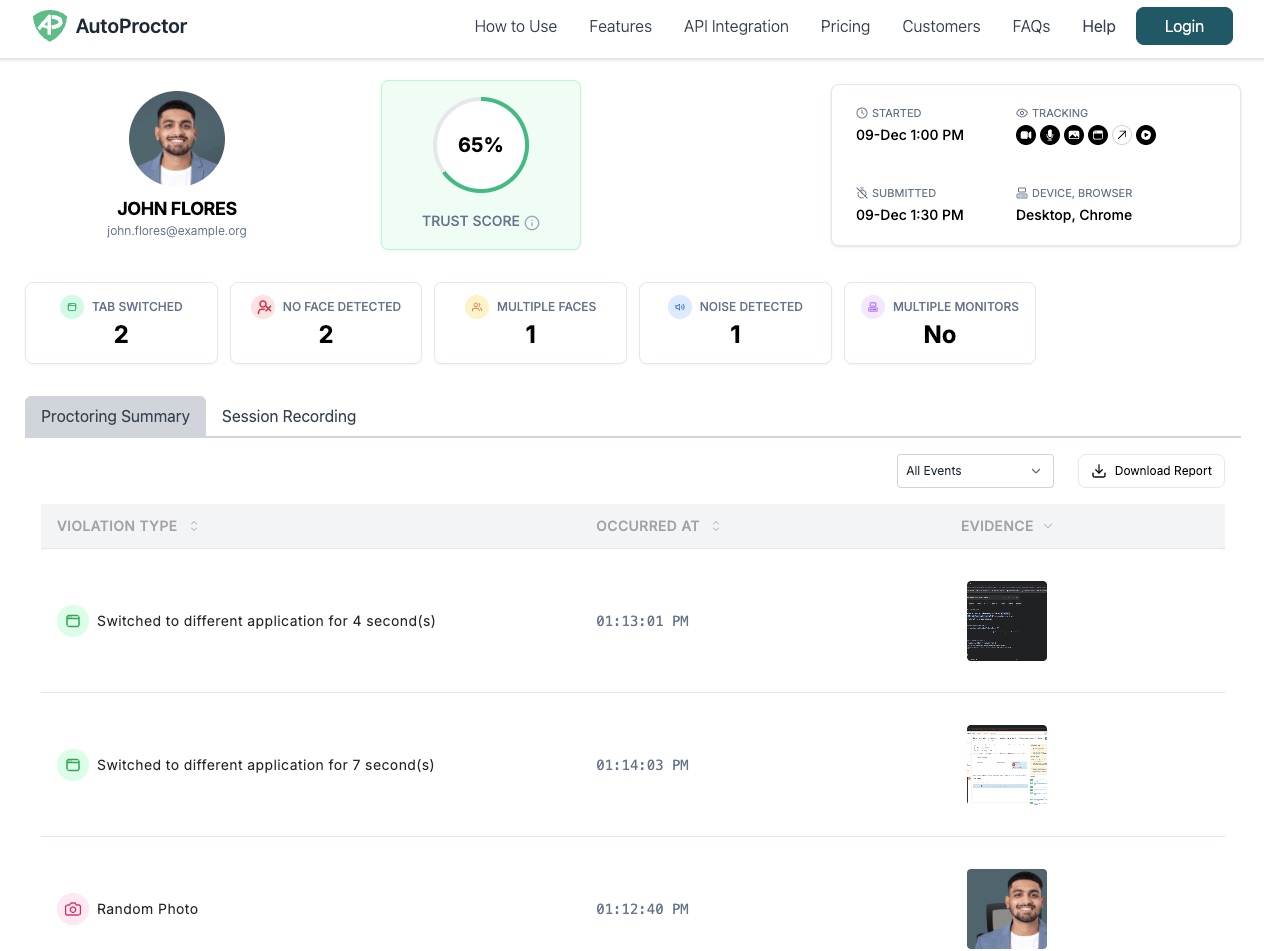
What If I Still Want to Record Video?
For compliance or audit purposes, you can turn on Candidate recording. It continuously records the candidate’s camera feed for the whole test and costs 15 additional credits per attempt. See the pricing page for details.1
Open the Proctoring Section
Go to your Tests page, click Settings next to the test, and choose Proctoring.
2
Turn On Candidate Recording and Save
With the Proctoring switch on, turn on Candidate recording under Enhanced proctoring. Then click Save settings.
See Enhanced Proctoring for both options and their credit costs.
Related Resources
- Enhanced Proctoring - Candidate recording, session recording, and other advanced options
- What Gets Tracked - All monitoring capabilities available during proctoring
- Trust Score - How violation evidence is summarized into a score
- Proctoring Results - How to view violation evidence and reports
- Missing Images and Recordings - Why some evidence may not appear
- Went Offline Meaning - What happens when a candidate goes offline during a test