

Try the Demo Test First
Before your actual test, confirm that your setup works by taking the demo.1
Open the demo test link
Visit the AutoProctor timed demo test on the device and browser you plan to use for your actual test.
2
Complete the demo
Follow the on-screen prompts to confirm the timer and quiz interface load correctly.
3
Troubleshoot if needed
If the demo loads but your assigned test does not, sign out of all your Google accounts at accounts.google.com/Logout and try again.
If the demo test loads successfully on your device, any test your administrator assigns you will load too.
Submit Buttons
For non-Socratease quizzes (Google Forms, Microsoft Forms, etc.), there are two submit buttons that you must click in the correct order:- Purple Submit Button (bottom): click this first to save your answers to the quiz provider
- Green Submit Button (top): click this second to submit the timed session to AutoProctor
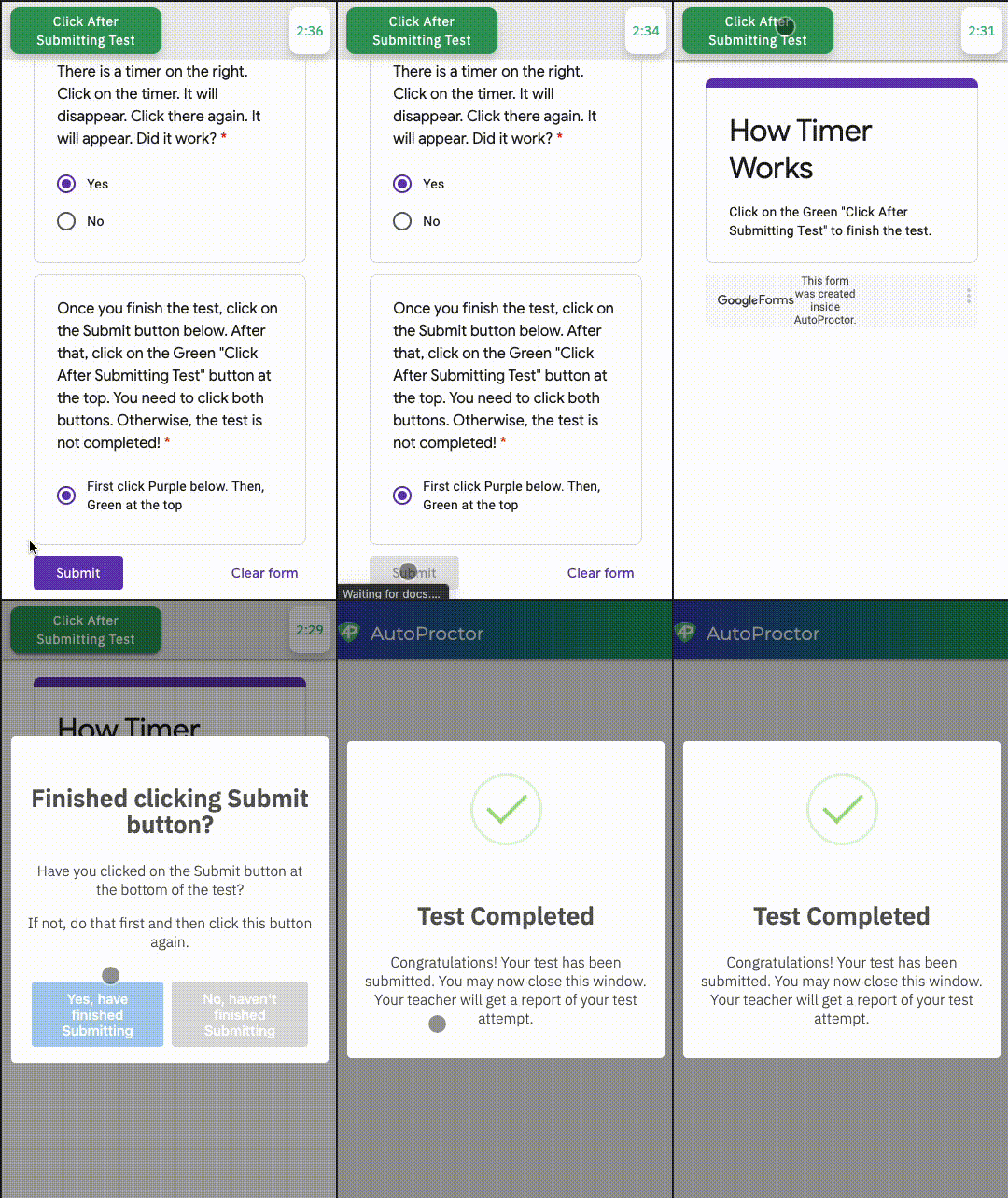
Click the purple button first, then the green button
Socratease quizzes have only one submit button, so there is no risk of answer loss. See Submit Button Differences for details.
Google Account Setup
If you are taking a Google Forms test, follow these steps before opening the test link:1
Log out of all Google accounts
Visit accounts.google.com/Logout to sign out of every Google account on your device.
2
Log in with the correct account
Sign back in with the Google account your test administrator specified. This is the account that has permission to access the test form.
3
Open the test link
Navigate to the test link provided by your administrator.
Related Resources
- Submit Button Differences - Socratease vs other quiz providers
- Timed Socratease Instructions - Simpler instructions for Socratease quizzes
- Device Compatibility - Supported browsers and devices
- Test Stuck at Loading Screen - Troubleshoot loading issues
- How to Logout - Switch between accounts if needed
- Contact Us - Reach out if you need further help