

1. You Are Logged In to a Different Account
This is the most common reason. You paid with one email address but are signed in with another.1
Check your current email
Check the Email field on your Profile page.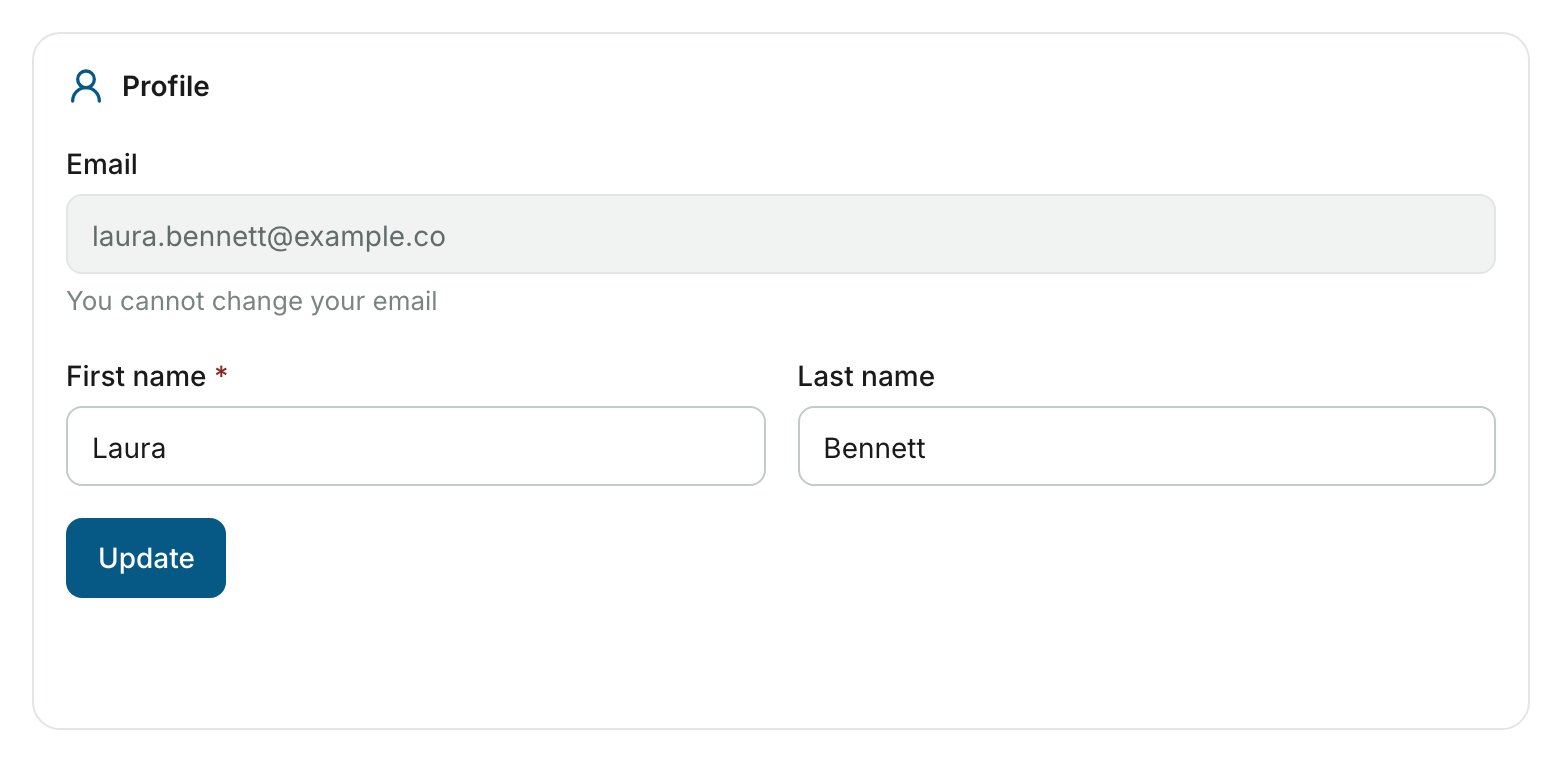
2
Log in with the correct account
AutoProctor emails a receipt for every purchase. If it went to a different address, log out and sign in with that account.
If you are part of a Team, the Team Admin receives the confirmation emails, even if you made the payment from your own account.
2. Your Subscription Has Expired
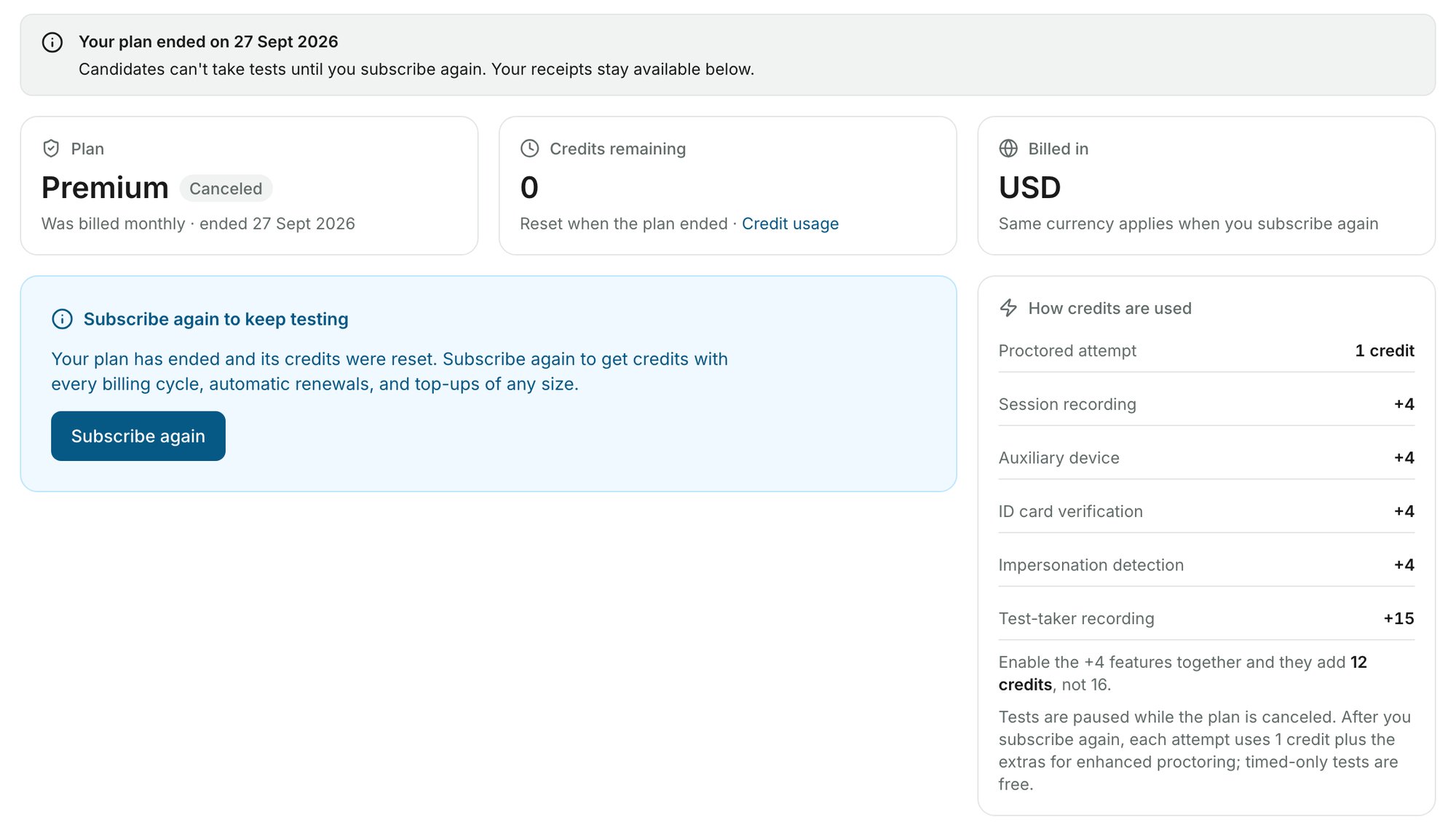
If a renewal payment fails, your subscription is cancelled and your credit balance resets to 0.1
Check your subscription status
On the Overview tab of the Subscription & Billing page, check the badge in the Plan tile.
2
Verify your payment method
Make sure the card on file is valid. You can update it via Editing Billing Information.If the badge reads Past due, click Clear payment at the top right to pay the pending invoice.
3
Resubscribe if needed
If your plan has ended, click Subscribe again and choose a plan on the Pricing Page.
3. Your Team Association Changed
Team members share one subscription and credit balance. If you left a Team or were removed, you no longer see its credits. Check your status on the Team page.4. Error at AutoProctor’s End
If none of the above apply, the issue may be on our side.1
Take a screenshot
Take a screenshot of the Overview tab of the Subscription & Billing page, showing Credits remaining and the Payments list.
2
Contact support
Send the screenshot and your purchase confirmation email to hello@autoproctor.co. Our team will investigate and resolve the issue.
Related Resources
- Payments and Credits Explained - How credits and subscriptions work
- Track Test Pack Usage - Monitor your credit consumption
- What is a Team? - Understand team billing and shared credits
- Editing Billing Information - Update your payment method
- Contact Us - Reach AutoProctor support