> ## Documentation Index
> Fetch the complete documentation index at: https://help.autoproctor.co/llms.txt
> Use this file to discover all available pages before exploring further.
# Write Results to Google Sheets
> Set up automatic export of AutoProctor test results to Google Sheets so data flows in real time without manual downloads.
Instead of manually downloading Excel files after each test, you can configure AutoProctor to automatically write test results to a Google Sheet. Results appear in the sheet as candidates complete their tests, keeping your data current without any extra effort.
This is a **Premium Feature** and requires a Premium or Elite subscription. See [Payments and Credits](/payments-and-credits) for plan details.
## Setup Instructions
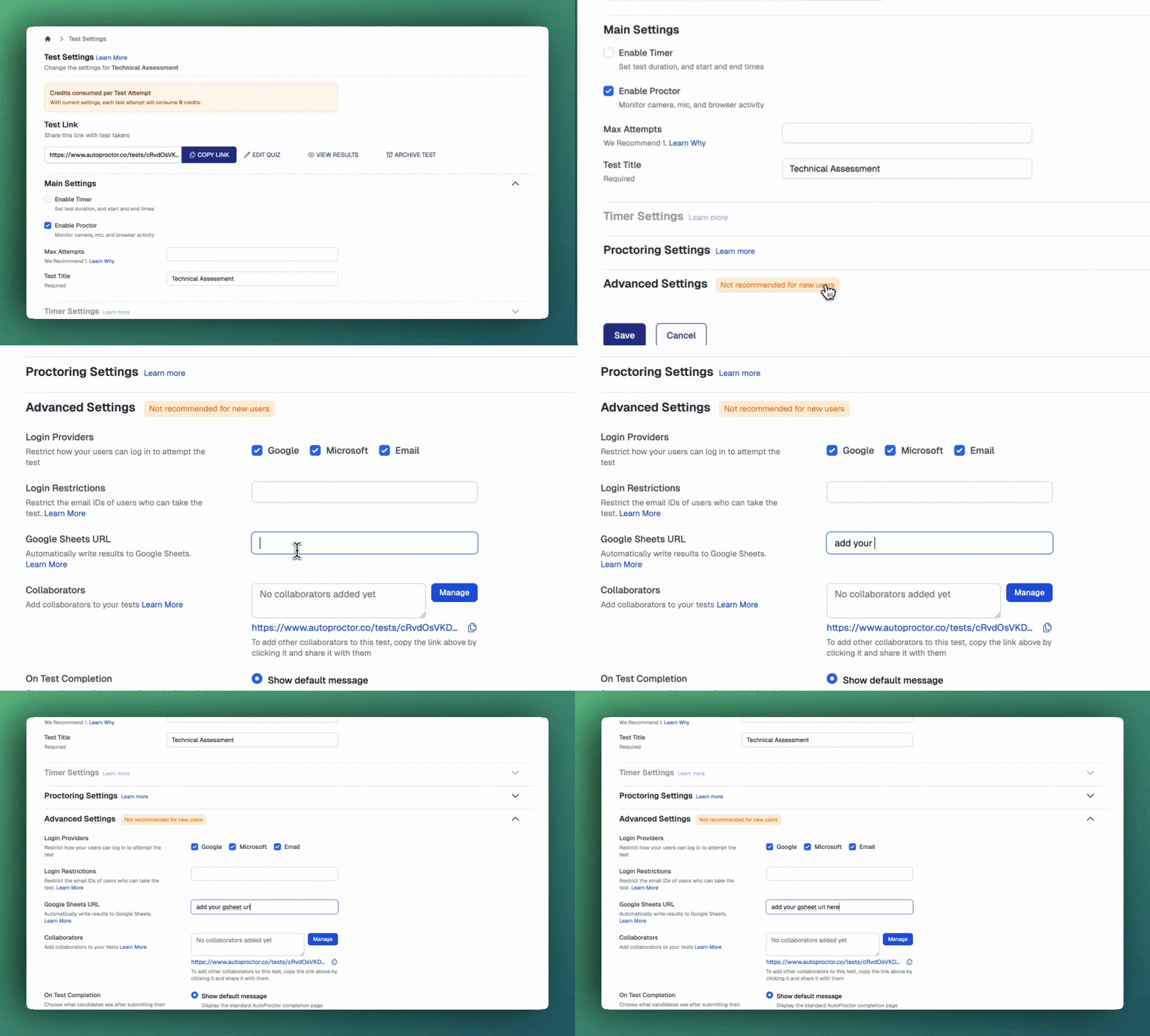 Visit the **Test Settings** for a new or existing test on your [AutoProctor dashboard](https://www.autoproctor.co/test-admin/home/).
Scroll down to the **Advanced Settings** section and locate the **Google Sheets ID** field.
Create an empty Google Sheet in your Google Drive. You will use this sheet to receive AutoProctor results.
Share the Google Sheet with `hello@autoproctor.co` and grant **Editor** permissions. This allows AutoProctor to write data to the sheet.
If you do not share the sheet with `hello@autoproctor.co` as an Editor, AutoProctor cannot write results to it. Make sure you grant Editor access, not just Viewer.
Copy the URL of your Google Sheet and paste it into the **Google Sheets ID** field in AutoProctor's test settings.
Click **Create** or **Update** to save your test configuration.
Complete a test attempt. A new sheet tab labeled **AutoProctor** automatically appears in your Google Sheet with the results data.
Subsequent test attempts automatically populate the same Google Sheet without any additional setup.
## Socratease Quiz Integration
For Socratease Quizzes, the system writes both proctoring scores and quiz scores to the sheet. However, individual questions and answers are not included -- only aggregate scoring data appears.
If you need detailed question-level data for Socratease Quizzes, use the [individual submissions](/access-candidate-responses) view on the [AutoProctor dashboard](https://www.autoproctor.co/test-admin/home/) instead.
## Related Resources
* [Export to Excel](/export-results-to-excel) -- Manually download results as a spreadsheet
* [Access Answers and Candidate Responses](/access-candidate-responses) -- View detailed per-candidate responses
* [Where Can I See My Quiz Results?](/where-to-find-quiz-results) -- Overview of quiz results vs. proctoring results
* [Payments and Credits](/payments-and-credits) -- Plan details and feature availability
* [Sharing Test Results](/share-exam-results) -- Grant other users access to test results
Visit the **Test Settings** for a new or existing test on your [AutoProctor dashboard](https://www.autoproctor.co/test-admin/home/).
Scroll down to the **Advanced Settings** section and locate the **Google Sheets ID** field.
Create an empty Google Sheet in your Google Drive. You will use this sheet to receive AutoProctor results.
Share the Google Sheet with `hello@autoproctor.co` and grant **Editor** permissions. This allows AutoProctor to write data to the sheet.
If you do not share the sheet with `hello@autoproctor.co` as an Editor, AutoProctor cannot write results to it. Make sure you grant Editor access, not just Viewer.
Copy the URL of your Google Sheet and paste it into the **Google Sheets ID** field in AutoProctor's test settings.
Click **Create** or **Update** to save your test configuration.
Complete a test attempt. A new sheet tab labeled **AutoProctor** automatically appears in your Google Sheet with the results data.
Subsequent test attempts automatically populate the same Google Sheet without any additional setup.
## Socratease Quiz Integration
For Socratease Quizzes, the system writes both proctoring scores and quiz scores to the sheet. However, individual questions and answers are not included -- only aggregate scoring data appears.
If you need detailed question-level data for Socratease Quizzes, use the [individual submissions](/access-candidate-responses) view on the [AutoProctor dashboard](https://www.autoproctor.co/test-admin/home/) instead.
## Related Resources
* [Export to Excel](/export-results-to-excel) -- Manually download results as a spreadsheet
* [Access Answers and Candidate Responses](/access-candidate-responses) -- View detailed per-candidate responses
* [Where Can I See My Quiz Results?](/where-to-find-quiz-results) -- Overview of quiz results vs. proctoring results
* [Payments and Credits](/payments-and-credits) -- Plan details and feature availability
* [Sharing Test Results](/share-exam-results) -- Grant other users access to test results