> ## Documentation Index
> Fetch the complete documentation index at: https://help.autoproctor.co/llms.txt
> Use this file to discover all available pages before exploring further.
# Where Can I See My Quiz Results?
> Understand the two types of results available on AutoProctor -- quiz results showing candidate performance and proctoring results tracking integrity.
AutoProctor provides two distinct types of results for every test: **quiz results** (how candidates performed) and **proctoring results** (whether candidates maintained integrity).
 ## Quiz Results
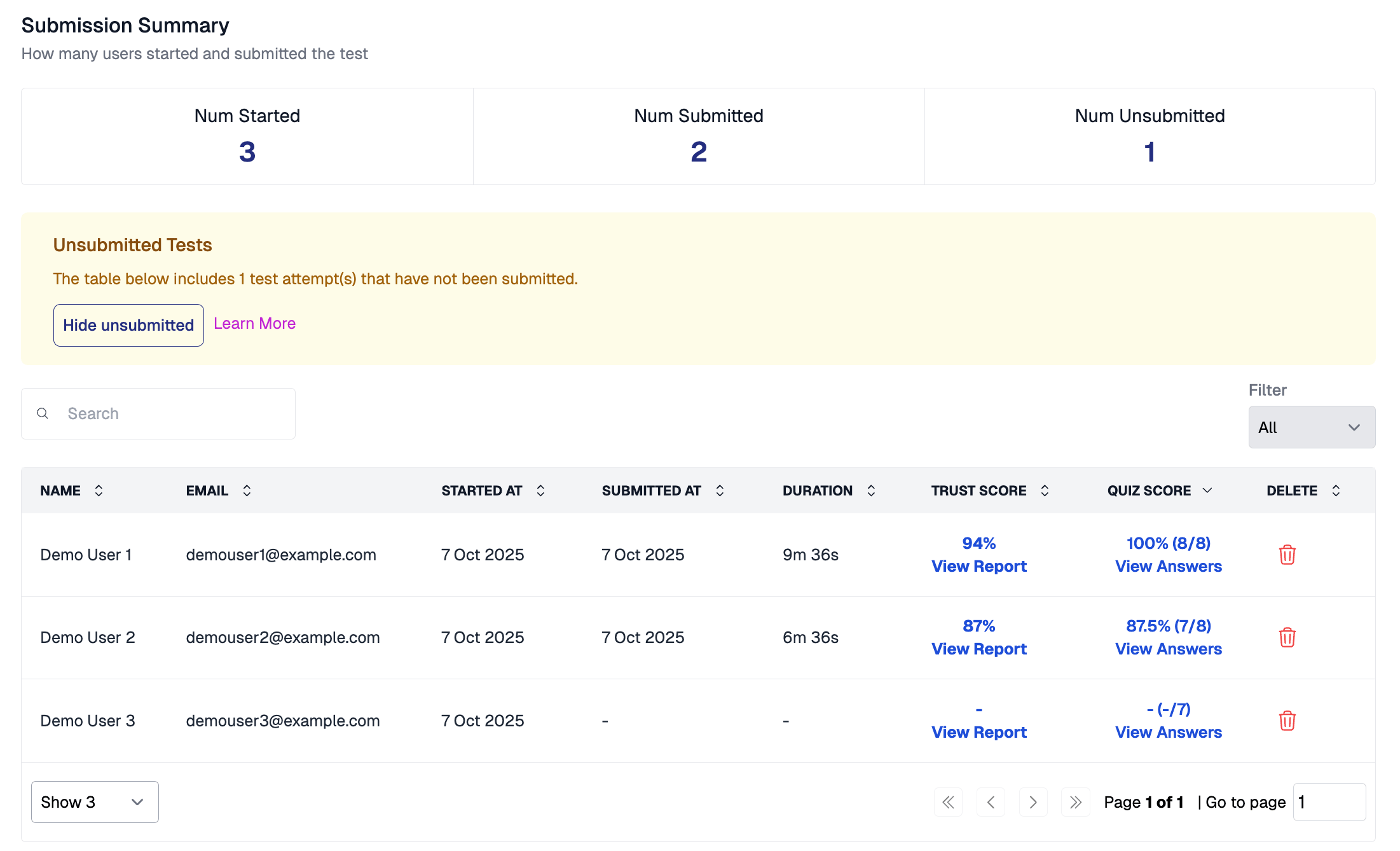
Quiz results show each candidate's answers and scores. Unless you use Socratease Quizzes, these results appear in your original quiz platform — not on the [AutoProctor dashboard](https://www.autoproctor.co/test-admin/home/).
Unless you use Socratease Quizzes, you cannot view quiz results directly on AutoProctor. Quiz results appear in the platform where you created the quiz.
| Quiz Platform | Where to Find Quiz Results |
| ---------------------- | --------------------------------------------------------------------------------------------------------------------------------------- |
| **Google Forms** | Open your Google Form and click the **Responses** tab to see all submissions |
| **Microsoft Forms** | Check the **Responses** section in Microsoft Forms as you normally would |
| **IFrame Tests** | View results in the platform you embedded within the IFrame |
| **Socratease Quizzes** | View results directly on your [AutoProctor dashboard](https://www.autoproctor.co/test-admin/home/) under the test's **Results** section |
If you use Google Forms and cannot see responses, refer to the troubleshooting guide on [missing Google Forms responses](/google-forms-response-not-visible).
## Proctoring Results
As a candidate takes the test, AutoProctor monitors their testing environment and records evidence of possible cheating or malpractice. This data compiles into a proctoring report with a [Trust Score](/what-is-trust-score).
Proctoring results are only available when you enable proctoring in your [test settings](/proctoring-settings). Tests configured with only a timer do not generate proctoring reports.
To learn how to access proctoring results step by step, see [Where Can I See Proctoring Results?](/where-to-find-proctoring-results).
## Related Resources
* [Where Can I See Proctoring Results?](/where-to-find-proctoring-results) -- Step-by-step guide to viewing proctoring reports
* [Access Answers and Candidate Responses](/access-candidate-responses) -- View specific candidate responses and scores
* [Export to Excel](/export-results-to-excel) -- Download results as a spreadsheet
* [Trust Score Explained](/what-is-trust-score) -- Understand how Trust Scores are calculated
* [What Gets Tracked](/what-gets-tracked-during-proctoring) -- Learn what AutoProctor monitors during a test
## Quiz Results
Quiz results show each candidate's answers and scores. Unless you use Socratease Quizzes, these results appear in your original quiz platform — not on the [AutoProctor dashboard](https://www.autoproctor.co/test-admin/home/).
Unless you use Socratease Quizzes, you cannot view quiz results directly on AutoProctor. Quiz results appear in the platform where you created the quiz.
| Quiz Platform | Where to Find Quiz Results |
| ---------------------- | --------------------------------------------------------------------------------------------------------------------------------------- |
| **Google Forms** | Open your Google Form and click the **Responses** tab to see all submissions |
| **Microsoft Forms** | Check the **Responses** section in Microsoft Forms as you normally would |
| **IFrame Tests** | View results in the platform you embedded within the IFrame |
| **Socratease Quizzes** | View results directly on your [AutoProctor dashboard](https://www.autoproctor.co/test-admin/home/) under the test's **Results** section |
If you use Google Forms and cannot see responses, refer to the troubleshooting guide on [missing Google Forms responses](/google-forms-response-not-visible).
## Proctoring Results
As a candidate takes the test, AutoProctor monitors their testing environment and records evidence of possible cheating or malpractice. This data compiles into a proctoring report with a [Trust Score](/what-is-trust-score).
Proctoring results are only available when you enable proctoring in your [test settings](/proctoring-settings). Tests configured with only a timer do not generate proctoring reports.
To learn how to access proctoring results step by step, see [Where Can I See Proctoring Results?](/where-to-find-proctoring-results).
## Related Resources
* [Where Can I See Proctoring Results?](/where-to-find-proctoring-results) -- Step-by-step guide to viewing proctoring reports
* [Access Answers and Candidate Responses](/access-candidate-responses) -- View specific candidate responses and scores
* [Export to Excel](/export-results-to-excel) -- Download results as a spreadsheet
* [Trust Score Explained](/what-is-trust-score) -- Understand how Trust Scores are calculated
* [What Gets Tracked](/what-gets-tracked-during-proctoring) -- Learn what AutoProctor monitors during a test