> ## Documentation Index
> Fetch the complete documentation index at: https://help.autoproctor.co/llms.txt
> Use this file to discover all available pages before exploring further.
# Where Can I See Proctoring Results?
> Access and review proctoring results for your tests on AutoProctor, including Trust Scores, violation details, and candidate-level reports.
After candidates complete a proctored test, AutoProctor compiles their monitoring data into a proctoring report. This guide walks you through accessing and interpreting those results.
Proctoring results are only generated when you enable proctoring in your [test settings](/proctoring-settings). If you configured your test with only a timer, no proctoring data is available.
## Viewing Proctoring Results
Navigate to your [AutoProctor dashboard](https://www.autoproctor.co/test-admin/home/) and click the **Results** button for the test you want to review.
 The results page displays a table listing all submissions. Each row includes:
* Candidate name and email address
* Test start and finish time
* Trust Score (indicating proctoring integrity)
* Quiz score (for Socratease Quizzes only)
The results page displays a table listing all submissions. Each row includes:
* Candidate name and email address
* Test start and finish time
* Trust Score (indicating proctoring integrity)
* Quiz score (for Socratease Quizzes only)
 Click on a candidate's **Trust Score** to open their detailed proctoring summary. This page lists all violations detected during the test, including screenshots, timestamps, and evidence.
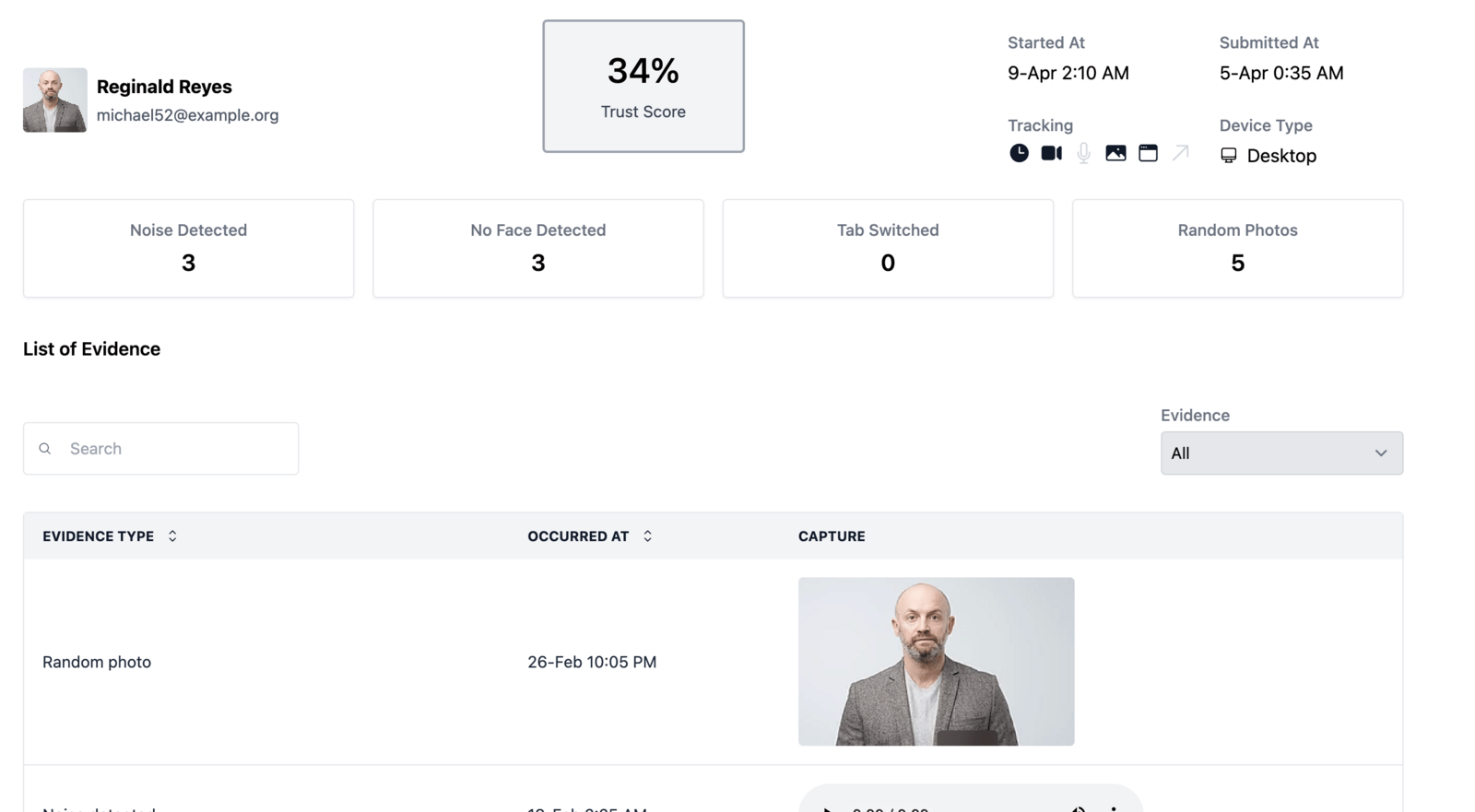 ## What the Proctoring Summary Shows
The proctoring summary for each candidate includes:
| Data Point | Description |
| -------------------- | ---------------------------------------------------------------------------------------- |
| **Trust Score** | An overall integrity rating based on detected violations |
| **Violations list** | Each violation type with timestamp and evidence |
| **Screenshots** | Random photos captured during the test session |
| **Recordings** | Screen and webcam recordings (if enabled in [enhanced proctoring](/enhanced-proctoring)) |
| **Session timeline** | When the candidate started, paused, or submitted the test |
## Related Resources
* [Where Can I See My Quiz Results?](/where-to-find-quiz-results) -- Overview of quiz results vs. proctoring results
* [Trust Score Explained](/what-is-trust-score) -- How Trust Scores are calculated
* [What Gets Tracked](/what-gets-tracked-during-proctoring) -- What AutoProctor monitors during a proctored test
* [Export to Excel](/export-results-to-excel) -- Download proctoring results as a spreadsheet
* [Unsubmitted Tests](/view-unsubmitted-exams) -- View details of tests started but not submitted
## What the Proctoring Summary Shows
The proctoring summary for each candidate includes:
| Data Point | Description |
| -------------------- | ---------------------------------------------------------------------------------------- |
| **Trust Score** | An overall integrity rating based on detected violations |
| **Violations list** | Each violation type with timestamp and evidence |
| **Screenshots** | Random photos captured during the test session |
| **Recordings** | Screen and webcam recordings (if enabled in [enhanced proctoring](/enhanced-proctoring)) |
| **Session timeline** | When the candidate started, paused, or submitted the test |
## Related Resources
* [Where Can I See My Quiz Results?](/where-to-find-quiz-results) -- Overview of quiz results vs. proctoring results
* [Trust Score Explained](/what-is-trust-score) -- How Trust Scores are calculated
* [What Gets Tracked](/what-gets-tracked-during-proctoring) -- What AutoProctor monitors during a proctored test
* [Export to Excel](/export-results-to-excel) -- Download proctoring results as a spreadsheet
* [Unsubmitted Tests](/view-unsubmitted-exams) -- View details of tests started but not submitted