> ## Documentation Index
> Fetch the complete documentation index at: https://help.autoproctor.co/llms.txt
> Use this file to discover all available pages before exploring further.
# Trust Score
> Understand how AutoProctor's Trust Score works, how it is calculated, and what constitutes a good score.
AutoProctor assigns a Trust Score (0--100%) to every proctoring report. The score gives you a quick summary of how likely it is that a candidate maintained test integrity, so you can focus your review time on the attempts that need it most.
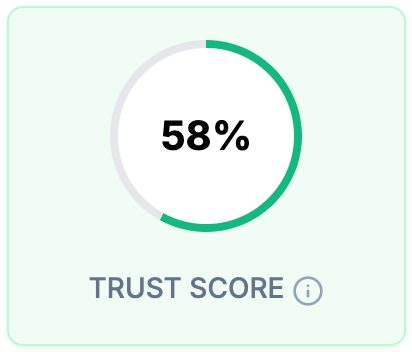 A lower Trust Score means AutoProctor detected more suspicious behavior during the test.
Always review the supporting evidence before drawing conclusions. **Do not** rely solely on the Trust Score -- review the actual violation photos, screenshots, and audio recordings to determine whether misconduct occurred.
## How the Trust Score Is Calculated
AutoProctor monitors candidates in real time across multiple channels (depending on your [proctoring settings](/proctoring-settings)):
* Camera feed
* Microphone feed
* Screen activity
The algorithm evaluates violations based on three factors:
| Factor | How It Affects the Score |
| --------------------------- | ---------------------------------------------------------------------------------------------------------------- |
| **Type of violation** | Different violations carry different weights. Tab switching impacts the score more heavily than noise detection. |
| **Frequency of violations** | More incidents result in a lower score. |
| **Duration of violations** | Extended violations reduce the score more significantly than brief ones. |
## What Is a Good Trust Score?
As a general guideline, review the evidence for any candidate with a Trust Score **below 85%**. This threshold is meant for review, not as proof of misconduct.
Environmental factors can significantly impact scoring. For example, a candidate in a noisy room near traffic could receive a 0% Trust Score even when no actual cheating occurred. The microphone picks up ambient noise and the system cannot always distinguish between human speech and background sound. Always check the evidence before making a determination.
## How to Review a Trust Score
Go to your [AutoProctor dashboard](https://www.autoproctor.co/test-admin/home/), select a test, and click **Results**. You see a list of all candidates with their Trust Scores.
Sort by Trust Score and focus on candidates scoring **below 85%**. These attempts are the most likely to contain violations worth reviewing.
Click **View Report** on a candidate's row to see the detailed breakdown: flagged photos, screenshots, audio clips, and a timeline of detected violations.
Use the evidence to decide whether the violations indicate actual misconduct or are false positives caused by environmental factors.
## Related Resources
* [What Gets Tracked](/what-gets-tracked-during-proctoring) -- All monitoring capabilities available
* [Proctoring Results](/where-to-find-proctoring-results) -- How to view violation evidence and reports
* [Access Answers and Candidate Responses](/access-candidate-responses) -- Reviewing a single candidate's report in detail
* [No Face or Multiple Faces Detected](/no-face-or-multiple-faces-detected) -- Why face detection may flag false positives
* [False App Switch Violation](/false-app-switch-alert) -- Understanding false violation flags
* [Best Practices for Test Creators](/best-practices-for-exam-creators) -- Tips for running effective proctored tests
A lower Trust Score means AutoProctor detected more suspicious behavior during the test.
Always review the supporting evidence before drawing conclusions. **Do not** rely solely on the Trust Score -- review the actual violation photos, screenshots, and audio recordings to determine whether misconduct occurred.
## How the Trust Score Is Calculated
AutoProctor monitors candidates in real time across multiple channels (depending on your [proctoring settings](/proctoring-settings)):
* Camera feed
* Microphone feed
* Screen activity
The algorithm evaluates violations based on three factors:
| Factor | How It Affects the Score |
| --------------------------- | ---------------------------------------------------------------------------------------------------------------- |
| **Type of violation** | Different violations carry different weights. Tab switching impacts the score more heavily than noise detection. |
| **Frequency of violations** | More incidents result in a lower score. |
| **Duration of violations** | Extended violations reduce the score more significantly than brief ones. |
## What Is a Good Trust Score?
As a general guideline, review the evidence for any candidate with a Trust Score **below 85%**. This threshold is meant for review, not as proof of misconduct.
Environmental factors can significantly impact scoring. For example, a candidate in a noisy room near traffic could receive a 0% Trust Score even when no actual cheating occurred. The microphone picks up ambient noise and the system cannot always distinguish between human speech and background sound. Always check the evidence before making a determination.
## How to Review a Trust Score
Go to your [AutoProctor dashboard](https://www.autoproctor.co/test-admin/home/), select a test, and click **Results**. You see a list of all candidates with their Trust Scores.
Sort by Trust Score and focus on candidates scoring **below 85%**. These attempts are the most likely to contain violations worth reviewing.
Click **View Report** on a candidate's row to see the detailed breakdown: flagged photos, screenshots, audio clips, and a timeline of detected violations.
Use the evidence to decide whether the violations indicate actual misconduct or are false positives caused by environmental factors.
## Related Resources
* [What Gets Tracked](/what-gets-tracked-during-proctoring) -- All monitoring capabilities available
* [Proctoring Results](/where-to-find-proctoring-results) -- How to view violation evidence and reports
* [Access Answers and Candidate Responses](/access-candidate-responses) -- Reviewing a single candidate's report in detail
* [No Face or Multiple Faces Detected](/no-face-or-multiple-faces-detected) -- Why face detection may flag false positives
* [False App Switch Violation](/false-app-switch-alert) -- Understanding false violation flags
* [Best Practices for Test Creators](/best-practices-for-exam-creators) -- Tips for running effective proctored tests