> ## Documentation Index
> Fetch the complete documentation index at: https://help.autoproctor.co/llms.txt
> Use this file to discover all available pages before exploring further.
# What is a Team on AutoProctor?
> Learn how to create and manage teams on AutoProctor to share billing, pool credits across users, and collaborate on tests with team members.
The Team feature lets multiple users share a single billing account and credit pool. This is ideal for organizations where several people need to create and manage proctored tests without purchasing separate subscriptions.
The Team feature is available only on the **Premium** and **Elite** plans.
## What is a Team?
A Team is a group of AutoProctor users (each with their own email address) linked to the same billing account. The primary benefits are:
* **Shared billing and credits** -- Instead of each user paying separately, all team members draw from a common credit pool. Any team member can purchase credits, and the credits are available to everyone on the team.
* **Cost savings** -- Pooling credits across your organization avoids duplicate purchases and lets you take advantage of bulk discounts.
* **Test collaboration** -- You can add team members as [collaborators](/add-collaborators) on your tests. Collaborators can view results, edit Socratease quiz questions, and more.
**Example:** If you are a school, instead of each test creator purchasing their own subscription, you can create a team. One purchase covers everyone, and all test creators share the same credit pool.
## Viewing Team Members
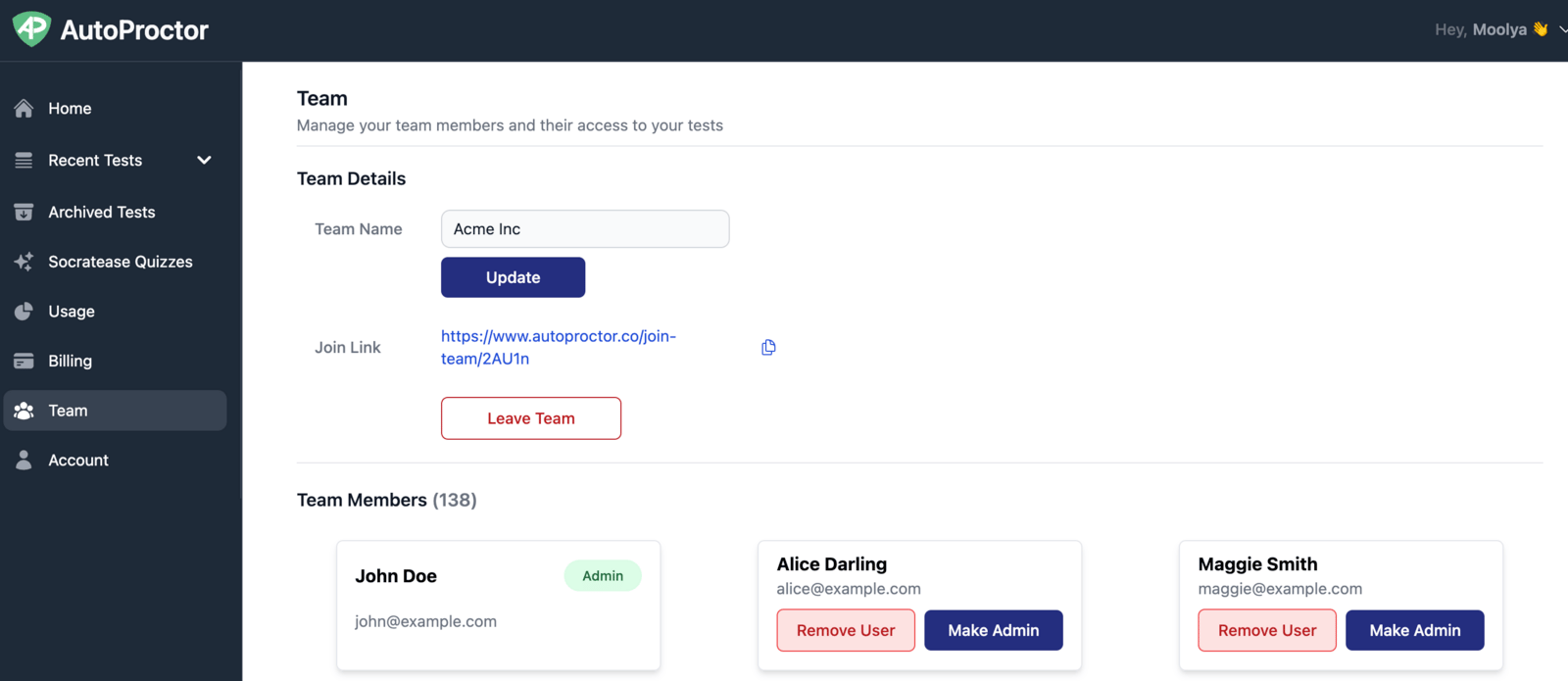
Once you create a team, click on the **Team** link in the sidebar to view the team management page. You see:
* The **team name**
* The **join link** -- any AutoProctor user who visits this link is added to the team
* A button to **leave the team**
* A list of **all team members**
* An **"Admin" tag** next to each team admin
 ## Team Admin Role
A Team Admin has elevated privileges beyond those of a regular team member:
| Capability | Team Admin | Regular Member |
| ---------------------------- | ---------- | -------------- |
| Rename the team | Yes | No |
| Promote members to admin | Yes | No |
| Demote other admins | Yes | No |
| Remove members from the team | Yes | No |
| Access billing information | Yes | No |
| View team-wide credit usage | Yes | No |
| Use shared credits for tests | Yes | Yes |
Regular team members cannot access billing information or manage other members. If you need billing access, ask an existing Team Admin to promote you.
## Creating and Joining a Team
### Creating a Team
Click on the **Team** link in your left sidebar. This option appears only if you are on a Premium or Elite plan.
Follow the prompts to set up your team. Once created, you receive a unique join link to share with others.
### Joining a Team
Ask a Team Admin for the team's join link.
## Team Admin Role
A Team Admin has elevated privileges beyond those of a regular team member:
| Capability | Team Admin | Regular Member |
| ---------------------------- | ---------- | -------------- |
| Rename the team | Yes | No |
| Promote members to admin | Yes | No |
| Demote other admins | Yes | No |
| Remove members from the team | Yes | No |
| Access billing information | Yes | No |
| View team-wide credit usage | Yes | No |
| Use shared credits for tests | Yes | Yes |
Regular team members cannot access billing information or manage other members. If you need billing access, ask an existing Team Admin to promote you.
## Creating and Joining a Team
### Creating a Team
Click on the **Team** link in your left sidebar. This option appears only if you are on a Premium or Elite plan.
Follow the prompts to set up your team. Once created, you receive a unique join link to share with others.
### Joining a Team
Ask a Team Admin for the team's join link.
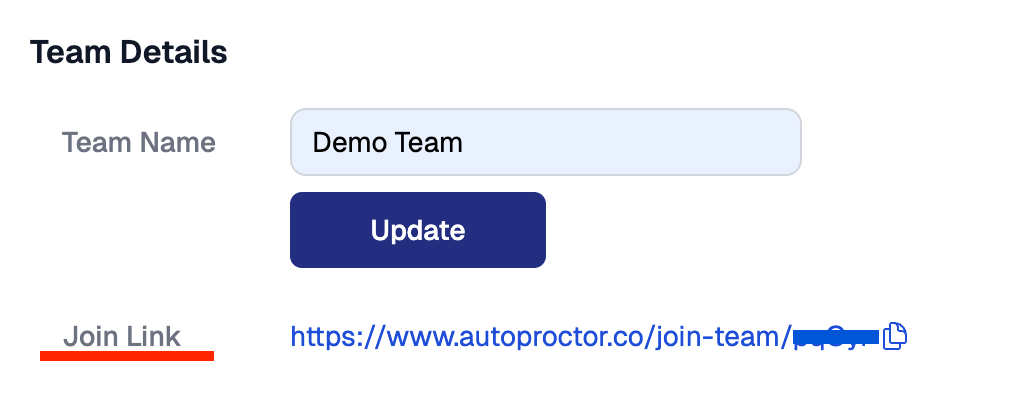 Open the join link in your browser. You are added to the team immediately and gain access to the shared credit pool.
When you join a team, your individual subscription and credits are replaced by the team's shared subscription. If you leave the team later, you no longer have access to the team's credits.
## Related Resources
* [Payments and Credits Explained](/payments-and-credits) -- How credits and subscriptions work
* [Track Test Pack Usage](/track-credit-usage) -- Monitor credit usage across your team
* [Editing Billing Information](/edit-billing-information) -- Update payment and billing details
* [Invoices for Payments](/invoices-and-receipts) -- Access invoices for your team's purchases
* [Elite Features](/elite-plan-features) -- Additional features on the Elite plan
* [Contact Us](/contact-us) -- Get help with team setup
Open the join link in your browser. You are added to the team immediately and gain access to the shared credit pool.
When you join a team, your individual subscription and credits are replaced by the team's shared subscription. If you leave the team later, you no longer have access to the team's credits.
## Related Resources
* [Payments and Credits Explained](/payments-and-credits) -- How credits and subscriptions work
* [Track Test Pack Usage](/track-credit-usage) -- Monitor credit usage across your team
* [Editing Billing Information](/edit-billing-information) -- Update payment and billing details
* [Invoices for Payments](/invoices-and-receipts) -- Access invoices for your team's purchases
* [Elite Features](/elite-plan-features) -- Additional features on the Elite plan
* [Contact Us](/contact-us) -- Get help with team setup