> ## Documentation Index
> Fetch the complete documentation index at: https://help.autoproctor.co/llms.txt
> Use this file to discover all available pages before exploring further.
# What Gets Tracked During Proctoring
> Learn about the data feeds, detection capabilities, and evidence recording available in AutoProctor's proctoring system.
AutoProctor monitors candidates in real time using on-device AI and captures evidence only when it detects a violation. This means you review flagged incidents rather than hours of footage.
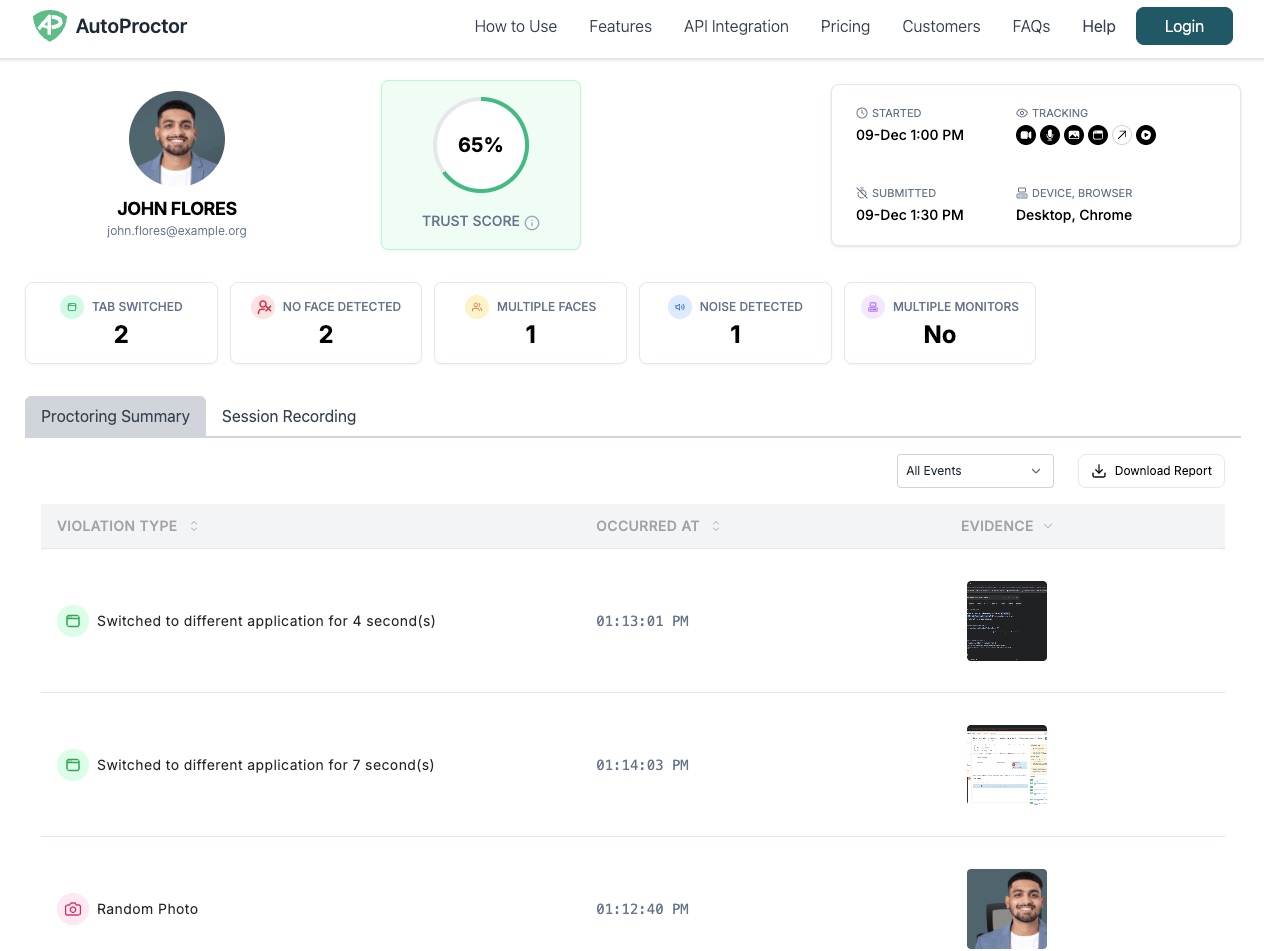 [View sample proctoring results](https://www.autoproctor.co/sample-dashboard/) to explore a live report.
## Data Feeds
AutoProctor can access the following feeds on the candidate's device:
| Feed | What It Does |
| -------------------------------- | ---------------------------------------------------- |
| **Camera feed** | Monitors the candidate's face and surroundings |
| **Microphone feed** | Detects background noise and audio cues |
| **Screen share feed** | Captures screen activity during the test |
| **Auxiliary device camera feed** | Monitors via a paired secondary device (e.g., phone) |
Which feeds AutoProctor accesses depends entirely on how you configure each test. You enable or disable each feed in your [proctoring settings](/proctoring-settings).
## What AutoProctor Detects and Records
Unlike traditional proctoring platforms that record full video and audio sessions, AutoProctor detects violations and shows you evidence of only those violations -- so you do not spend hours reviewing each candidate's attempt.
| Detection Feature | What It Does |
| ------------------------------ | ----------------------------------------------------------------------------------------------------------------------- |
| **Background audio detection** | Records noise and audio cues from the microphone feed |
| **Face detection** | Captures photos when no face or multiple faces appear on camera |
| **Tab/app switching** | Captures screenshots when candidates switch tabs or applications |
| **Random photos** | Takes photos at random intervals throughout the exam |
| **Multiple monitor detection** | Identifies when additional screens are connected to the device |
| **Pre-test face capture** | Takes a photo of the candidate's face before the test starts |
| **Full-screen enforcement** | Ensures the test runs in full-screen mode and flags exits |
| **Session action recording** | Logs mouse clicks and keyboard activity throughout the test |
| **Auxiliary device pairing** | Monitors via a paired phone to detect keyboard usage, ensuring candidates are not using ChatGPT or other tools to cheat |
All tracking features are configurable per test. Enable only what you need in your [proctoring settings](/proctoring-settings).
## How to Configure Tracking
Go to your [AutoProctor dashboard](https://www.autoproctor.co/test-admin/home/), select a test, and click **Settings**.
Click the **Proctoring Settings** tab to see all available tracking options.
Toggle each tracking feature on or off depending on your requirements. For example, you might enable camera monitoring and tab-switching detection but leave microphone monitoring off.
Click **Save** to apply your changes. These settings take effect immediately for all future test attempts.
Enabling more tracking features increases the processing load on the candidate's device. If your candidates use older hardware, consider enabling only the features you need most. See [Device Compatibility](/device-compatibility) for minimum requirements.
## Related Resources
* [Trust Score](/what-is-trust-score) -- How AutoProctor scores candidate integrity
* [Proctoring Settings](/proctoring-settings) -- Configure which proctoring features to enable
* [Enhanced Proctoring](/enhanced-proctoring) -- Advanced monitoring options for higher security
* [Proctoring Results](/where-to-find-proctoring-results) -- View violation evidence and reports
* [Video Recording](/does-autoproctor-record-video) -- Why AutoProctor does not record full video
* [Device Compatibility](/device-compatibility) -- Supported browsers and devices
[View sample proctoring results](https://www.autoproctor.co/sample-dashboard/) to explore a live report.
## Data Feeds
AutoProctor can access the following feeds on the candidate's device:
| Feed | What It Does |
| -------------------------------- | ---------------------------------------------------- |
| **Camera feed** | Monitors the candidate's face and surroundings |
| **Microphone feed** | Detects background noise and audio cues |
| **Screen share feed** | Captures screen activity during the test |
| **Auxiliary device camera feed** | Monitors via a paired secondary device (e.g., phone) |
Which feeds AutoProctor accesses depends entirely on how you configure each test. You enable or disable each feed in your [proctoring settings](/proctoring-settings).
## What AutoProctor Detects and Records
Unlike traditional proctoring platforms that record full video and audio sessions, AutoProctor detects violations and shows you evidence of only those violations -- so you do not spend hours reviewing each candidate's attempt.
| Detection Feature | What It Does |
| ------------------------------ | ----------------------------------------------------------------------------------------------------------------------- |
| **Background audio detection** | Records noise and audio cues from the microphone feed |
| **Face detection** | Captures photos when no face or multiple faces appear on camera |
| **Tab/app switching** | Captures screenshots when candidates switch tabs or applications |
| **Random photos** | Takes photos at random intervals throughout the exam |
| **Multiple monitor detection** | Identifies when additional screens are connected to the device |
| **Pre-test face capture** | Takes a photo of the candidate's face before the test starts |
| **Full-screen enforcement** | Ensures the test runs in full-screen mode and flags exits |
| **Session action recording** | Logs mouse clicks and keyboard activity throughout the test |
| **Auxiliary device pairing** | Monitors via a paired phone to detect keyboard usage, ensuring candidates are not using ChatGPT or other tools to cheat |
All tracking features are configurable per test. Enable only what you need in your [proctoring settings](/proctoring-settings).
## How to Configure Tracking
Go to your [AutoProctor dashboard](https://www.autoproctor.co/test-admin/home/), select a test, and click **Settings**.
Click the **Proctoring Settings** tab to see all available tracking options.
Toggle each tracking feature on or off depending on your requirements. For example, you might enable camera monitoring and tab-switching detection but leave microphone monitoring off.
Click **Save** to apply your changes. These settings take effect immediately for all future test attempts.
Enabling more tracking features increases the processing load on the candidate's device. If your candidates use older hardware, consider enabling only the features you need most. See [Device Compatibility](/device-compatibility) for minimum requirements.
## Related Resources
* [Trust Score](/what-is-trust-score) -- How AutoProctor scores candidate integrity
* [Proctoring Settings](/proctoring-settings) -- Configure which proctoring features to enable
* [Enhanced Proctoring](/enhanced-proctoring) -- Advanced monitoring options for higher security
* [Proctoring Results](/where-to-find-proctoring-results) -- View violation evidence and reports
* [Video Recording](/does-autoproctor-record-video) -- Why AutoProctor does not record full video
* [Device Compatibility](/device-compatibility) -- Supported browsers and devices