> ## Documentation Index
> Fetch the complete documentation index at: https://help.autoproctor.co/llms.txt
> Use this file to discover all available pages before exploring further.
# View Unsubmitted Tests
> Learn how to identify, view, and manage tests that candidates started but did not submit on AutoProctor.
An unsubmitted test occurs when a candidate starts a test but does not click the green **Submit** button at the top of the test window. The candidate may have viewed questions and entered answers, but their test was never formally submitted.
 ## Viewing Unsubmitted Tests on the Results Page
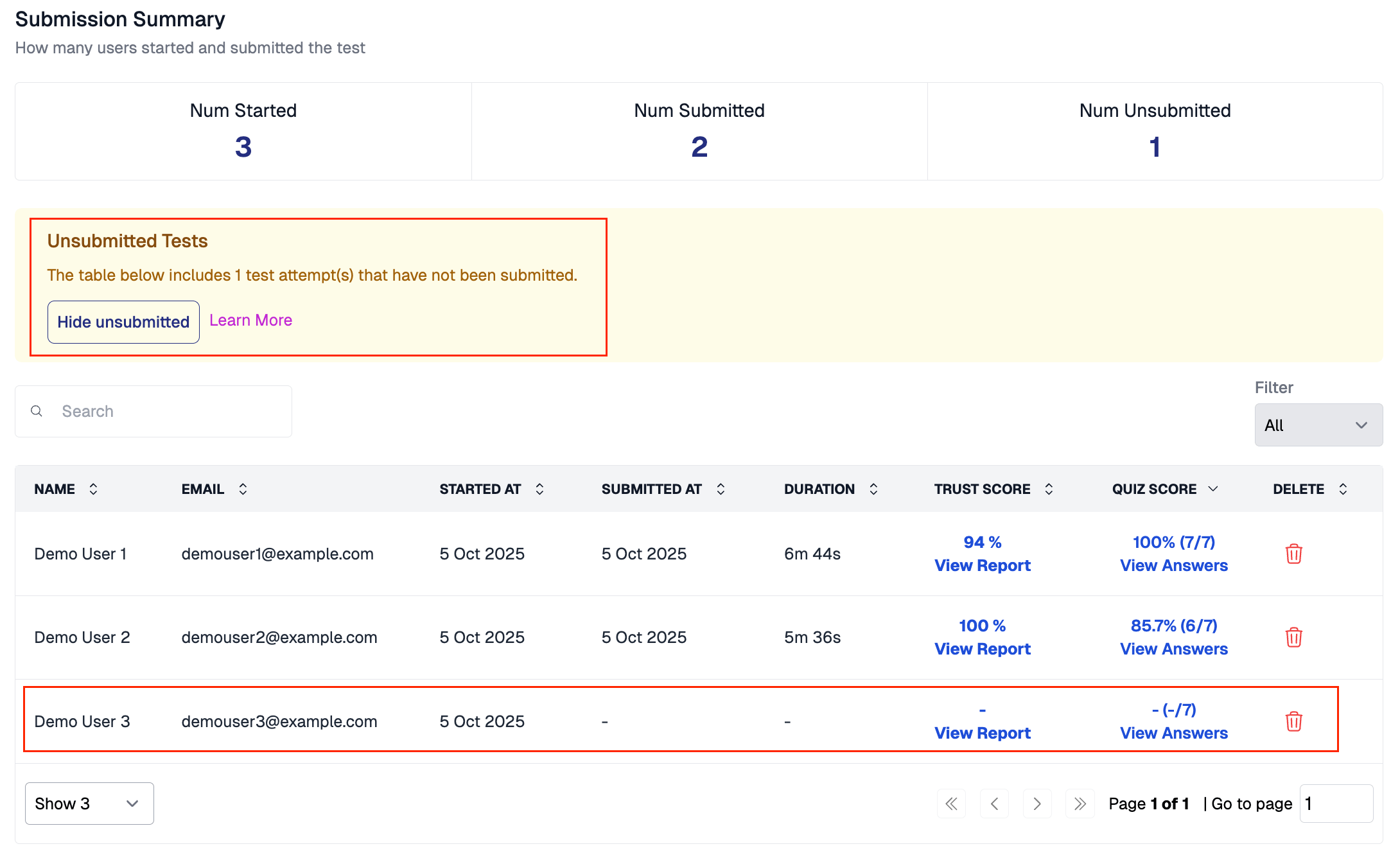
When you open the results page for a test, unsubmitted tests are included alongside submitted results by default. A yellow banner at the top indicates that the table includes unsubmitted test attempts.
## Viewing Unsubmitted Tests on the Results Page
When you open the results page for a test, unsubmitted tests are included alongside submitted results by default. A yellow banner at the top indicates that the table includes unsubmitted test attempts.
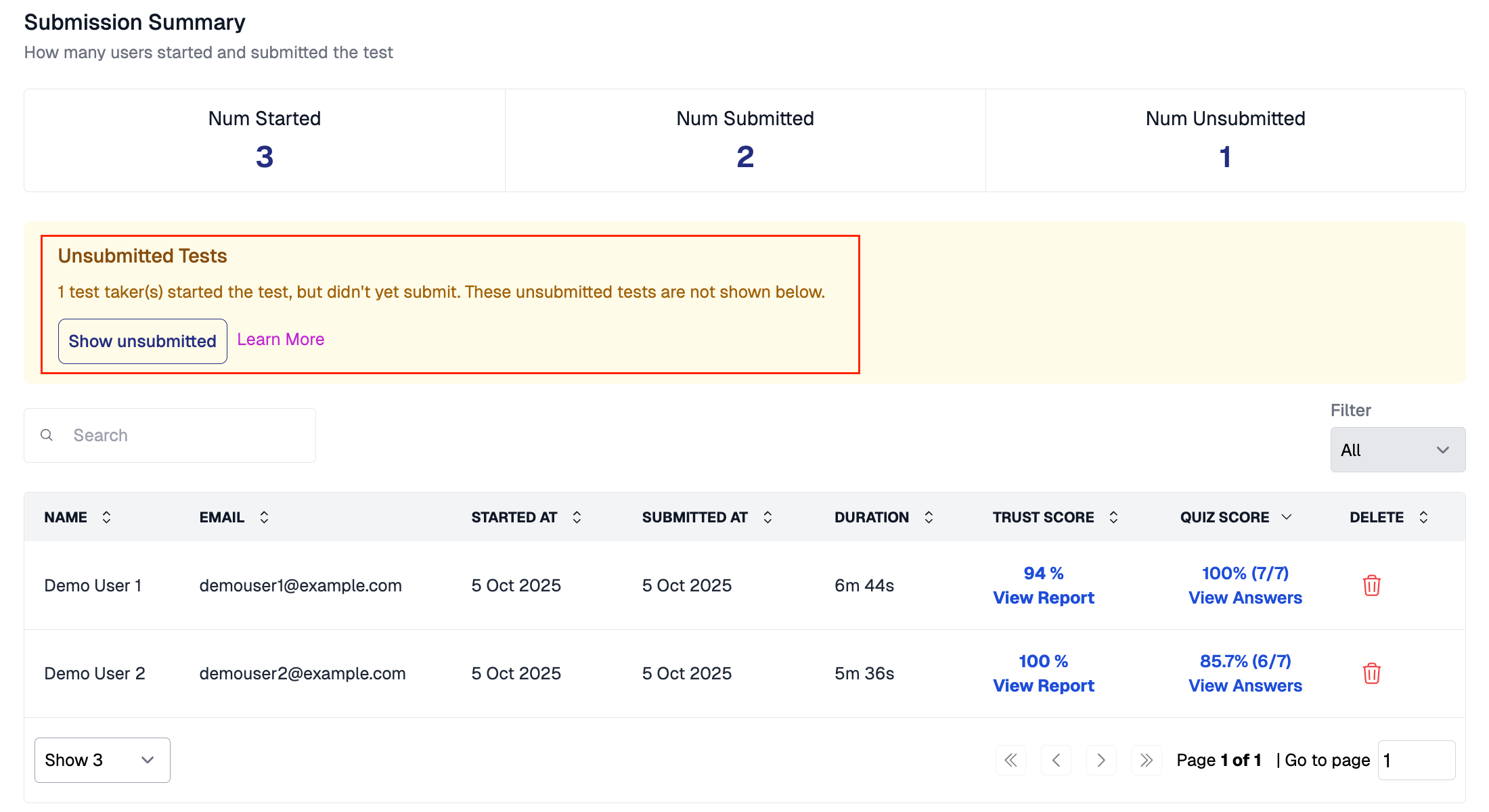
 To view only submitted results, click the **Hide unsubmitted** button in the yellow banner. The unsubmitted entries are removed from the table, and the button changes to **Show unsubmitted** so you can bring them back at any time.
 ## Proctoring Report for an Unsubmitted Test
When you click **View Report** for an unsubmitted test attempt, you see a page indicating that the test has not been marked as finished yet. Proctoring results are not available until the attempt is marked as finished.
## Proctoring Report for an Unsubmitted Test
When you click **View Report** for an unsubmitted test attempt, you see a page indicating that the test has not been marked as finished yet. Proctoring results are not available until the attempt is marked as finished.
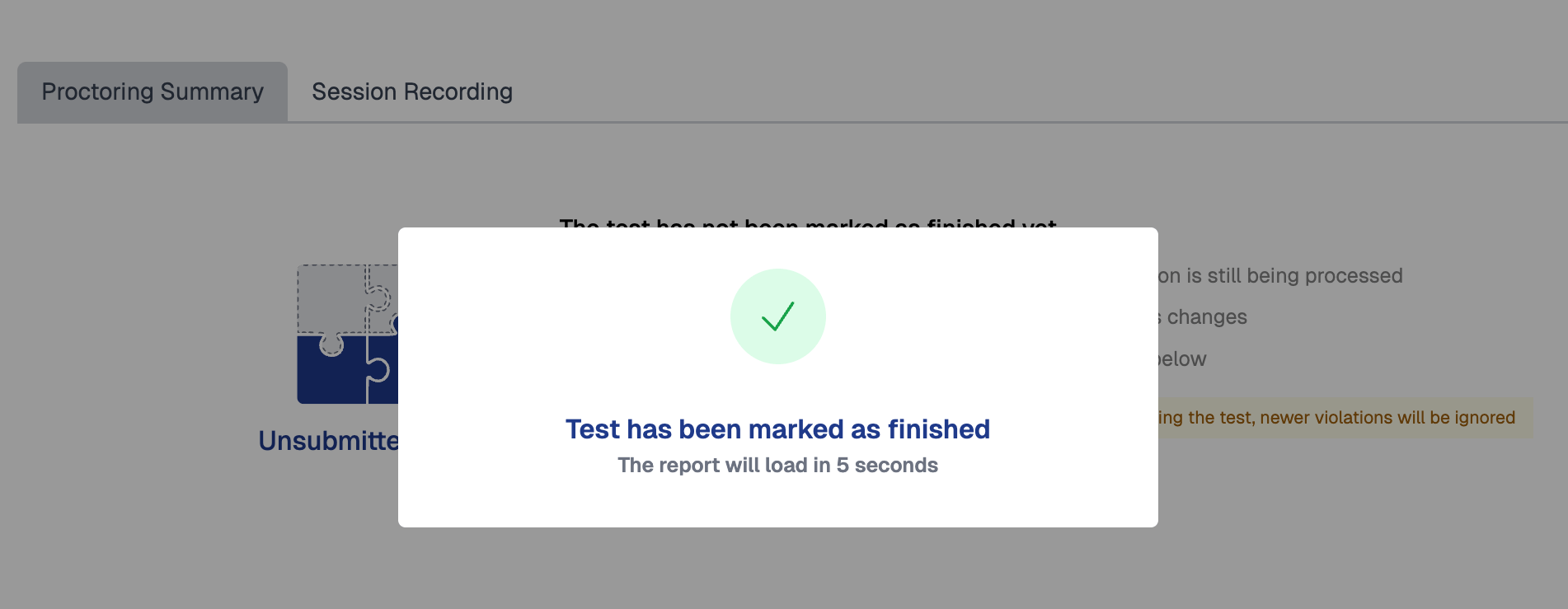
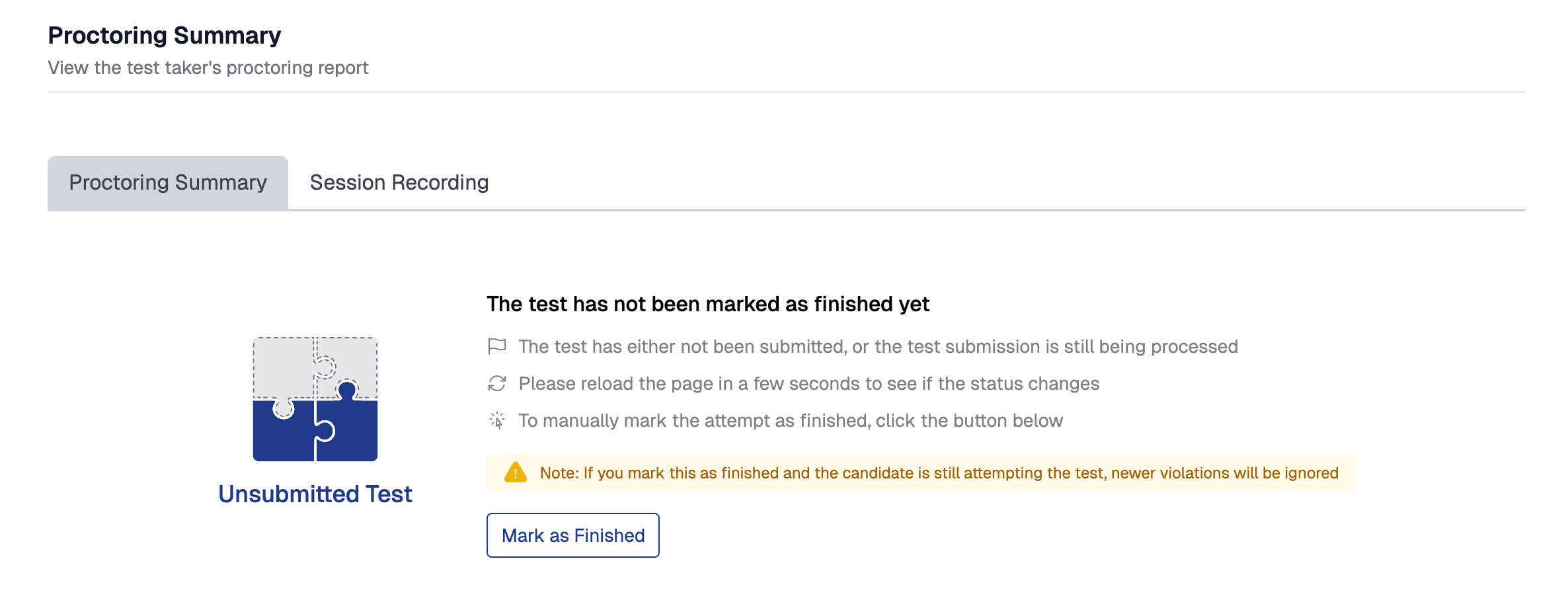 To generate the proctoring report, click the **Mark as Finished** button. A confirmation message appears and the report loads automatically after a few seconds.
 If you mark a test as finished and the candidate is still attempting the test, newer violations will be ignored.
## Quiz Answers for an Unsubmitted Test
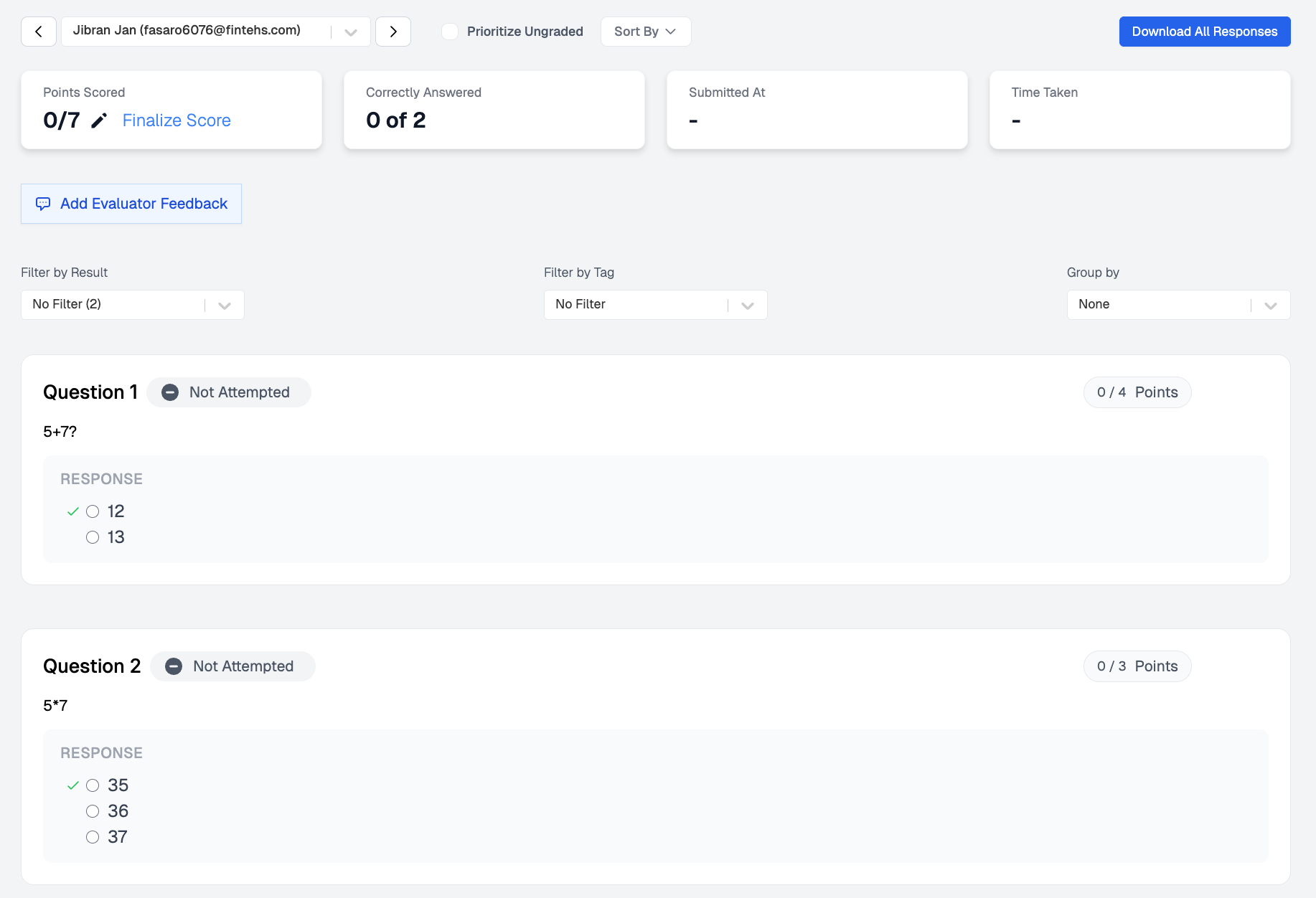
When you click **View Answers** for an unsubmitted test, the individual results page shows all questions as **Not Attempted** with 0 points scored.
If you mark a test as finished and the candidate is still attempting the test, newer violations will be ignored.
## Quiz Answers for an Unsubmitted Test
When you click **View Answers** for an unsubmitted test, the individual results page shows all questions as **Not Attempted** with 0 points scored.
 ## Related Resources
* [Resuming Test Attempts](/resume-exam-attempts) -- How test resumption works when candidates leave mid-test
* [Where Can I See Proctoring Results?](/where-to-find-proctoring-results) -- View submitted proctoring reports
* [Before You Get Started](/before-you-get-started) -- Critical requirements including the submit button process
* [Where Can I See My Quiz Results?](/where-to-find-quiz-results) -- Overview of quiz results vs. proctoring results
## Related Resources
* [Resuming Test Attempts](/resume-exam-attempts) -- How test resumption works when candidates leave mid-test
* [Where Can I See Proctoring Results?](/where-to-find-proctoring-results) -- View submitted proctoring reports
* [Before You Get Started](/before-you-get-started) -- Critical requirements including the submit button process
* [Where Can I See My Quiz Results?](/where-to-find-quiz-results) -- Overview of quiz results vs. proctoring results