> ## Documentation Index
> Fetch the complete documentation index at: https://help.autoproctor.co/llms.txt
> Use this file to discover all available pages before exploring further.
# Track Your Test Pack Credit Usage
> Monitor how your credits are being consumed across tests and team members using the Usage dashboard in your AutoProctor account.
AutoProctor provides a dedicated Usage dashboard that shows exactly how your credits are being consumed. You can track usage per test and, if you are part of a team, per team member.
## How Credits Work
Credits are added to your account when you create a subscription, when it renews, or when you purchase Test Pack top-ups. Each time a candidate starts a test, one credit is deducted. The Usage page gives you a clear view of where those credits go.
## Viewing Your Credit Usage
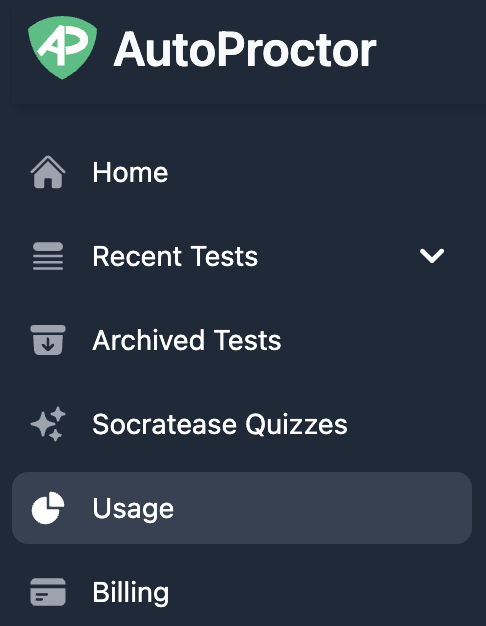
Click on the **Usage** tab in your left sidebar.
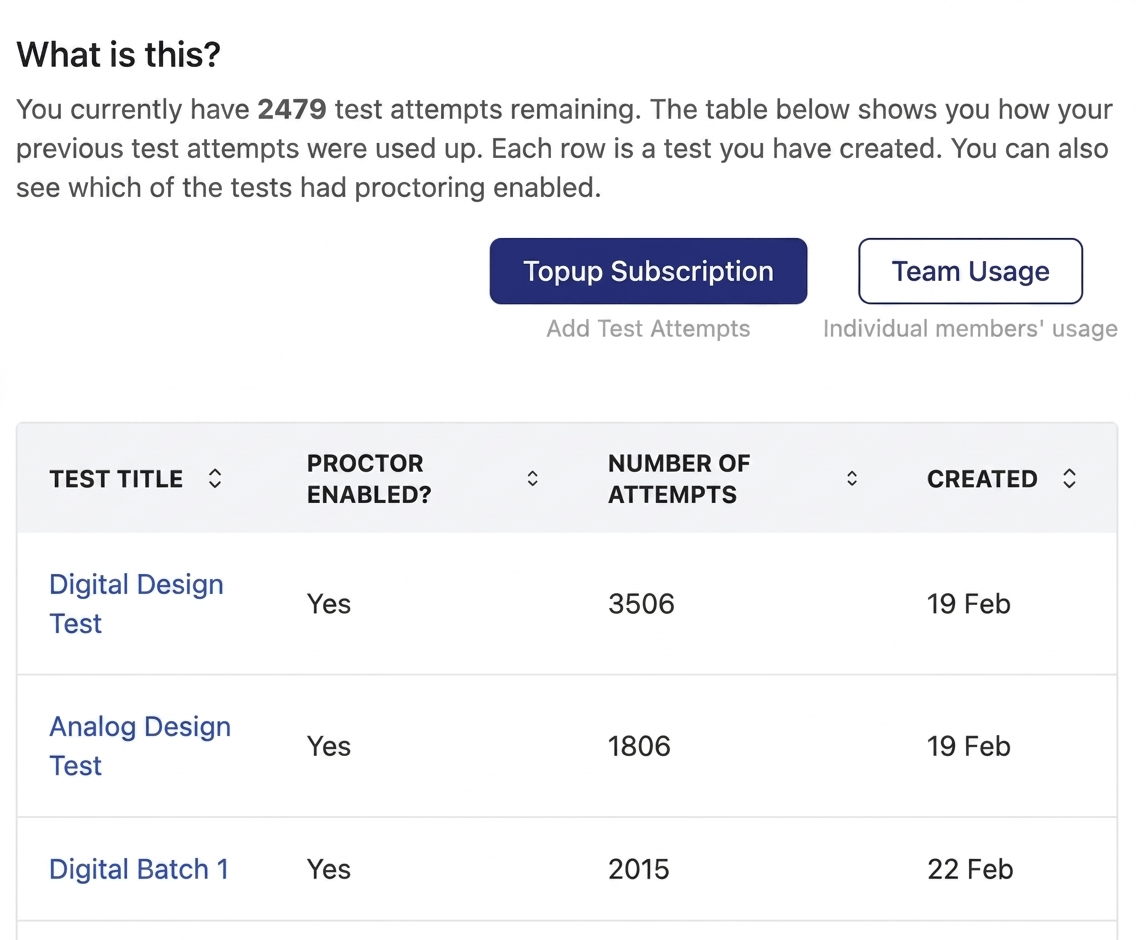
 You see a table showing the number of credits used per test. Click on any test title to open the results for all attempts of that test.
 If a test has been shared with multiple test administrators, only the **primary admin (the test creator)** sees it listed on their Usage page.
## Team Usage
If you are part of a [Team](/what-is-a-team), the Usage page shows your personal test data by default. To view credit consumption across the entire team:
Click the **Team Usage** button at the top right of the Usage page.
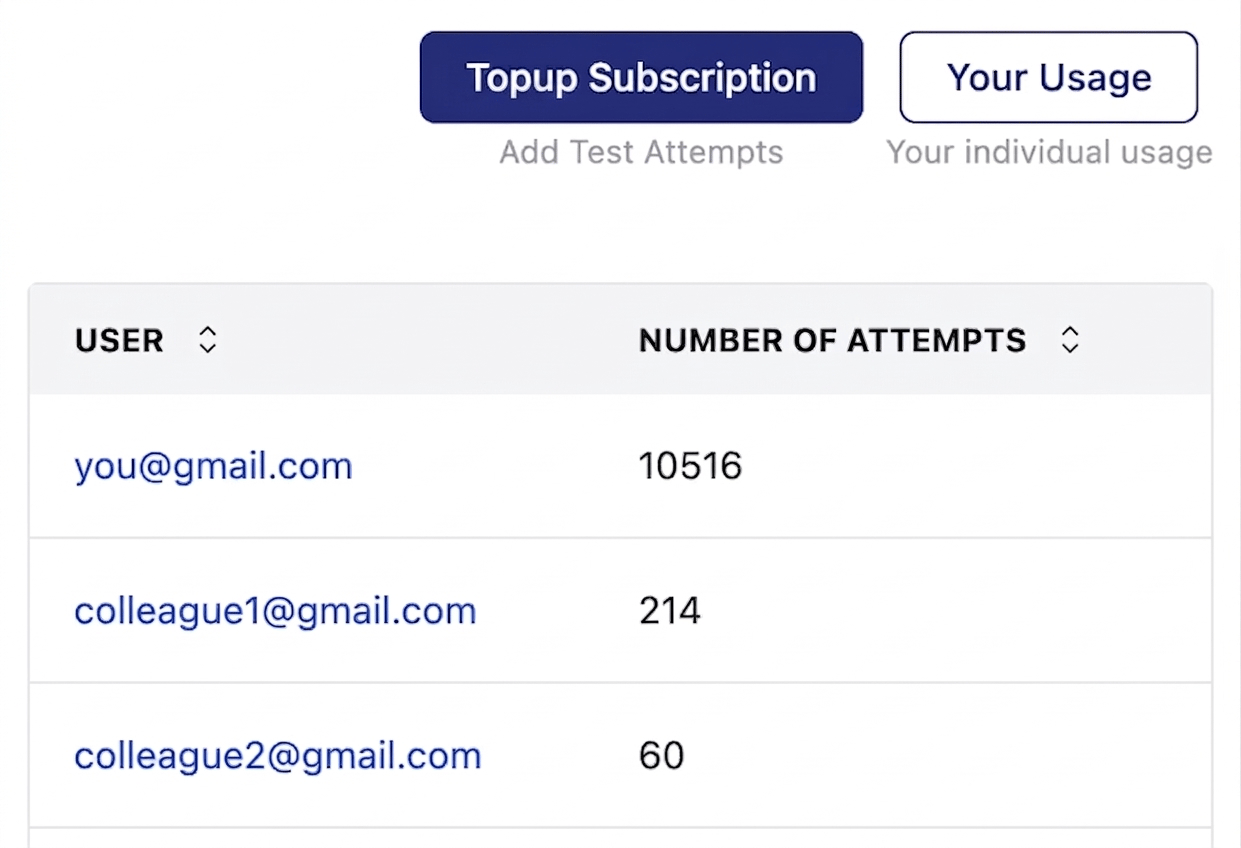
The team usage view displays a table with **all team members and the total number of credits each member has used**. Click on any member to drill down into their individual test-level usage.
If a test has been shared with multiple test administrators, only the **primary admin (the test creator)** sees it listed on their Usage page.
## Team Usage
If you are part of a [Team](/what-is-a-team), the Usage page shows your personal test data by default. To view credit consumption across the entire team:
Click the **Team Usage** button at the top right of the Usage page.
The team usage view displays a table with **all team members and the total number of credits each member has used**. Click on any member to drill down into their individual test-level usage.
 Only Team Admins and the individual member themselves can view detailed per-test usage. Regular team members can see the summary view but not other members' individual breakdowns.
## Related Resources
* [Payments and Credits Explained](/payments-and-credits) -- How credits, subscriptions, and top-ups work
* [What is a Team?](/what-is-a-team) -- Understand team billing and shared credits
* [Purchased Packs Not Showing Up](/purchased-packs-not-showing) -- Troubleshoot missing credits
* [Concurrency](/max-simultaneous-candidates) -- Understand concurrent test attempt limits
* [Contact Us](/contact-us) -- Get help with usage discrepancies
Only Team Admins and the individual member themselves can view detailed per-test usage. Regular team members can see the summary view but not other members' individual breakdowns.
## Related Resources
* [Payments and Credits Explained](/payments-and-credits) -- How credits, subscriptions, and top-ups work
* [What is a Team?](/what-is-a-team) -- Understand team billing and shared credits
* [Purchased Packs Not Showing Up](/purchased-packs-not-showing) -- Troubleshoot missing credits
* [Concurrency](/max-simultaneous-candidates) -- Understand concurrent test attempt limits
* [Contact Us](/contact-us) -- Get help with usage discrepancies