> ## Documentation Index
> Fetch the complete documentation index at: https://help.autoproctor.co/llms.txt
> Use this file to discover all available pages before exploring further.
# Resuming Test Attempts
> Understand how AutoProctor handles test resumption when candidates disconnect, close the browser, or leave a test mid-attempt.
**Resuming** means any way the candidate returns to the test: clicking the test link again, reloading the page in the browser, or coming back after a while and letting the browser auto-reload.
When a candidate leaves a test mid-attempt — whether due to a browser crash, network issue, or accidental closure — AutoProctor determines whether to resume the previous attempt or create a new one. The behavior depends on your test type and settings.
## Resume Behavior by Test Type
| Test Type | Resume Behavior | Details |
| --------------- | --------------- | --------------------------------------------------------------------------------------------------------------- |
| Socratease Quiz | Always resumes | Loads previous responses automatically; candidates must complete the existing attempt before starting a new one |
| Microsoft Forms | Never resumes | Creates a new attempt each time due to platform limitations |
| Google Forms | Configurable | Controlled by the **Enable Auto Resume** toggle and Google Forms autosave setting |
| IFrame Tests | Configurable | Controlled by the **Enable Auto Resume** toggle |
## Configuring the Resume Feature
For Google Forms and IFrame tests, you control resume behavior through the **Enable Auto Resume** toggle in your test settings.
Navigate to your test on the [AutoProctor dashboard](https://www.autoproctor.co/test-admin/home/) and click **Settings**.
Find and enable or disable the **Enable Auto Resume** option.
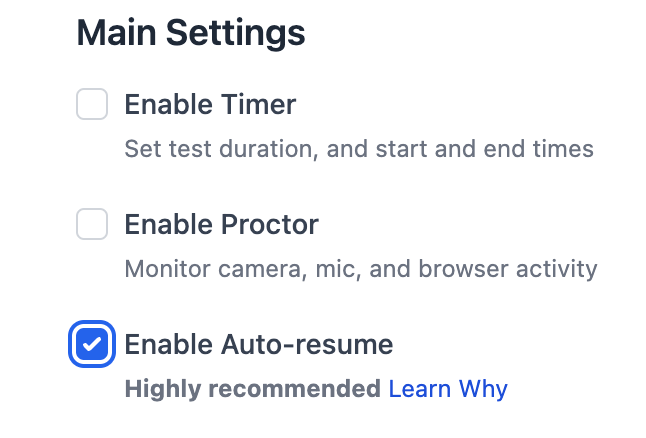 For Google Forms, you must also keep the **Save Draft** (autosave) setting enabled in Google Forms itself for resume to work properly. See [Resuming Google Forms Tests](/resume-google-forms-exam) for detailed configuration.
## How Resumption Works
When a candidate returns to the test after disconnecting:
* **If resume is enabled**: AutoProctor reopens the previous attempt. For **Socratease** quizzes, prior responses are restored automatically. For **IFrame** and **Google Forms** tests, whether responses are preserved depends on the external quiz platform's own save/autosave behavior.
* **If resume is disabled**: AutoProctor creates a new, blank attempt. The incomplete attempt still appears in your results.
## How Timers Interact with Resumption
If you have [timer settings](/timer-settings) configured, they affect how resumption works.
### Test Duration
The remaining time from the original attempt carries over. For example, if a candidate starts a 60-minute test at 10:00 AM and disconnects at 10:30 AM, resuming at 10:50 AM gives them only 10 minutes remaining. Once the full duration expires (11:00 AM), the test can no longer be resumed.
### Cannot Start Before / Cannot Start After
These constraints apply to the original start time, not the reconnection time. A candidate who started before the deadline can still resume after it, as long as the test duration has not expired.
### Must Submit By
This deadline is strictly enforced at reconnection time. If the **Must Submit By** deadline has passed before the candidate tries to resume, the test does not load -- even if the candidate originally started before the deadline.
The **Must Submit By** deadline overrides all other timer settings at resumption time. If this deadline has passed, the candidate cannot resume regardless of remaining test duration.
## Related Resources
* [Resuming Google Forms Tests](/resume-google-forms-exam) -- Detailed Google Forms resume configuration
* [Maximum Attempts](/maximum-exam-attempts) -- How attempt limits interact with resumption
* [Unsubmitted Tests](/view-unsubmitted-exams) -- View details of tests started but not submitted
* [Timer Settings](/timer-settings) -- Configure test duration, deadlines, and time windows
* [Best Practices for Test Creators](/best-practices-for-exam-creators) -- Tips for smooth test administration
For Google Forms, you must also keep the **Save Draft** (autosave) setting enabled in Google Forms itself for resume to work properly. See [Resuming Google Forms Tests](/resume-google-forms-exam) for detailed configuration.
## How Resumption Works
When a candidate returns to the test after disconnecting:
* **If resume is enabled**: AutoProctor reopens the previous attempt. For **Socratease** quizzes, prior responses are restored automatically. For **IFrame** and **Google Forms** tests, whether responses are preserved depends on the external quiz platform's own save/autosave behavior.
* **If resume is disabled**: AutoProctor creates a new, blank attempt. The incomplete attempt still appears in your results.
## How Timers Interact with Resumption
If you have [timer settings](/timer-settings) configured, they affect how resumption works.
### Test Duration
The remaining time from the original attempt carries over. For example, if a candidate starts a 60-minute test at 10:00 AM and disconnects at 10:30 AM, resuming at 10:50 AM gives them only 10 minutes remaining. Once the full duration expires (11:00 AM), the test can no longer be resumed.
### Cannot Start Before / Cannot Start After
These constraints apply to the original start time, not the reconnection time. A candidate who started before the deadline can still resume after it, as long as the test duration has not expired.
### Must Submit By
This deadline is strictly enforced at reconnection time. If the **Must Submit By** deadline has passed before the candidate tries to resume, the test does not load -- even if the candidate originally started before the deadline.
The **Must Submit By** deadline overrides all other timer settings at resumption time. If this deadline has passed, the candidate cannot resume regardless of remaining test duration.
## Related Resources
* [Resuming Google Forms Tests](/resume-google-forms-exam) -- Detailed Google Forms resume configuration
* [Maximum Attempts](/maximum-exam-attempts) -- How attempt limits interact with resumption
* [Unsubmitted Tests](/view-unsubmitted-exams) -- View details of tests started but not submitted
* [Timer Settings](/timer-settings) -- Configure test duration, deadlines, and time windows
* [Best Practices for Test Creators](/best-practices-for-exam-creators) -- Tips for smooth test administration