> ## Documentation Index
> Fetch the complete documentation index at: https://help.autoproctor.co/llms.txt
> Use this file to discover all available pages before exploring further.
# Restrict Test Access to Specific Candidates
> Limit test participation to specific candidates on AutoProctor using link distribution, email restrictions, unique invitation links, or platform access controls.
By default, anyone with your test link can take the test. AutoProctor gives you several methods to lock down access so only the candidates you choose can participate.
## Method 1: Selective Link Distribution
The simplest approach is to share the test link only with the candidates who should take the test.
Determine which candidates should have access to the test.
Send the test link only to those candidates via email, your learning management system, or another private channel. Avoid posting the link publicly.
This method relies on candidates not sharing the link with others. If you need stronger access control, use one of the methods below.
## Method 2: Email-Based Restrictions
Use AutoProctor's built-in **Login Restrictions** to allow only specific email domains or individual email addresses. You configure this in the Advanced Settings section of your test.
Navigate to your test settings and scroll to the **Advanced Settings** section.
Add the email domains (e.g., `@yourschool.edu`) or specific email addresses you want to allow.
Click **Create** or **Update** to apply the restrictions.
 See [Restrict Test Access by Email Address](/restrict-access-by-email) for full setup instructions and examples.
## Method 3: Unique Invitation Links
Generate unique per-candidate URLs tied to specific email addresses. Each candidate receives their own link with email verification, so only the intended recipient can use it.
Open your test settings and enable the **Unique URL** option.
Upload candidate email addresses via a CSV file (up to 1,000 at once).
AutoProctor outputs a unique link for each email address as comma-separated pairs.
Paste the output into a spreadsheet application and split on the comma separator to organize email addresses and links into separate columns.
Send each candidate their unique link individually using the spreadsheet you created.
Unique invitation links are available only on the **Elite Plan** and work with Socratease Quizzes and IFrame Tests. See [Payments and Credits](/payments-and-credits) for plan details.
See [Inviting Candidates via Email](/invite-candidates-via-email) for the complete setup process.
## Method 4: Google Forms Access Restrictions
If you use Google Forms, you can restrict access at the Google Forms level instead of (or in addition to) AutoProctor restrictions. Candidates can still open the AutoProctor link, but they cannot proceed if Google Forms blocks their access.
In Google Forms, click the **Settings** gear icon.
Enable the option to restrict responses to users in your organization. This limits access to candidates with email addresses under your Google Workspace domain.
See [Restrict Test Access by Email Address](/restrict-access-by-email) for full setup instructions and examples.
## Method 3: Unique Invitation Links
Generate unique per-candidate URLs tied to specific email addresses. Each candidate receives their own link with email verification, so only the intended recipient can use it.
Open your test settings and enable the **Unique URL** option.
Upload candidate email addresses via a CSV file (up to 1,000 at once).
AutoProctor outputs a unique link for each email address as comma-separated pairs.
Paste the output into a spreadsheet application and split on the comma separator to organize email addresses and links into separate columns.
Send each candidate their unique link individually using the spreadsheet you created.
Unique invitation links are available only on the **Elite Plan** and work with Socratease Quizzes and IFrame Tests. See [Payments and Credits](/payments-and-credits) for plan details.
See [Inviting Candidates via Email](/invite-candidates-via-email) for the complete setup process.
## Method 4: Google Forms Access Restrictions
If you use Google Forms, you can restrict access at the Google Forms level instead of (or in addition to) AutoProctor restrictions. Candidates can still open the AutoProctor link, but they cannot proceed if Google Forms blocks their access.
In Google Forms, click the **Settings** gear icon.
Enable the option to restrict responses to users in your organization. This limits access to candidates with email addresses under your Google Workspace domain.
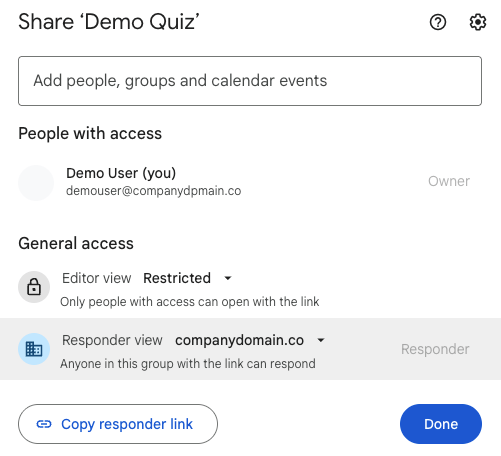 For more details, refer to [Google's guide on restricting form access](https://www.bettercloud.com/monitor/the-academy/restrict-access-to-google-forms/).
## Comparison of Access Control Methods
| Method | Strength | Works With | Plan Required |
| --------------------------- | ---------------------------------- | -------------------------------- | ------------- |
| Selective link distribution | Low -- relies on trust | All test types | Any |
| Email-based restrictions | Medium -- blocks wrong domains | All test types | Any |
| Unique invitation links | High -- per-candidate verification | Socratease Quizzes, IFrame Tests | Elite |
| Google Forms restrictions | Medium -- organization-level | Google Forms only | Any |
## Related Resources
* [Restrict Test Access by Email Address](/restrict-access-by-email) -- Set up domain and email-based restrictions
* [Inviting Candidates via Email](/invite-candidates-via-email) -- Generate unique per-candidate test links
* [Candidate Login Methods](/candidate-login-methods) -- Understand available authentication options
* [Advanced Settings](/advanced-exam-settings) -- Configure Login Restrictions and other advanced options
* [Best Practices for Test Creators](/best-practices-for-exam-creators) -- Tips for smooth test administration
For more details, refer to [Google's guide on restricting form access](https://www.bettercloud.com/monitor/the-academy/restrict-access-to-google-forms/).
## Comparison of Access Control Methods
| Method | Strength | Works With | Plan Required |
| --------------------------- | ---------------------------------- | -------------------------------- | ------------- |
| Selective link distribution | Low -- relies on trust | All test types | Any |
| Email-based restrictions | Medium -- blocks wrong domains | All test types | Any |
| Unique invitation links | High -- per-candidate verification | Socratease Quizzes, IFrame Tests | Elite |
| Google Forms restrictions | Medium -- organization-level | Google Forms only | Any |
## Related Resources
* [Restrict Test Access by Email Address](/restrict-access-by-email) -- Set up domain and email-based restrictions
* [Inviting Candidates via Email](/invite-candidates-via-email) -- Generate unique per-candidate test links
* [Candidate Login Methods](/candidate-login-methods) -- Understand available authentication options
* [Advanced Settings](/advanced-exam-settings) -- Configure Login Restrictions and other advanced options
* [Best Practices for Test Creators](/best-practices-for-exam-creators) -- Tips for smooth test administration