> ## Documentation Index
> Fetch the complete documentation index at: https://help.autoproctor.co/llms.txt
> Use this file to discover all available pages before exploring further.
# Question Display Mode
> Control how questions are displayed to candidates -- all at once, one-by-one with navigation, or one-by-one without navigation.
The Question Display Mode setting controls how questions appear to your test takers. You can choose between three display options, each with different implications for navigation, timing, and test security.
Question Display Mode is a **Premium** feature. See [Payments and Credits](/payments-and-credits) for plan details.
## Display Modes
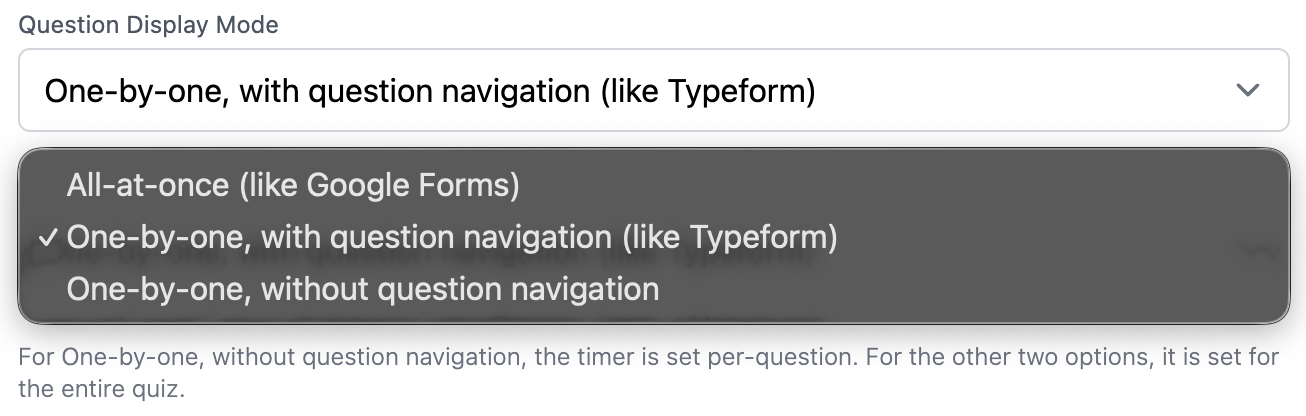 ### 1. All-at-once (Google Forms style)
Candidates see all the questions at the same time, one below the other, like a Google Form. The timer applies to the **entire test**. Candidates can scroll freely between questions and answer them in any order.
### 1. All-at-once (Google Forms style)
Candidates see all the questions at the same time, one below the other, like a Google Form. The timer applies to the **entire test**. Candidates can scroll freely between questions and answer them in any order.
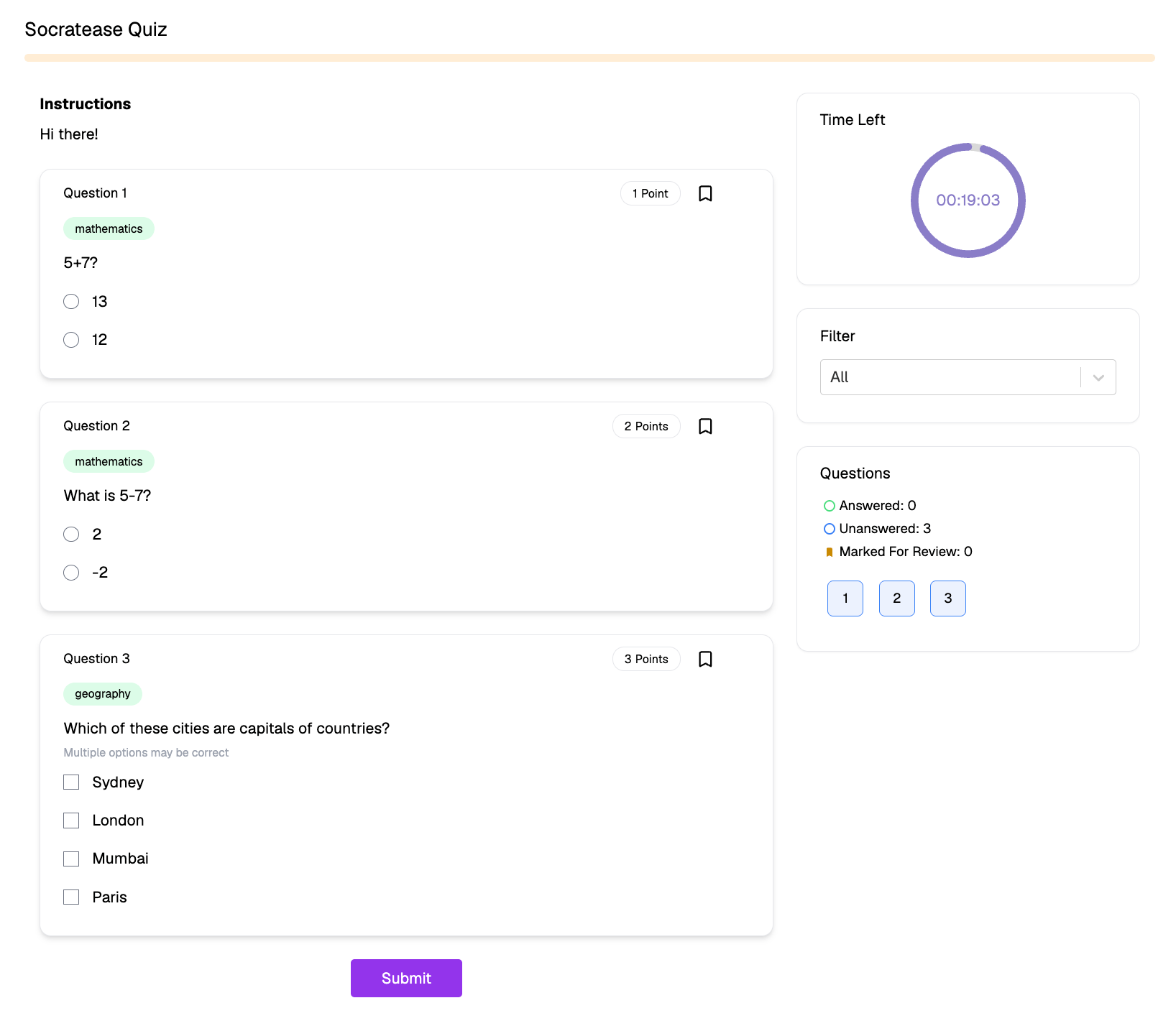 ### 2. One-by-one with navigation (Typeform style)
Candidates see one question at a time and can navigate back and forth between questions. The timer applies to the **entire test**, not to individual questions. Candidates can revisit and change their answers at any point before submitting.
### 2. One-by-one with navigation (Typeform style)
Candidates see one question at a time and can navigate back and forth between questions. The timer applies to the **entire test**, not to individual questions. Candidates can revisit and change their answers at any point before submitting.
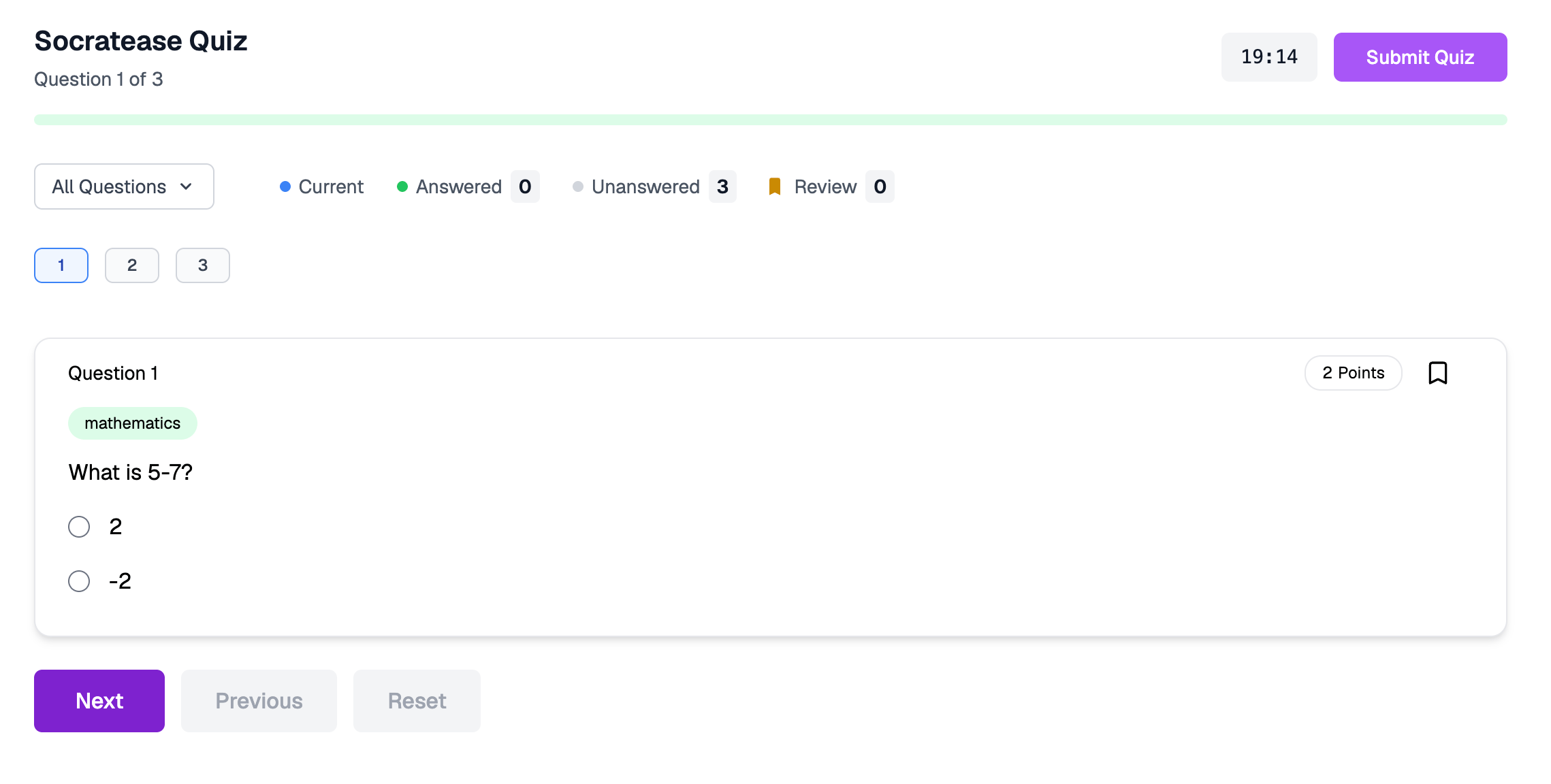 ### 3. One-by-one without navigation
Candidates see one question at a time. Once they submit a question (by attempting or skipping it), they **cannot go back to it**. The timer is set **per question**, not for the entire test.
### 3. One-by-one without navigation
Candidates see one question at a time. Once they submit a question (by attempting or skipping it), they **cannot go back to it**. The timer is set **per question**, not for the entire test.
 ## Key Differences
| Feature | All-at-once | One-by-one with nav | One-by-one without nav |
| --------------------------------- | :---------: | :-----------------: | :--------------------: |
| Timer scope | Entire test | Entire test | Per question |
| Can go back to previous questions | Yes | Yes | No |
| Custom instructions | Yes | No | No |
## When to Use One-by-one Without Navigation
The no-navigation option is especially useful for test security. Candidates can view only one question at a time for a limited duration, which significantly reduces the opportunity to cheat. Each question has its own timer, so candidates cannot spend extra time on difficult questions by rushing through easier ones.
## How Timer Settings Change
When you use **one-by-one without navigation**, certain test-level timer settings become unavailable. The timer behavior shifts to the question level:
* **Duration**: You set the duration per question, not for the entire test
* **Auto-Submit**: Each question auto-submits when its individual timer expires
* **Must Submit By**: This test-level setting is replaced by **Cannot Start After** at the test level
For more information on timer configuration, see [Timer Settings](/timer-settings).
## How to Set the Display Mode
Open the Socratease Quiz you want to configure from your [AutoProctor dashboard](https://www.autoproctor.co/test-admin/home/).
Click the **Settings** icon (gear) in the quiz editor toolbar.
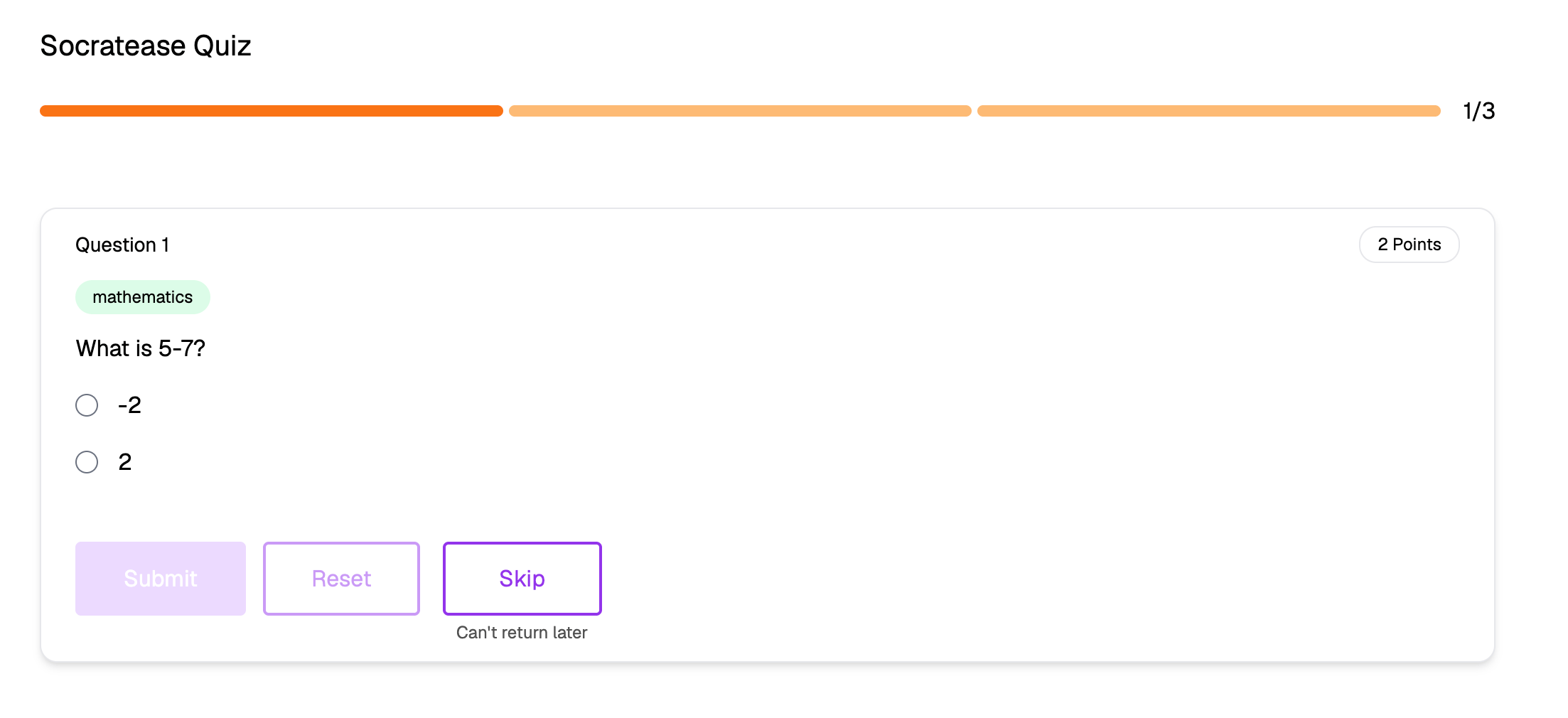
Choose your preferred display mode from the **Question Display Mode** dropdown. The default is "All-at-once."
## Related Resources
* [Quiz Settings](/socratease-quiz-settings) -- All Socratease quiz configuration options
* [Timer Settings](/timer-settings) -- Configure test-level and question-level timers
* [How to Create a Socratease Quiz](/create-socratease-quiz) -- Step-by-step creation guide
* [Showing Results to Candidates](/show-results-to-candidates) -- Control result visibility
## Key Differences
| Feature | All-at-once | One-by-one with nav | One-by-one without nav |
| --------------------------------- | :---------: | :-----------------: | :--------------------: |
| Timer scope | Entire test | Entire test | Per question |
| Can go back to previous questions | Yes | Yes | No |
| Custom instructions | Yes | No | No |
## When to Use One-by-one Without Navigation
The no-navigation option is especially useful for test security. Candidates can view only one question at a time for a limited duration, which significantly reduces the opportunity to cheat. Each question has its own timer, so candidates cannot spend extra time on difficult questions by rushing through easier ones.
## How Timer Settings Change
When you use **one-by-one without navigation**, certain test-level timer settings become unavailable. The timer behavior shifts to the question level:
* **Duration**: You set the duration per question, not for the entire test
* **Auto-Submit**: Each question auto-submits when its individual timer expires
* **Must Submit By**: This test-level setting is replaced by **Cannot Start After** at the test level
For more information on timer configuration, see [Timer Settings](/timer-settings).
## How to Set the Display Mode
Open the Socratease Quiz you want to configure from your [AutoProctor dashboard](https://www.autoproctor.co/test-admin/home/).
Click the **Settings** icon (gear) in the quiz editor toolbar.
Choose your preferred display mode from the **Question Display Mode** dropdown. The default is "All-at-once."
## Related Resources
* [Quiz Settings](/socratease-quiz-settings) -- All Socratease quiz configuration options
* [Timer Settings](/timer-settings) -- Configure test-level and question-level timers
* [How to Create a Socratease Quiz](/create-socratease-quiz) -- Step-by-step creation guide
* [Showing Results to Candidates](/show-results-to-candidates) -- Control result visibility