> ## Documentation Index
> Fetch the complete documentation index at: https://help.autoproctor.co/llms.txt
> Use this file to discover all available pages before exploring further.
# Proctoring Settings
> Configure tab switching detection, camera monitoring, microphone recording, full screen enforcement, and other proctoring options.
You must check the **Enable Proctor** checkbox in Main Settings for any of these settings to apply. If proctoring is disabled, candidates take the test without monitoring.
## Basic Proctoring Options
 | Setting | What It Does |
| ---------------------------- | ------------------------------------------------------------------------------------------------------------------------------- |
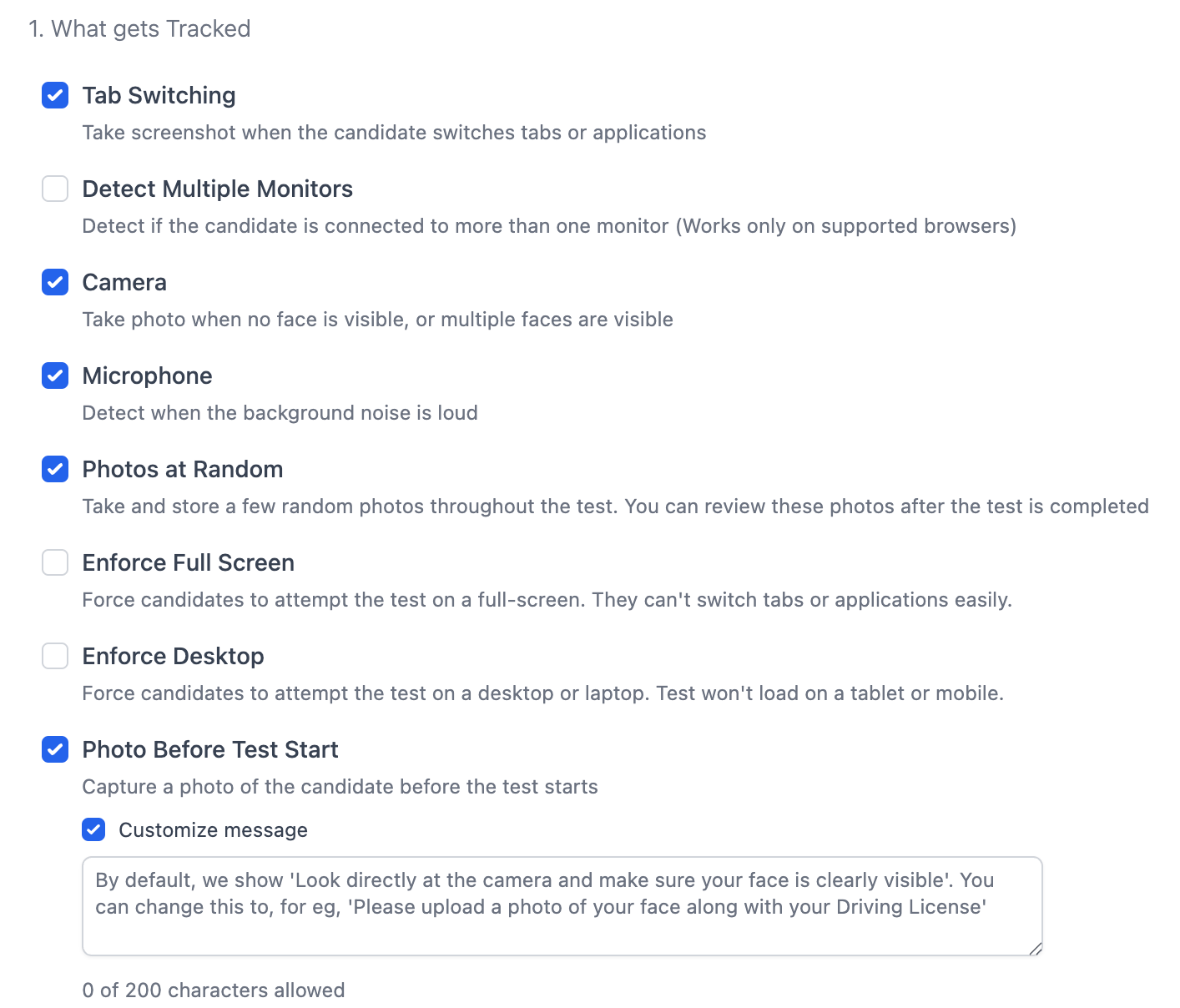
| **Tab Switching** | Detects when a candidate switches to a different browser tab or application. Captures a screenshot of the tab they switched to. |
| **Detect Multiple Monitors** | Detects if a candidate has connected external monitors. |
| **Camera** | Detects if no face is visible, or if multiple faces are visible. Captures photos as evidence. |
| **Microphone** | Monitors the sound environment and records audio when noise is detected. |
| **Photos at Random** | Captures random photos throughout the test at randomized intervals. |
| **Enforce Full Screen** | Forces candidates to take the test in full screen mode. Exiting full screen is recorded as a violation. |
| **Enforce Desktop** | Requires a desktop or laptop computer. The test will not load on tablets or mobile devices. |
| **Photo Before Test Start** | Captures a photo of the candidate before the test begins. |
| **Customize Message** | Customize the message candidates see when asked for a photo. Use this to ask candidates to display their ID card. |
**Customize Message** is a Premium feature. See [Feature Comparison](/feature-comparison) for plan details.
## Enhanced Proctoring
Enhanced proctoring adds ID verification, impersonation detection, 360° auxiliary camera, session recording, and candidate video recording. See [Enhanced Proctoring](/enhanced-proctoring) for the full setup guide and credit costs.
## Communication Settings
These settings control how violation evidence is handled and whether candidates are notified:
| Setting | What It Does | Recommendation |
| ------------------------ | --------------------------------------------------------------------------------- | ------------------------------------------------------------------------------ |
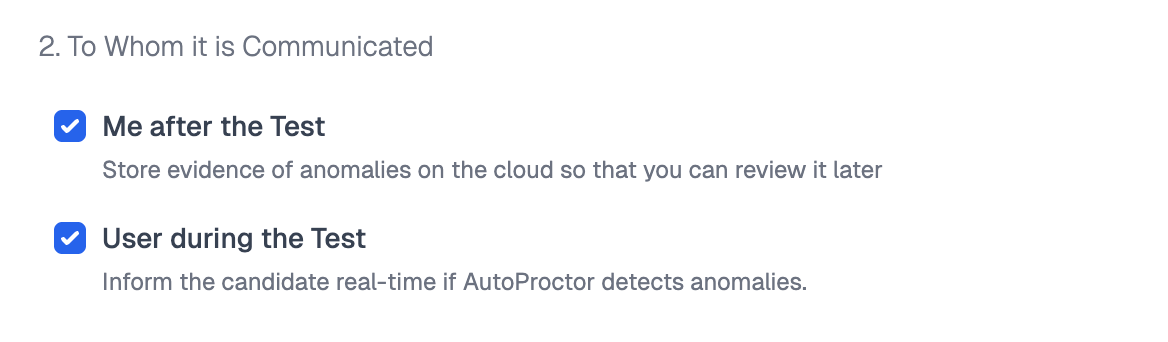
| **Me after the Test** | Stores evidence (photos, audio, screenshots) for your review after the test ends. | **Keep enabled** — you need this to review violations. |
| **User during the Test** | Notifies the candidate during the test when a violation is detected. | **Keep enabled** — helps candidates fix harmless issues like background noise. |
| Setting | What It Does |
| ---------------------------- | ------------------------------------------------------------------------------------------------------------------------------- |
| **Tab Switching** | Detects when a candidate switches to a different browser tab or application. Captures a screenshot of the tab they switched to. |
| **Detect Multiple Monitors** | Detects if a candidate has connected external monitors. |
| **Camera** | Detects if no face is visible, or if multiple faces are visible. Captures photos as evidence. |
| **Microphone** | Monitors the sound environment and records audio when noise is detected. |
| **Photos at Random** | Captures random photos throughout the test at randomized intervals. |
| **Enforce Full Screen** | Forces candidates to take the test in full screen mode. Exiting full screen is recorded as a violation. |
| **Enforce Desktop** | Requires a desktop or laptop computer. The test will not load on tablets or mobile devices. |
| **Photo Before Test Start** | Captures a photo of the candidate before the test begins. |
| **Customize Message** | Customize the message candidates see when asked for a photo. Use this to ask candidates to display their ID card. |
**Customize Message** is a Premium feature. See [Feature Comparison](/feature-comparison) for plan details.
## Enhanced Proctoring
Enhanced proctoring adds ID verification, impersonation detection, 360° auxiliary camera, session recording, and candidate video recording. See [Enhanced Proctoring](/enhanced-proctoring) for the full setup guide and credit costs.
## Communication Settings
These settings control how violation evidence is handled and whether candidates are notified:
| Setting | What It Does | Recommendation |
| ------------------------ | --------------------------------------------------------------------------------- | ------------------------------------------------------------------------------ |
| **Me after the Test** | Stores evidence (photos, audio, screenshots) for your review after the test ends. | **Keep enabled** — you need this to review violations. |
| **User during the Test** | Notifies the candidate during the test when a violation is detected. | **Keep enabled** — helps candidates fix harmless issues like background noise. |
 ## Related Resources
* [Timer Settings](/timer-settings) — Configure test duration and time windows
* [Enhanced Proctoring](/enhanced-proctoring) — Detailed guide on ID verification, impersonation detection, and 360° proctoring
* [What Gets Tracked](/what-gets-tracked-during-proctoring) — Complete list of everything AutoProctor monitors
* [Proctoring Results](/where-to-find-proctoring-results) — How to review proctoring data after a test
* [Trust Score](/what-is-trust-score) — How the trust score is calculated from proctoring data
## Related Resources
* [Timer Settings](/timer-settings) — Configure test duration and time windows
* [Enhanced Proctoring](/enhanced-proctoring) — Detailed guide on ID verification, impersonation detection, and 360° proctoring
* [What Gets Tracked](/what-gets-tracked-during-proctoring) — Complete list of everything AutoProctor monitors
* [Proctoring Results](/where-to-find-proctoring-results) — How to review proctoring data after a test
* [Trust Score](/what-is-trust-score) — How the trust score is calculated from proctoring data