> ## Documentation Index
> Fetch the complete documentation index at: https://help.autoproctor.co/llms.txt
> Use this file to discover all available pages before exploring further.
# Maximum Attempts for a Test
> Configure how many times candidates can attempt a test on AutoProctor and understand how attempt tracking works across login methods.
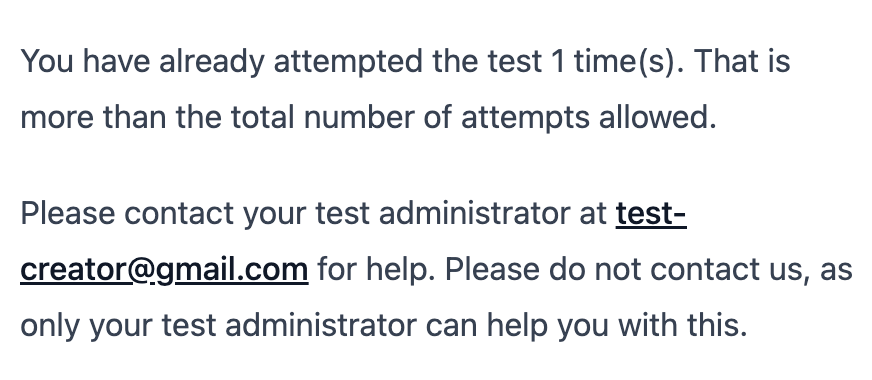
The **Max Attempts** setting lets you control how many times each candidate can take a specific test. Once a candidate reaches the limit, AutoProctor blocks further attempts and displays a notification.
## How to Configure Maximum Attempts
Navigate to your test on the [AutoProctor dashboard](https://www.autoproctor.co/test-admin/home/) and click the **Settings** button.
In the **Main Settings** section, locate the **Max Attempts** field and enter the number of allowed attempts.
Click **Create** or **Update** to apply the setting.
When a candidate exceeds their allowed attempts, they see a restriction message and cannot proceed.
 ## Recommended Configuration
| Test Type | Recommended Max Attempts | Reason |
| --------------- | ------------------------ | --------------------------------------------------------------------------------------------------------------- |
| Google Forms | 1 | AutoProctor [automatically resumes](/resume-exam-attempts) these tests if candidates reload or revisit the link |
| Socratease Quiz | 1 | AutoProctor [automatically resumes](/resume-exam-attempts) these tests if candidates reload or revisit the link |
| Microsoft Forms | Based on your needs | Each visit creates a new attempt; resumption is not supported |
| IFrame Tests | Based on your needs | Configurable resume behavior; adjust attempts accordingly |
For Google Forms and Socratease Quizzes, set **Max Attempts** to **1**. AutoProctor automatically [resumes these tests](/resume-exam-attempts) if candidates reload the page or revisit the link, so multiple attempts are not needed for resumption.
## How Attempts Are Tracked
AutoProctor tracks attempts by the email address used to sign in. This means:
* Each unique email address counts as a separate candidate, regardless of who is behind it.
* If a candidate signs in with different email addresses across attempts (for example, using **Sign in with Google** once and **Sign in with Email** another time with a different address), each email counts separately, effectively bypassing the attempt limit.
If a candidate uses different login methods that resolve to different email addresses, each one counts as a separate candidate. This can allow them to bypass the maximum attempts limit.
## Preventing Attempt Limit Bypass
To prevent candidates from circumventing the maximum attempts setting:
* **Restrict login methods** -- Choose a test type that supports only one sign-in option. Google Forms restricts candidates to Google sign-in only, and Microsoft Forms restricts to Microsoft sign-in only. See [Candidate Login Methods](/candidate-login-methods).
* **Use email restrictions** -- Limit access to specific email domains or addresses so candidates cannot use alternative accounts. See [Restrict Test Access by Email Address](/restrict-access-by-email).
* **Use unique invitation links** -- Generate per-candidate URLs that enforce email verification. See [Inviting Candidates via Email](/invite-candidates-via-email).
## Related Resources
* [Candidate Login Methods](/candidate-login-methods) -- How login methods affect attempt tracking
* [Resuming Test Attempts](/resume-exam-attempts) -- How test resumption works across test types
* [Restrict Test Access by Email Address](/restrict-access-by-email) -- Limit access by email domain or address
* [Timer Settings](/timer-settings) -- Configure test duration and time windows
* [Inviting Candidates via Email](/invite-candidates-via-email) -- Send unique test links to candidates
## Recommended Configuration
| Test Type | Recommended Max Attempts | Reason |
| --------------- | ------------------------ | --------------------------------------------------------------------------------------------------------------- |
| Google Forms | 1 | AutoProctor [automatically resumes](/resume-exam-attempts) these tests if candidates reload or revisit the link |
| Socratease Quiz | 1 | AutoProctor [automatically resumes](/resume-exam-attempts) these tests if candidates reload or revisit the link |
| Microsoft Forms | Based on your needs | Each visit creates a new attempt; resumption is not supported |
| IFrame Tests | Based on your needs | Configurable resume behavior; adjust attempts accordingly |
For Google Forms and Socratease Quizzes, set **Max Attempts** to **1**. AutoProctor automatically [resumes these tests](/resume-exam-attempts) if candidates reload the page or revisit the link, so multiple attempts are not needed for resumption.
## How Attempts Are Tracked
AutoProctor tracks attempts by the email address used to sign in. This means:
* Each unique email address counts as a separate candidate, regardless of who is behind it.
* If a candidate signs in with different email addresses across attempts (for example, using **Sign in with Google** once and **Sign in with Email** another time with a different address), each email counts separately, effectively bypassing the attempt limit.
If a candidate uses different login methods that resolve to different email addresses, each one counts as a separate candidate. This can allow them to bypass the maximum attempts limit.
## Preventing Attempt Limit Bypass
To prevent candidates from circumventing the maximum attempts setting:
* **Restrict login methods** -- Choose a test type that supports only one sign-in option. Google Forms restricts candidates to Google sign-in only, and Microsoft Forms restricts to Microsoft sign-in only. See [Candidate Login Methods](/candidate-login-methods).
* **Use email restrictions** -- Limit access to specific email domains or addresses so candidates cannot use alternative accounts. See [Restrict Test Access by Email Address](/restrict-access-by-email).
* **Use unique invitation links** -- Generate per-candidate URLs that enforce email verification. See [Inviting Candidates via Email](/invite-candidates-via-email).
## Related Resources
* [Candidate Login Methods](/candidate-login-methods) -- How login methods affect attempt tracking
* [Resuming Test Attempts](/resume-exam-attempts) -- How test resumption works across test types
* [Restrict Test Access by Email Address](/restrict-access-by-email) -- Limit access by email domain or address
* [Timer Settings](/timer-settings) -- Configure test duration and time windows
* [Inviting Candidates via Email](/invite-candidates-via-email) -- Send unique test links to candidates