> ## Documentation Index
> Fetch the complete documentation index at: https://help.autoproctor.co/llms.txt
> Use this file to discover all available pages before exploring further.
# Invoices and Receipts for Payments
> Learn how to access, download, and manage invoices and receipts for all your AutoProctor subscription and credit purchases.
AutoProctor automatically generates an invoice and receipt for every successful payment. This article explains how to access your invoices and answers common questions about billing documents.
## When Are Invoices Generated?
Invoices are generated for two types of payments:
| Payment Type | When It Happens |
| ------------------------------------- | ------------------------------------------------------- |
| **Subscription creation and renewal** | When you first subscribe or when your plan auto-renews |
| **Credit top-ups** | When you purchase additional credits through Test Packs |
For each payment, an invoice and receipt are automatically emailed to the account holder.
If you are part of a [Team](/what-is-a-team), the person who made the initial purchase receives the invoice emails. All Team Admins can also download invoices from the Billing section.
## Downloading Invoices
If you cannot find the invoice email or need to download a copy:
Click on the **Billing** link in your left sidebar.
Scroll to the payment history area. Each payment entry includes a download link for the corresponding invoice.
Click the download link to save the invoice as a PDF to your device.
You can learn more about the Billing section in the [Editing Billing Information](/edit-billing-information) article.
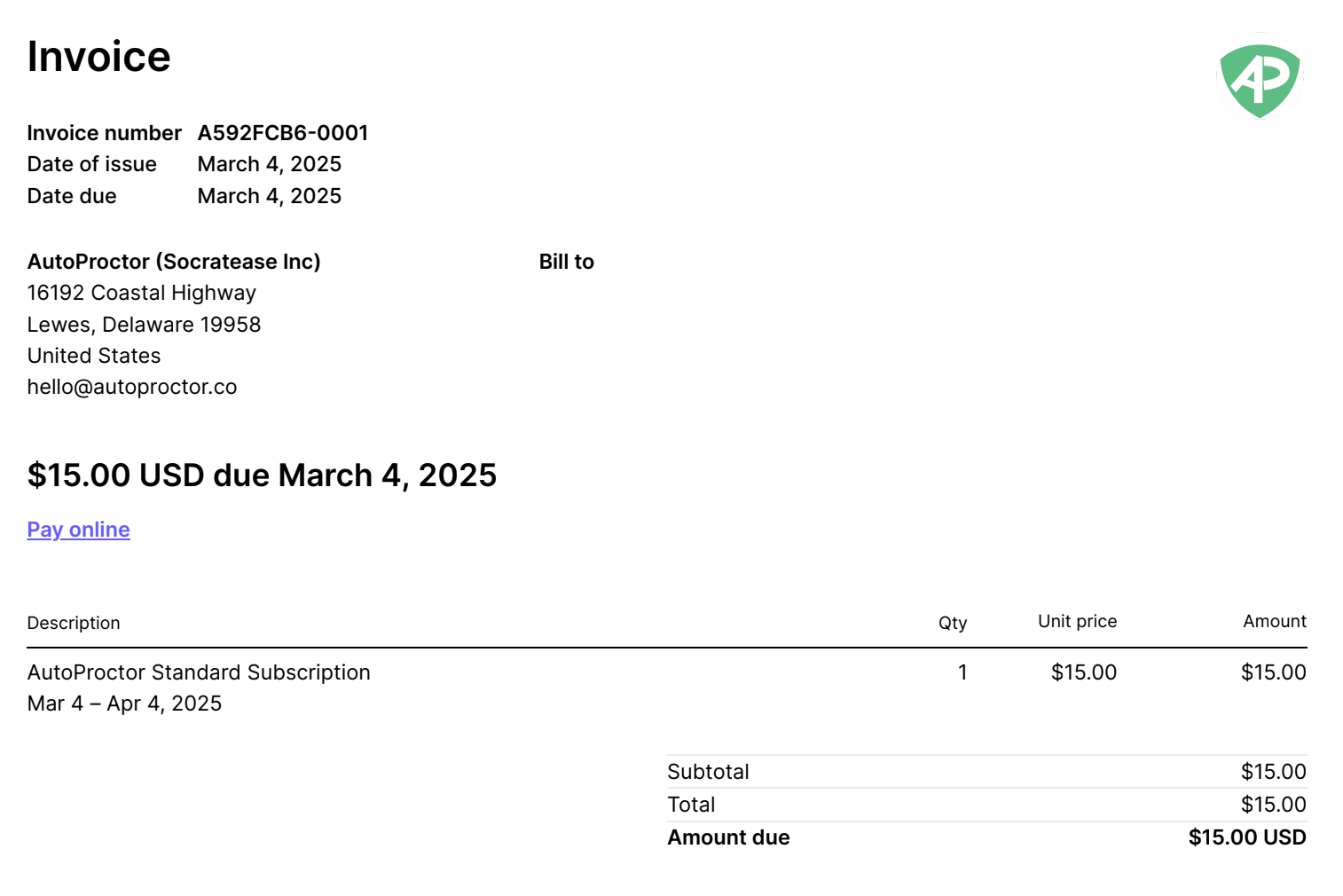
## Sample Invoice
Below is an example of what an AutoProctor invoice looks like:
 ## Frequently Asked Questions
Check your spam or junk folder. If you are part of a Team, the invoice may have been sent to the Team Admin who made the original purchase. You can also download the invoice directly from the **Billing** section.
You can update your billing information (company name, address, GST, etc.) from the **Billing** section, but changes only apply to **future invoices**. For amendments to an already-issued invoice, email **[hello@autoproctor.co](mailto:hello@autoproctor.co)** with the details.
Yes. Invoice records are retained even after your subscription expires. You can access them by resubscribing or by contacting support at **[hello@autoproctor.co](mailto:hello@autoproctor.co)**.
AutoProctor generates individual invoices per payment. If you need a consolidated statement, contact support at **[hello@autoproctor.co](mailto:hello@autoproctor.co)** with your requirements.
## Related Resources
* [Editing Billing Information](/edit-billing-information) -- Update your company name, address, and payment method
* [Payments and Credits Explained](/payments-and-credits) -- Understand subscriptions and credit purchases
* [What is a Team?](/what-is-a-team) -- Learn about team billing and admin access
* [How to Cancel Your Subscription](/cancel-subscription) -- Download invoices before cancellation
* [Contact Us](/contact-us) -- Get help with invoice issues
## Frequently Asked Questions
Check your spam or junk folder. If you are part of a Team, the invoice may have been sent to the Team Admin who made the original purchase. You can also download the invoice directly from the **Billing** section.
You can update your billing information (company name, address, GST, etc.) from the **Billing** section, but changes only apply to **future invoices**. For amendments to an already-issued invoice, email **[hello@autoproctor.co](mailto:hello@autoproctor.co)** with the details.
Yes. Invoice records are retained even after your subscription expires. You can access them by resubscribing or by contacting support at **[hello@autoproctor.co](mailto:hello@autoproctor.co)**.
AutoProctor generates individual invoices per payment. If you need a consolidated statement, contact support at **[hello@autoproctor.co](mailto:hello@autoproctor.co)** with your requirements.
## Related Resources
* [Editing Billing Information](/edit-billing-information) -- Update your company name, address, and payment method
* [Payments and Credits Explained](/payments-and-credits) -- Understand subscriptions and credit purchases
* [What is a Team?](/what-is-a-team) -- Learn about team billing and admin access
* [How to Cancel Your Subscription](/cancel-subscription) -- Download invoices before cancellation
* [Contact Us](/contact-us) -- Get help with invoice issues