> ## Documentation Index
> Fetch the complete documentation index at: https://help.autoproctor.co/llms.txt
> Use this file to discover all available pages before exploring further.
# How to Logout of AutoProctor
> Steps to log out of your AutoProctor session on mobile and desktop devices so you can switch to a different account.
You may need to log out of AutoProctor if you want to switch to a different account or if you accidentally logged in with the wrong credentials.
## How to Logout
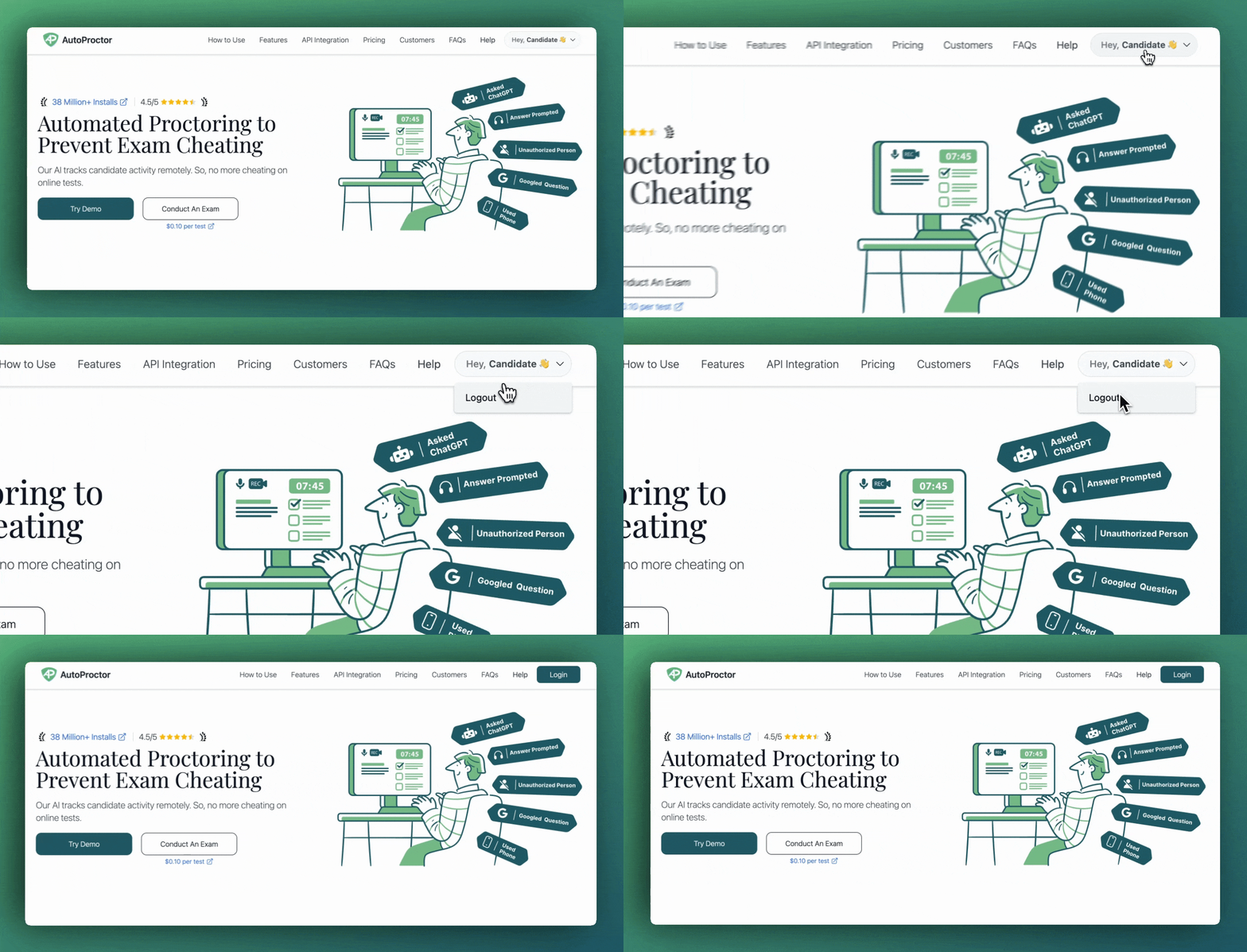 Click on your **name** at the top right of the screen (where it says "Hey, ...").
Click **Logout** from the dropdown menu.
## Alternative Method
If the standard logout does not work, you can force a logout by signing out of all your Google accounts.
Go to [accounts.google.com/Logout](https://accounts.google.com/Logout) to sign out of all your Google accounts.
Navigate back to your test link and sign in with the correct account.
## Related Resources
* [Candidate Login Methods](/candidate-login-methods) -- Available sign-in options
* [Incorrect Candidate Name](/incorrect-candidate-name-in-results) -- Fix name display issues
* [Blank Page or Grey Screen](/blank-screen-during-test) -- Often caused by wrong Google account
* [Instructions for Taking a Proctored Test](/take-proctored-exam) -- Full setup guide for proctored tests
* [Contact Us](/contact-us) -- Reach out if you need further help
Click on your **name** at the top right of the screen (where it says "Hey, ...").
Click **Logout** from the dropdown menu.
## Alternative Method
If the standard logout does not work, you can force a logout by signing out of all your Google accounts.
Go to [accounts.google.com/Logout](https://accounts.google.com/Logout) to sign out of all your Google accounts.
Navigate back to your test link and sign in with the correct account.
## Related Resources
* [Candidate Login Methods](/candidate-login-methods) -- Available sign-in options
* [Incorrect Candidate Name](/incorrect-candidate-name-in-results) -- Fix name display issues
* [Blank Page or Grey Screen](/blank-screen-during-test) -- Often caused by wrong Google account
* [Instructions for Taking a Proctored Test](/take-proctored-exam) -- Full setup guide for proctored tests
* [Contact Us](/contact-us) -- Reach out if you need further help