> ## Documentation Index
> Fetch the complete documentation index at: https://help.autoproctor.co/llms.txt
> Use this file to discover all available pages before exploring further.
# Cannot See Questions on Google Forms
> Understand why questions may not be visible on a Google Form loaded through AutoProctor and how to resolve access restriction errors.
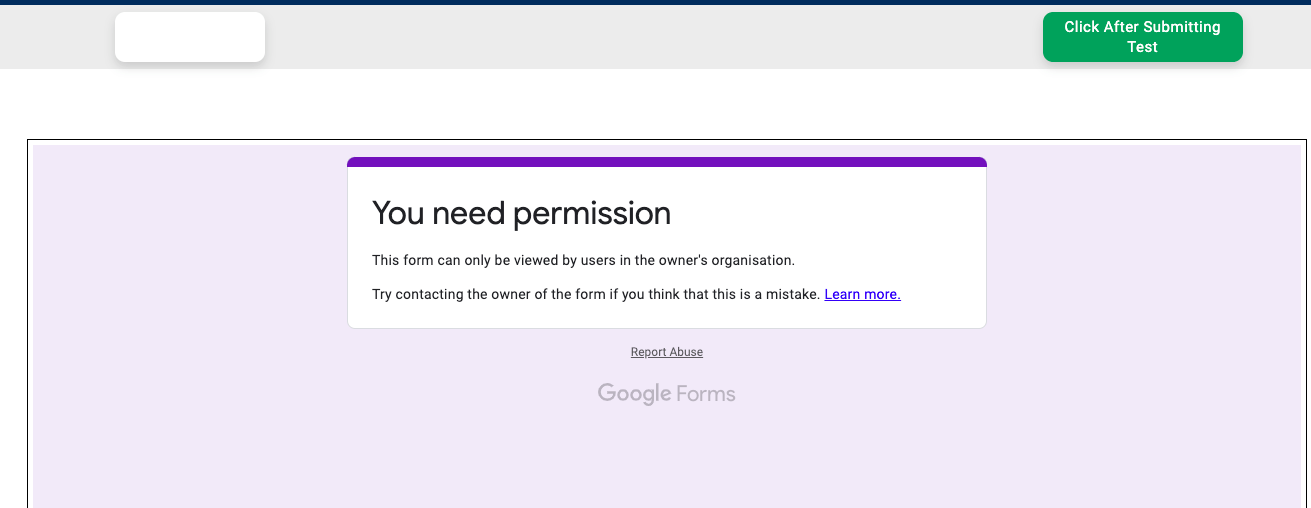
AutoProctor loads your Google Form within its own site for proctoring. If the Google Form has an access restriction or other error, that same error message appears inside the AutoProctor interface. AutoProctor cannot control or modify anything inside the Google Form due to privacy restrictions.
## Why Questions Are Not Visible
Google Forms can restrict access based on organization, email domain, or specific accounts. When you are signed in with an account that does not meet these restrictions, Google blocks the form content and shows an error message instead.
 ## How to Fix It
Read the error message displayed on the form. It typically explains whether the form is restricted to certain users or an organization.
Log out of your current Google account at [accounts.google.com/Logout](https://accounts.google.com/Logout), then sign in with the account that has access to the form.
If you are unsure which account to use or believe you should have access, contact the person who created the test. They may need to update the form's sharing settings.
## Why AutoProctor Cannot Fix This
Due to privacy restrictions, Google does not allow AutoProctor to access or modify anything inside a Google Form. AutoProctor can only load the form -- it cannot control the form's content, access settings, or error messages. If you encounter a form access issue, only the form creator can resolve it.
AutoProctor embeds Google Forms similarly to how websites embed YouTube videos. If a YouTube video shows an error on an external site, the issue is with YouTube, not the embedding site. The same applies to Google Forms on AutoProctor -- any errors you see originate from Google, not from AutoProctor.
## Related Resources
* [Cannot See Response in Google Form](/google-forms-response-not-visible) -- Missing responses after submission
* [Cannot Click on Answer](/cannot-click-answers-during-test) -- Form loads but is not interactive
* [Blank Page or Grey Screen](/blank-screen-during-test) -- Form does not load at all
* [Instructions for Taking a Proctored Test](/take-proctored-exam) -- Setup guide with Google Account section
* [How to Logout](/how-to-logout) -- Steps to switch accounts
* [Contact Us](/contact-us) -- Reach out if you need further help
## How to Fix It
Read the error message displayed on the form. It typically explains whether the form is restricted to certain users or an organization.
Log out of your current Google account at [accounts.google.com/Logout](https://accounts.google.com/Logout), then sign in with the account that has access to the form.
If you are unsure which account to use or believe you should have access, contact the person who created the test. They may need to update the form's sharing settings.
## Why AutoProctor Cannot Fix This
Due to privacy restrictions, Google does not allow AutoProctor to access or modify anything inside a Google Form. AutoProctor can only load the form -- it cannot control the form's content, access settings, or error messages. If you encounter a form access issue, only the form creator can resolve it.
AutoProctor embeds Google Forms similarly to how websites embed YouTube videos. If a YouTube video shows an error on an external site, the issue is with YouTube, not the embedding site. The same applies to Google Forms on AutoProctor -- any errors you see originate from Google, not from AutoProctor.
## Related Resources
* [Cannot See Response in Google Form](/google-forms-response-not-visible) -- Missing responses after submission
* [Cannot Click on Answer](/cannot-click-answers-during-test) -- Form loads but is not interactive
* [Blank Page or Grey Screen](/blank-screen-during-test) -- Form does not load at all
* [Instructions for Taking a Proctored Test](/take-proctored-exam) -- Setup guide with Google Account section
* [How to Logout](/how-to-logout) -- Steps to switch accounts
* [Contact Us](/contact-us) -- Reach out if you need further help