> ## Documentation Index
> Fetch the complete documentation index at: https://help.autoproctor.co/llms.txt
> Use this file to discover all available pages before exploring further.
# Export Results to Excel
> Download your AutoProctor test results as an Excel spreadsheet for record-keeping, sharing with colleagues, and audit purposes.
AutoProctor lets you export your test results to an Excel spreadsheet. This is useful for sharing results with colleagues, maintaining audit records, or storing documentation for your institution.
## What the Export Includes
The exported spreadsheet contains a summary of all candidate results:
| Column | Description |
| ------------------- | ----------------------------------------------------- |
| **Candidate name** | Name of the test taker |
| **Email address** | Email used to take the test |
| **Test start time** | When the candidate started the test |
| **Submit time** | When the candidate submitted the test |
| **Trust Score** | Proctoring integrity score (if proctoring is enabled) |
| **Quiz score** | Candidate's score (for Socratease Quizzes only) |
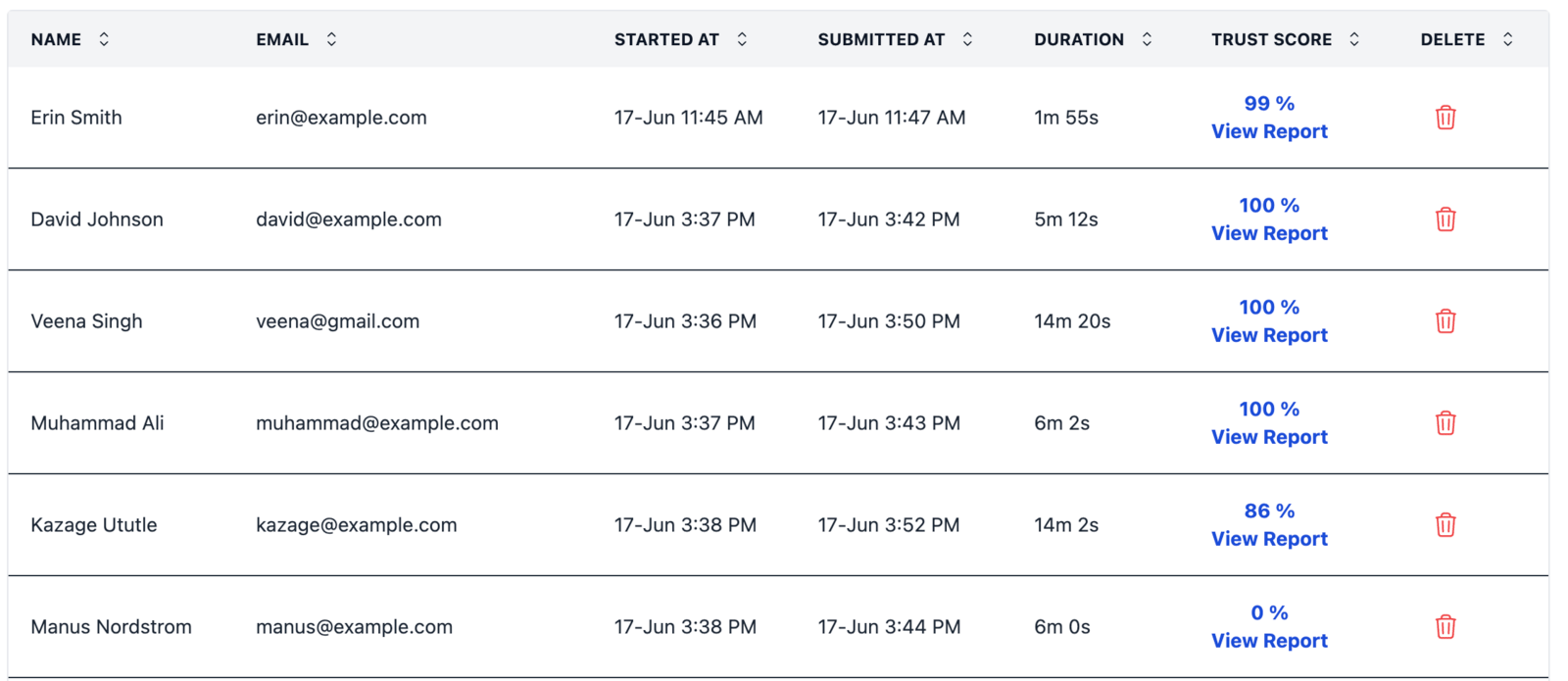 You can view a [sample exported spreadsheet](https://docs.google.com/spreadsheets/d/1lvkt7n7ZkOushCFYd0ZrTv5YgBAex4CJV78LG88mLx4/edit#gid=0) to see the exact format.
## How to Export
You can view a [sample exported spreadsheet](https://docs.google.com/spreadsheets/d/1lvkt7n7ZkOushCFYd0ZrTv5YgBAex4CJV78LG88mLx4/edit#gid=0) to see the exact format.
## How to Export
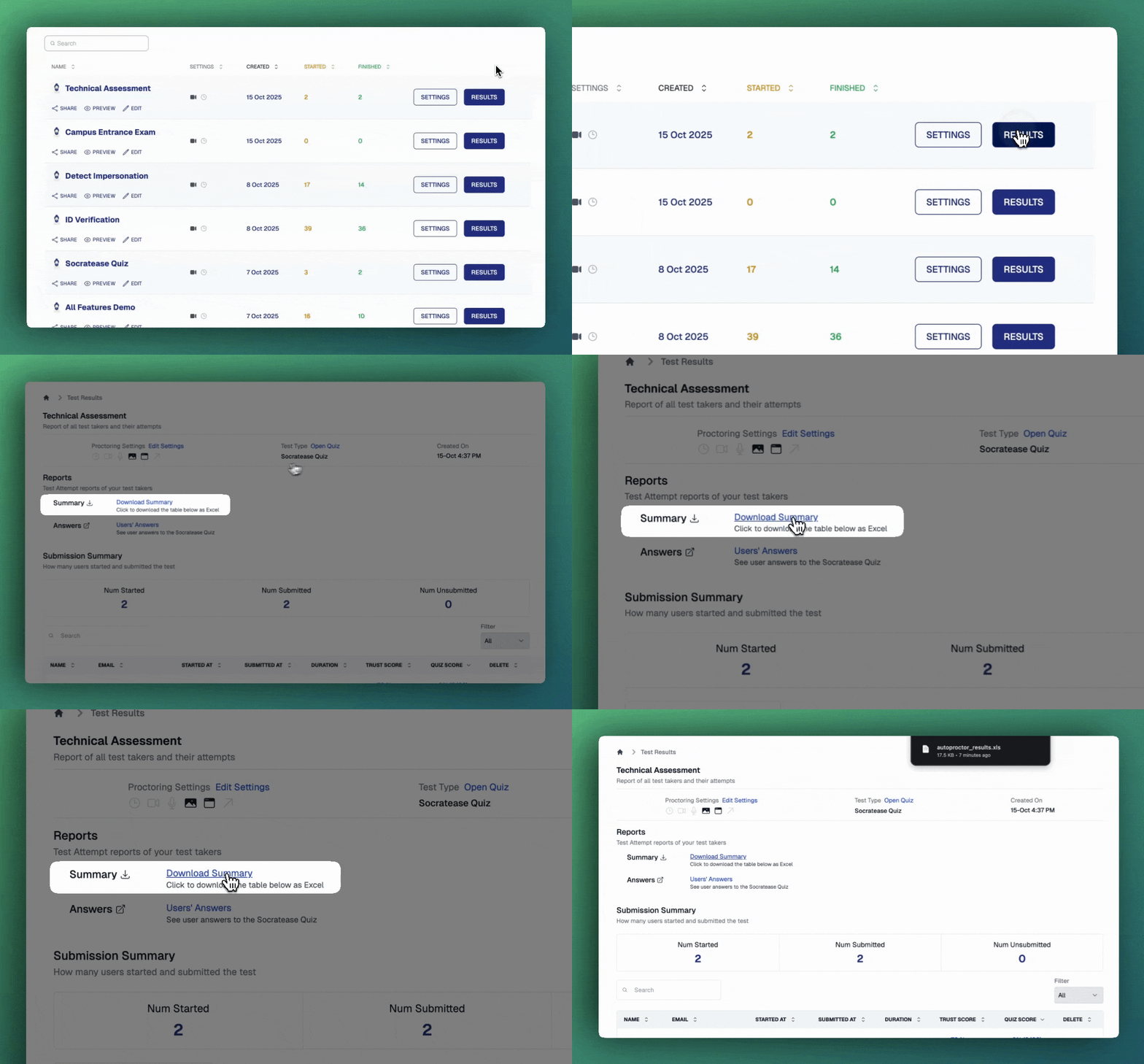 Navigate to your [AutoProctor dashboard](https://www.autoproctor.co/test-admin/home/) and click **Results** for the test you want to export.
Click the **Export to Excel** button at the top of the results table. The file downloads automatically to your device.
Open the downloaded `.xlsx` file in Microsoft Excel, Google Sheets, or any compatible spreadsheet application.
For automatic, ongoing exports without manual downloads, consider setting up the [Google Sheets integration](/write-results-to-google-sheets) instead.
## Related Resources
* [Google Sheets Integration](/write-results-to-google-sheets) -- Automatically write results to a Google Sheet
* [Where Can I See My Quiz Results?](/where-to-find-quiz-results) -- Overview of quiz results vs. proctoring results
* [Sharing Test Results](/share-exam-results) -- Grant other users access to test results
* [Where Can I See Proctoring Results?](/where-to-find-proctoring-results) -- View detailed proctoring reports
Navigate to your [AutoProctor dashboard](https://www.autoproctor.co/test-admin/home/) and click **Results** for the test you want to export.
Click the **Export to Excel** button at the top of the results table. The file downloads automatically to your device.
Open the downloaded `.xlsx` file in Microsoft Excel, Google Sheets, or any compatible spreadsheet application.
For automatic, ongoing exports without manual downloads, consider setting up the [Google Sheets integration](/write-results-to-google-sheets) instead.
## Related Resources
* [Google Sheets Integration](/write-results-to-google-sheets) -- Automatically write results to a Google Sheet
* [Where Can I See My Quiz Results?](/where-to-find-quiz-results) -- Overview of quiz results vs. proctoring results
* [Sharing Test Results](/share-exam-results) -- Grant other users access to test results
* [Where Can I See Proctoring Results?](/where-to-find-proctoring-results) -- View detailed proctoring reports