> ## Documentation Index
> Fetch the complete documentation index at: https://help.autoproctor.co/llms.txt
> Use this file to discover all available pages before exploring further.
# Device Compatibility
> Check which browsers, operating systems, and devices are supported for taking proctored tests on AutoProctor.
AutoProctor runs AI monitoring algorithms directly on the candidate's device, which requires specific browser features and adequate processing power. Before taking a proctored test, candidates must confirm their browser and device meet the minimum requirements listed below.
## Supported Browsers and Devices
| Operating System | Browser | Minimum Version |
| -------------------------- | ------- | --------------- |
| Windows | Chrome | 82 |
| Windows | Firefox | 78 |
| Windows | Edge | 88 |
| Linux | Chrome | 82 |
| macOS | Safari | 12 |
| macOS | Chrome | 82 |
| macOS | Firefox | 78 |
| Android | Chrome | 82 |
| iOS (iPad/iPhone) | Safari | 14.1 |
| iOS (iPad/iPhone) OS 16.1+ | Chrome | 82 |
Any browser and OS combination **not listed** in the table above is not supported. Candidates using unsupported configurations (for example, Brave on Windows or Opera on Android) may experience loading failures or broken proctoring functionality.
## How to Verify Your Device
Visit the demo test to confirm your device and browser are compatible:
[Take the Demo Test](https://autoproctor.co/tests/bj0yv14Ufu/load/)
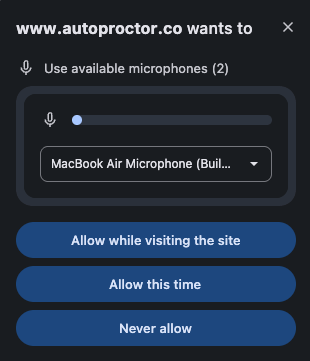
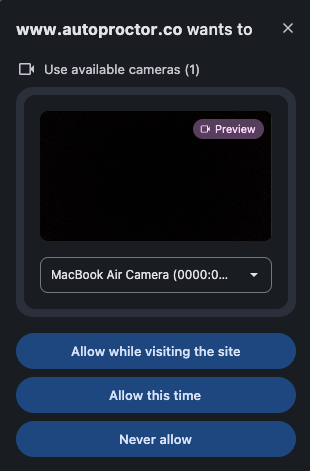
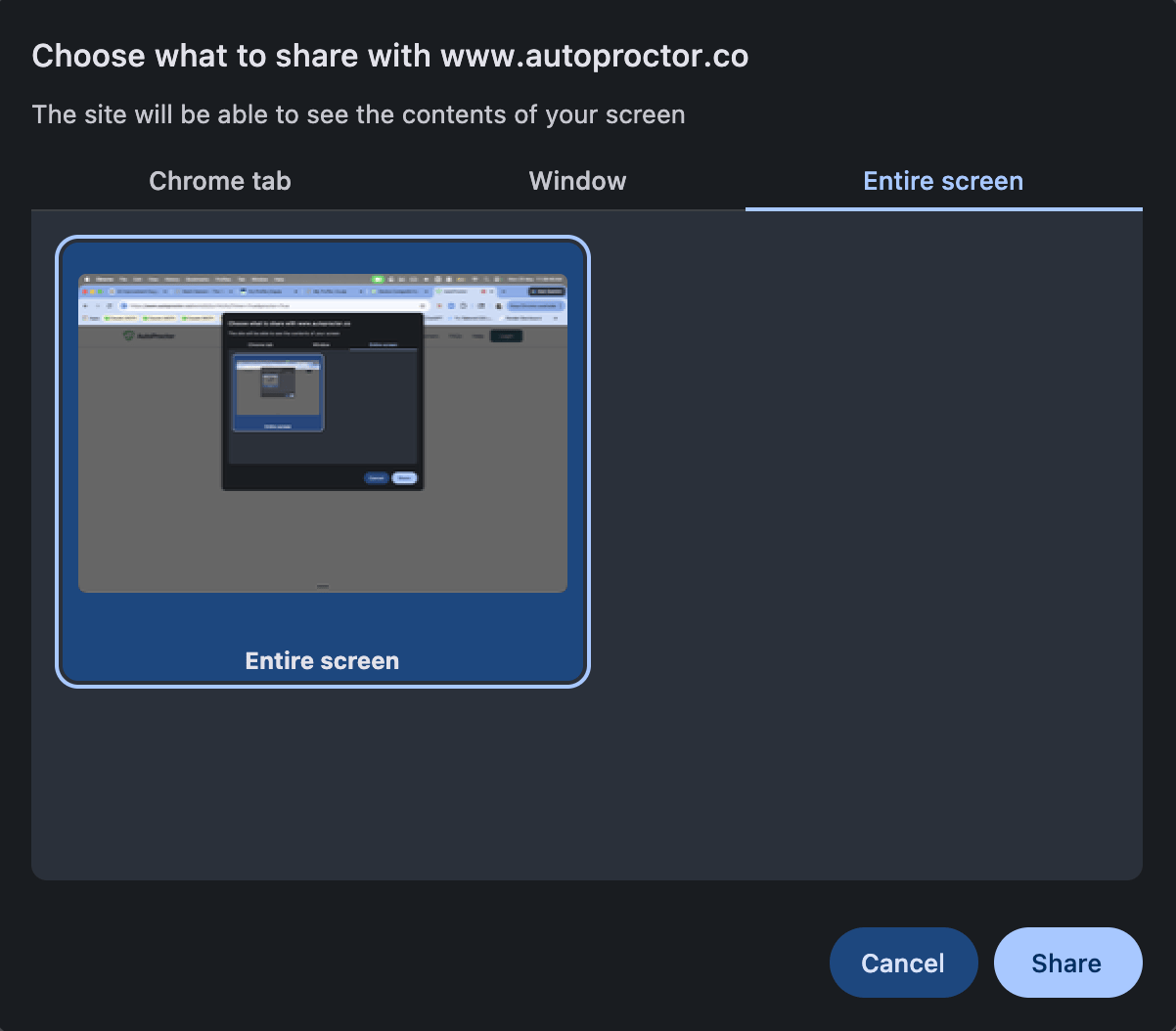
When prompted, allow your browser to access the camera and microphone. You will also be asked to share your screen — select **Entire screen** and click **Share**. If any of these permissions fail, your browser or device may not be supported.
Work through the demo test to confirm that all proctoring features load correctly, including the camera preview, screen sharing prompt, and full-screen mode.
The demo test does not consume test credits from any account. Candidates can take it as many times as they need.
## Common Compatibility Issues
| Problem | Likely Cause | Solution |
| ---------------------------- | ------------------------------------------- | ----------------------------------------------- |
| Test stuck at loading screen | Unsupported browser or outdated version | Update the browser or switch to Chrome |
| Camera not detected | Browser permissions blocked | Allow camera access in browser settings |
| Test runs slowly or lags | Device is too old or low on resources | Close other applications, or use a newer device |
| Screen share prompt missing | Browser does not support screen capture API | Switch to Chrome or Edge on desktop |
## Related Resources
* [Test Stuck at Loading Screen](/test-stuck-at-loading-screen) -- Troubleshoot loading issues
* [Slow and Laggy Test](/test-slow-and-laggy) -- Fix performance problems
* [Blank Page or Grey Screen](/blank-screen-during-test) -- Resolve display issues
* [Proctored Test Instructions](/take-proctored-exam) -- What candidates need to know before starting
* [Best Practices for Test Creators](/best-practices-for-exam-creators) -- Tips including sharing the demo test in advance