> ## Documentation Index
> Fetch the complete documentation index at: https://help.autoproctor.co/llms.txt
> Use this file to discover all available pages before exploring further.
# How to Create a Socratease Quiz
> Step-by-step guide to creating your first Socratease quiz on AutoProctor.
Socratease is AutoProctor's built-in quizzing platform, designed to be as easy as Google Forms but purpose-built for online examinations. You can create quizzes, distribute them to candidates, and review results all from a single dashboard.
Key highlights include:
* A **single [submit button](/how-to-submit-quiz)** -- no confusion between submitting the quiz and the proctored test
* **Integrated creation and results** viewing within one dashboard
* Support for **13 question formats** alongside advanced capabilities like Excel imports and question banks
## How to Create a Socratease Quiz
Visit [autoproctor.co](https://www.autoproctor.co/) and log in to your account.
Click on **Create Test** and select the **Socratease Quizzes** option as your quiz provider.
Add your questions using any of the [supported question types](/socratease-question-types). Configure points, time limits, and other settings for each question.
Set up your [quiz settings](/socratease-quiz-settings) including question display mode, result visibility, randomization, and more.
Share the test link with your candidates. They can access the quiz through the link you provide.
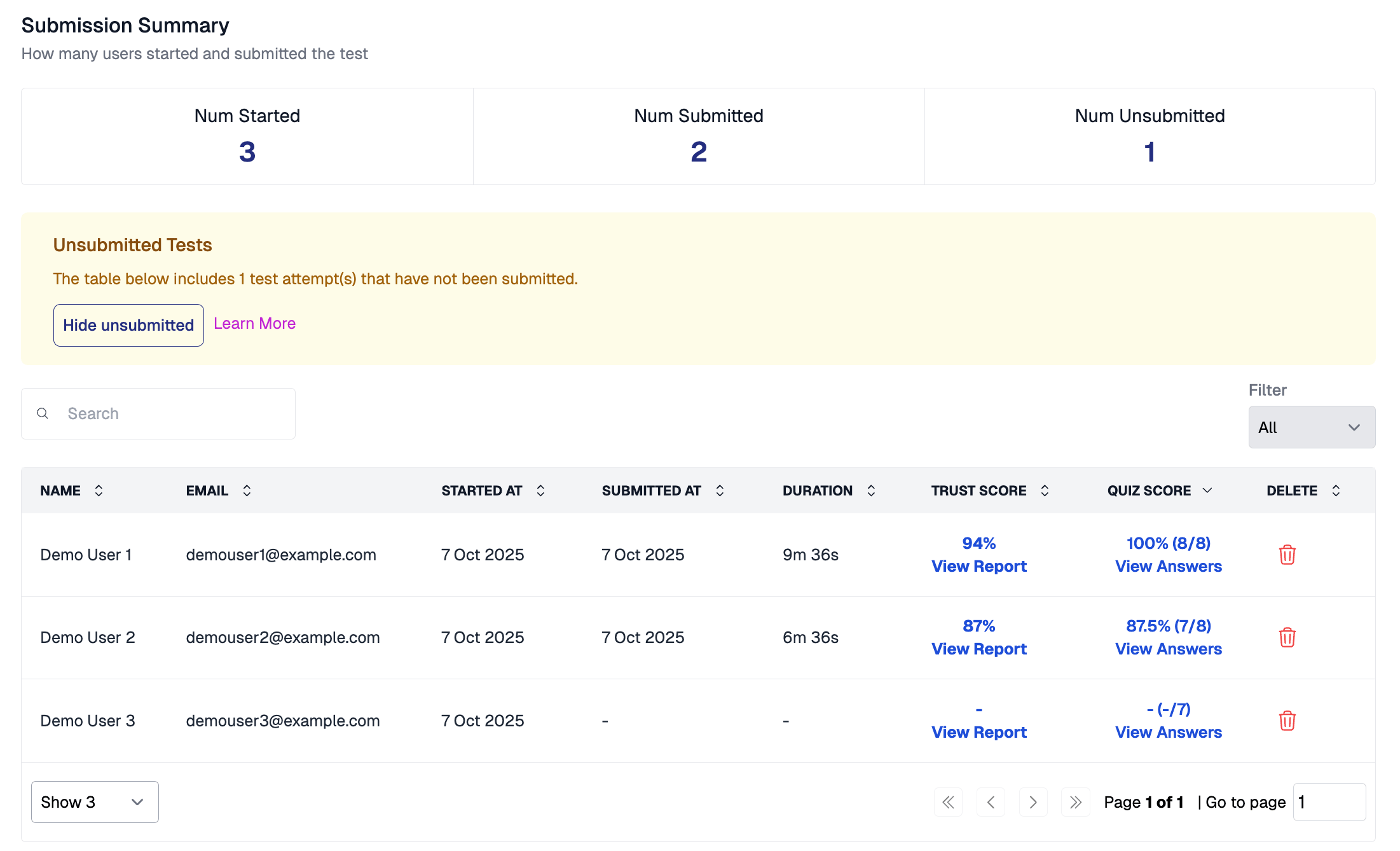
After candidates complete the test, view their results and proctoring reports from the same dashboard.
 ## Related Resources
* [Why Socratease Quiz?](/why-socratease) -- Benefits of using Socratease
* [Question Types](/socratease-question-types) -- All available question formats
* [Question Type Availability](/question-type-availability) -- Which question types are available on your plan
* [Quiz Settings](/socratease-quiz-settings) -- Configure your quiz behavior
* [Bulk Import from Excel](/import-questions-from-excel) -- Import questions in bulk
* [Showing Results to Candidates](/show-results-to-candidates) -- Manage result visibility
## Related Resources
* [Why Socratease Quiz?](/why-socratease) -- Benefits of using Socratease
* [Question Types](/socratease-question-types) -- All available question formats
* [Question Type Availability](/question-type-availability) -- Which question types are available on your plan
* [Quiz Settings](/socratease-quiz-settings) -- Configure your quiz behavior
* [Bulk Import from Excel](/import-questions-from-excel) -- Import questions in bulk
* [Showing Results to Candidates](/show-results-to-candidates) -- Manage result visibility