> ## Documentation Index
> Fetch the complete documentation index at: https://help.autoproctor.co/llms.txt
> Use this file to discover all available pages before exploring further.
# Instructions Page for Candidates
> Learn how the pre-test instructions page works, what candidates see before starting a test, and how to add custom instructions.
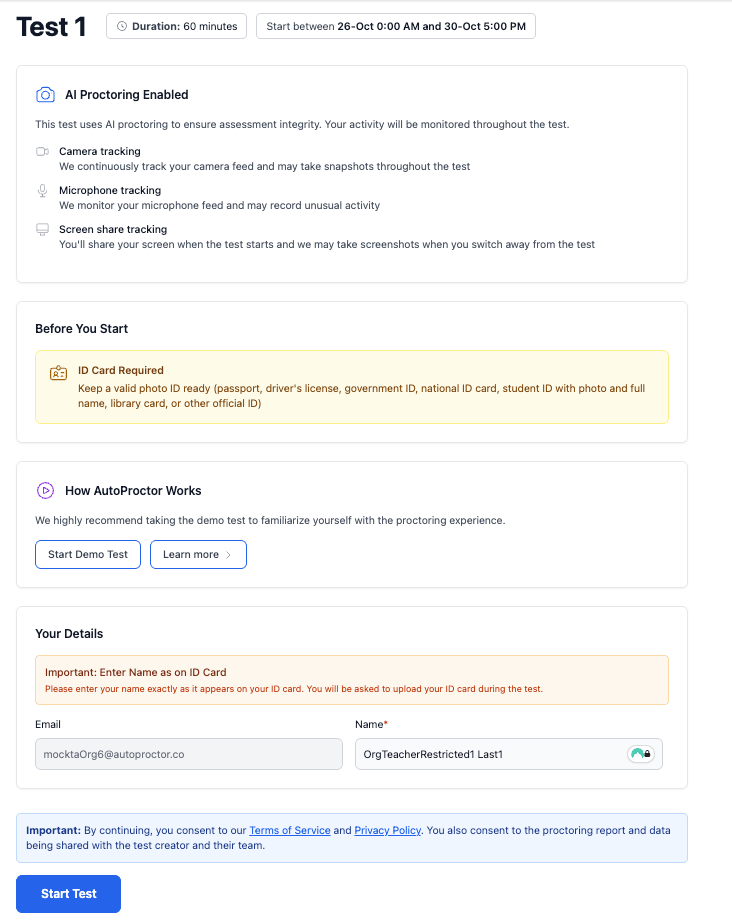
Every AutoProctor test begins with an instructions page that explains how proctoring works, which features are active, and what candidates should expect. The page content adapts automatically based on your test configuration, and candidates can also take a demo test from this page to verify device compatibility.
 ## How the Instructions Page Works
The instructions page is **automatically active on all tests**. Candidates see it immediately after clicking the test link. You cannot disable this page -- it ensures every candidate understands the test rules before they begin.
The page includes:
* An explanation of which proctoring features are enabled for the test
* Browser and device requirements
* A link to a demo test so candidates can verify their setup
* Any custom instructions you add (Elite plan required)
## Adding Custom Instructions
You can include your own instructions (maximum 200 words) that appear on the instructions page alongside the default content.
Navigate to your test's settings page in the [AutoProctor dashboard](https://www.autoproctor.co/test-admin/home/).
Scroll down to the **Advanced Settings** section.
Type your custom instructions in the **Additional Instructions** field. You can add up to 200 words.
Save the test settings. Your custom instructions will now appear on the instructions page for all candidates.
Adding custom instructions requires an **Elite plan** subscription. See [Elite Features](/elite-plan-features) for details on what the Elite plan includes.
## Gathering Additional Information from Candidates
You can use the **Gather Additional Details** feature in Advanced Settings to collect extra information from candidates. This form appears on the instructions page and candidates must complete it before starting the test.
## Frequently Asked Questions
Yes -- click your own test link to see exactly what candidates will see. Viewing the instructions page does not consume a credit.
No -- credits are only deducted when a candidate successfully starts the test, not when they view the instructions page.
No -- the default sections are fixed and cannot be removed. You can only add additional instructions on top of the existing content.
## Related Resources
* [Timer Settings](/timer-settings) -- Configure test timer and related settings
* [Advanced Settings](/advanced-exam-settings) -- Configure custom instructions and additional details
* [Instructions for Taking a Proctored Test](/take-proctored-exam) -- What candidates need to know for proctored tests
* [Elite Features](/elite-plan-features) -- Learn about Elite plan capabilities
* [Device Compatibility](/device-compatibility) -- Supported browsers and devices
* [Contact Us](/contact-us) -- Reach out if you need further help
## How the Instructions Page Works
The instructions page is **automatically active on all tests**. Candidates see it immediately after clicking the test link. You cannot disable this page -- it ensures every candidate understands the test rules before they begin.
The page includes:
* An explanation of which proctoring features are enabled for the test
* Browser and device requirements
* A link to a demo test so candidates can verify their setup
* Any custom instructions you add (Elite plan required)
## Adding Custom Instructions
You can include your own instructions (maximum 200 words) that appear on the instructions page alongside the default content.
Navigate to your test's settings page in the [AutoProctor dashboard](https://www.autoproctor.co/test-admin/home/).
Scroll down to the **Advanced Settings** section.
Type your custom instructions in the **Additional Instructions** field. You can add up to 200 words.
Save the test settings. Your custom instructions will now appear on the instructions page for all candidates.
Adding custom instructions requires an **Elite plan** subscription. See [Elite Features](/elite-plan-features) for details on what the Elite plan includes.
## Gathering Additional Information from Candidates
You can use the **Gather Additional Details** feature in Advanced Settings to collect extra information from candidates. This form appears on the instructions page and candidates must complete it before starting the test.
## Frequently Asked Questions
Yes -- click your own test link to see exactly what candidates will see. Viewing the instructions page does not consume a credit.
No -- credits are only deducted when a candidate successfully starts the test, not when they view the instructions page.
No -- the default sections are fixed and cannot be removed. You can only add additional instructions on top of the existing content.
## Related Resources
* [Timer Settings](/timer-settings) -- Configure test timer and related settings
* [Advanced Settings](/advanced-exam-settings) -- Configure custom instructions and additional details
* [Instructions for Taking a Proctored Test](/take-proctored-exam) -- What candidates need to know for proctored tests
* [Elite Features](/elite-plan-features) -- Learn about Elite plan capabilities
* [Device Compatibility](/device-compatibility) -- Supported browsers and devices
* [Contact Us](/contact-us) -- Reach out if you need further help