> ## Documentation Index
> Fetch the complete documentation index at: https://help.autoproctor.co/llms.txt
> Use this file to discover all available pages before exploring further.
# How to Cancel Your Subscription
> Step-by-step guide to cancel your AutoProctor subscription, with answers to common questions about what happens after cancellation.
Cancelling your AutoProctor subscription takes just a few clicks. This guide walks you through the process and answers common questions about what to expect after cancellation.
## Cancel Your Subscription
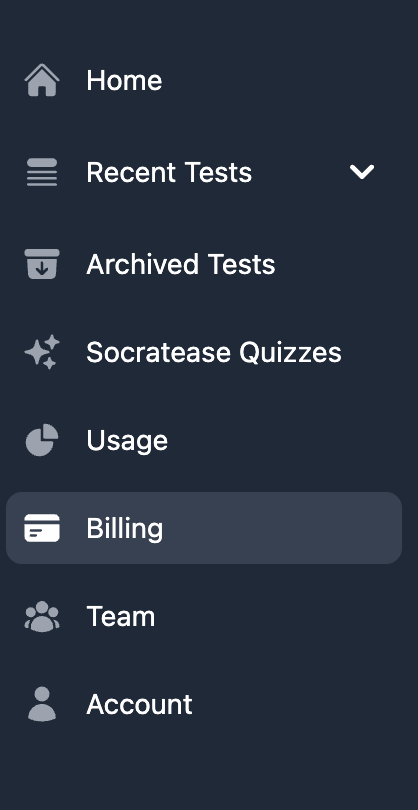
From your dashboard, click on the **Billing** link in the left sidebar.
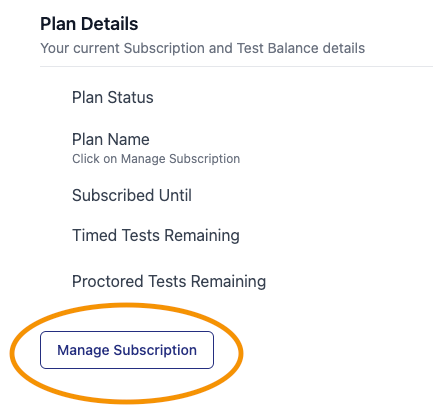
 In the **Plan Details** section, click the **Manage Subscription** button.
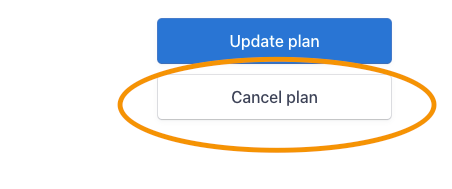
 Click the **Cancel plan** button on the right side of the page.
 If you are part of a [Team](/what-is-a-team), only a Team Admin can cancel the subscription. Regular team members do not have access to billing controls.
## What Happens After Cancellation
| Timing | What Happens |
| --------------------------------------- | ------------------------------------------------------------------------------------------------------------------------------------------------ |
| **Immediately after cancelling** | Your subscription is **scheduled to cancel** at the end of your current billing period. You retain full access until then. |
| **During the remaining billing period** | You and your candidates can continue using AutoProctor. You can still purchase additional credits. |
| **After the billing period ends** | Subscription status changes to **Expired**. Candidates cannot start new tests. You lose access to full results. Your credit balance resets to 0. |
## Frequently Asked Questions
Yes. The tests you created and their settings are **not deleted**. However, you cannot access the full results of those tests until you resubscribe.
Yes. While technically you create a new subscription rather than renewing the old one, the effect is the same. You can resume using your account immediately after purchasing a new subscription.
Yes. If your subscription is scheduled to cancel but has not yet expired, you can undo the cancellation. Follow the same steps above to open **Manage Subscription** and reverse the scheduled cancellation.
Download all results and proctoring reports **before** your subscription expires. After expiration, you lose access to full test results.
## Related Resources
* [Payments and Credits Explained](/payments-and-credits) -- Understand how credits and billing work
* [One-Time Subscription](/one-time-subscription) -- Use AutoProctor for a single event
* [Editing Billing Information](/edit-billing-information) -- Update payment details before renewal
* [Invoices for Payments](/invoices-and-receipts) -- Download invoices before your subscription expires
* [Contact Us](/contact-us) -- Get help with cancellation issues
If you are part of a [Team](/what-is-a-team), only a Team Admin can cancel the subscription. Regular team members do not have access to billing controls.
## What Happens After Cancellation
| Timing | What Happens |
| --------------------------------------- | ------------------------------------------------------------------------------------------------------------------------------------------------ |
| **Immediately after cancelling** | Your subscription is **scheduled to cancel** at the end of your current billing period. You retain full access until then. |
| **During the remaining billing period** | You and your candidates can continue using AutoProctor. You can still purchase additional credits. |
| **After the billing period ends** | Subscription status changes to **Expired**. Candidates cannot start new tests. You lose access to full results. Your credit balance resets to 0. |
## Frequently Asked Questions
Yes. The tests you created and their settings are **not deleted**. However, you cannot access the full results of those tests until you resubscribe.
Yes. While technically you create a new subscription rather than renewing the old one, the effect is the same. You can resume using your account immediately after purchasing a new subscription.
Yes. If your subscription is scheduled to cancel but has not yet expired, you can undo the cancellation. Follow the same steps above to open **Manage Subscription** and reverse the scheduled cancellation.
Download all results and proctoring reports **before** your subscription expires. After expiration, you lose access to full test results.
## Related Resources
* [Payments and Credits Explained](/payments-and-credits) -- Understand how credits and billing work
* [One-Time Subscription](/one-time-subscription) -- Use AutoProctor for a single event
* [Editing Billing Information](/edit-billing-information) -- Update payment details before renewal
* [Invoices for Payments](/invoices-and-receipts) -- Download invoices before your subscription expires
* [Contact Us](/contact-us) -- Get help with cancellation issues