> ## Documentation Index
> Fetch the complete documentation index at: https://help.autoproctor.co/llms.txt
> Use this file to discover all available pages before exploring further.
# Blank Page or Grey Screen During Test
> Resolve blank page or grey screen issues when loading a proctored test. Usually caused by being signed into the wrong Google account.
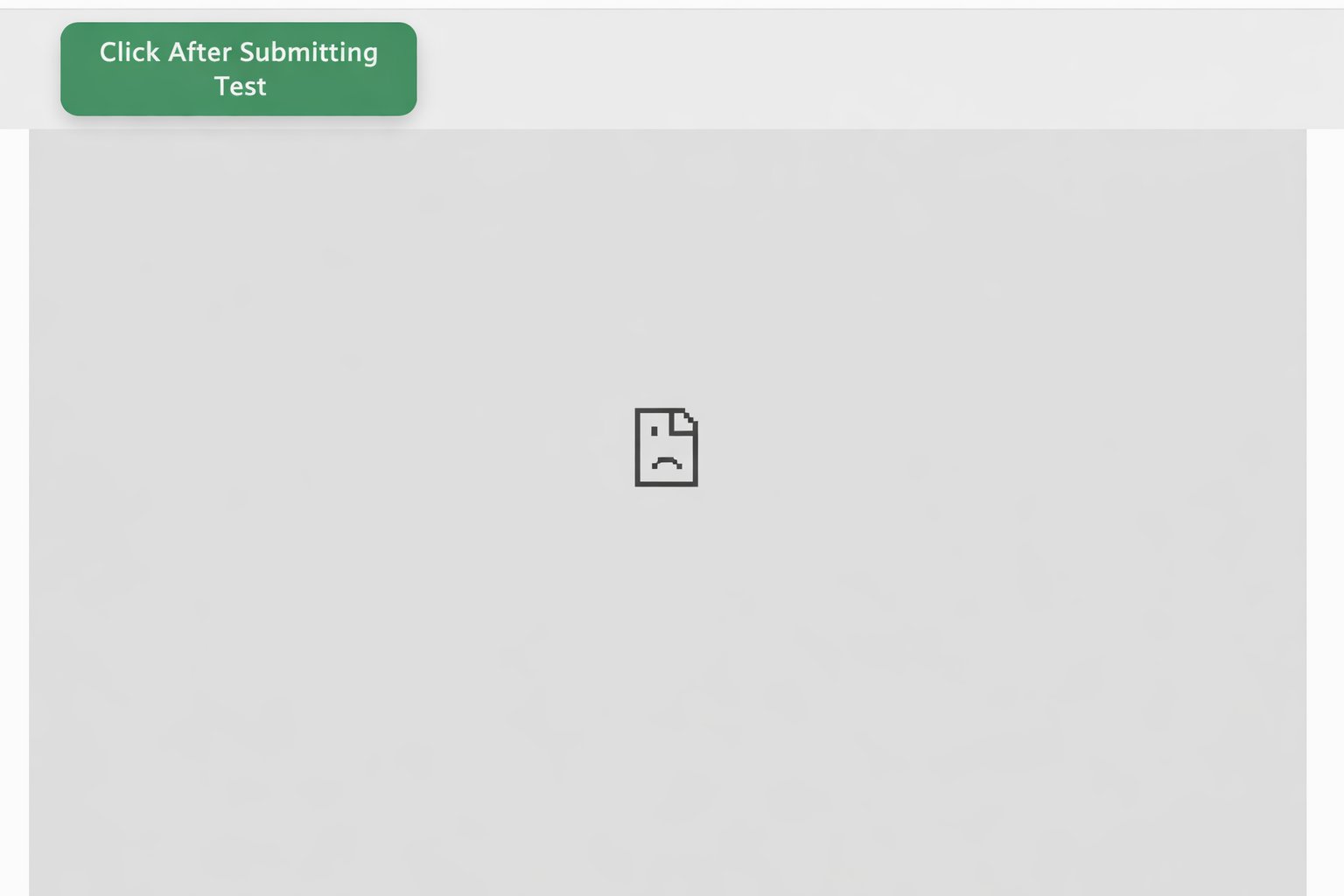
If your test displays a blank page or grey screen instead of loading the questions, the most common cause is that you are signed into a Google account that does not have access to the test form.
## Why This Happens
When a test administrator restricts access to specific email addresses, Google Forms blocks anyone signed in with a different account. AutoProctor loads the Google Form within its own interface, so you see a blank or grey screen instead of the form's own error message.
 ## How to Fix It
Visit [accounts.google.com/Logout](https://accounts.google.com/Logout) to sign out of all your Google accounts.
Sign in with the Google account that has been granted access to the test. This is usually the email address your test administrator provided instructions for.
Navigate back to the test link and load it again. The form should now display correctly.
If the page is still blank, open the test link in an **Incognito window** (`Ctrl+Shift+N` on Windows or `Cmd+Shift+N` on Mac). Incognito starts a fresh session without cached accounts or permissions, which often resolves the issue.
For detailed setup instructions before taking a test, see:
* [Instructions for Taking a Proctored Test](/take-proctored-exam) -- Google Account Setup section
* [Instructions for Taking a Timed Test](/take-timed-exam) -- Google Account Setup section
## Related Resources
* [Cannot Click on Answer](/cannot-click-answers-during-test) -- Similar issue caused by wrong Google account
* [Cannot See Questions on Google Forms](/google-forms-questions-not-visible) -- Google Form access issues
* [Test Stuck at Loading Screen](/test-stuck-at-loading-screen) -- Other loading issues
* [How to Logout](/how-to-logout) -- Steps to switch accounts
* [Device Compatibility](/device-compatibility) -- Check supported browsers and devices
* [Contact Us](/contact-us) -- Reach out if you need further help
## How to Fix It
Visit [accounts.google.com/Logout](https://accounts.google.com/Logout) to sign out of all your Google accounts.
Sign in with the Google account that has been granted access to the test. This is usually the email address your test administrator provided instructions for.
Navigate back to the test link and load it again. The form should now display correctly.
If the page is still blank, open the test link in an **Incognito window** (`Ctrl+Shift+N` on Windows or `Cmd+Shift+N` on Mac). Incognito starts a fresh session without cached accounts or permissions, which often resolves the issue.
For detailed setup instructions before taking a test, see:
* [Instructions for Taking a Proctored Test](/take-proctored-exam) -- Google Account Setup section
* [Instructions for Taking a Timed Test](/take-timed-exam) -- Google Account Setup section
## Related Resources
* [Cannot Click on Answer](/cannot-click-answers-during-test) -- Similar issue caused by wrong Google account
* [Cannot See Questions on Google Forms](/google-forms-questions-not-visible) -- Google Form access issues
* [Test Stuck at Loading Screen](/test-stuck-at-loading-screen) -- Other loading issues
* [How to Logout](/how-to-logout) -- Steps to switch accounts
* [Device Compatibility](/device-compatibility) -- Check supported browsers and devices
* [Contact Us](/contact-us) -- Reach out if you need further help