> ## Documentation Index
> Fetch the complete documentation index at: https://help.autoproctor.co/llms.txt
> Use this file to discover all available pages before exploring further.
# Advanced Settings
> Configure login providers, email restrictions, Google Sheets integration, collaborators, and other advanced test options.
Advanced Settings give you control over how candidates log in, who can access the test, and how results are shared. These options are found at the bottom of the Test Settings page.
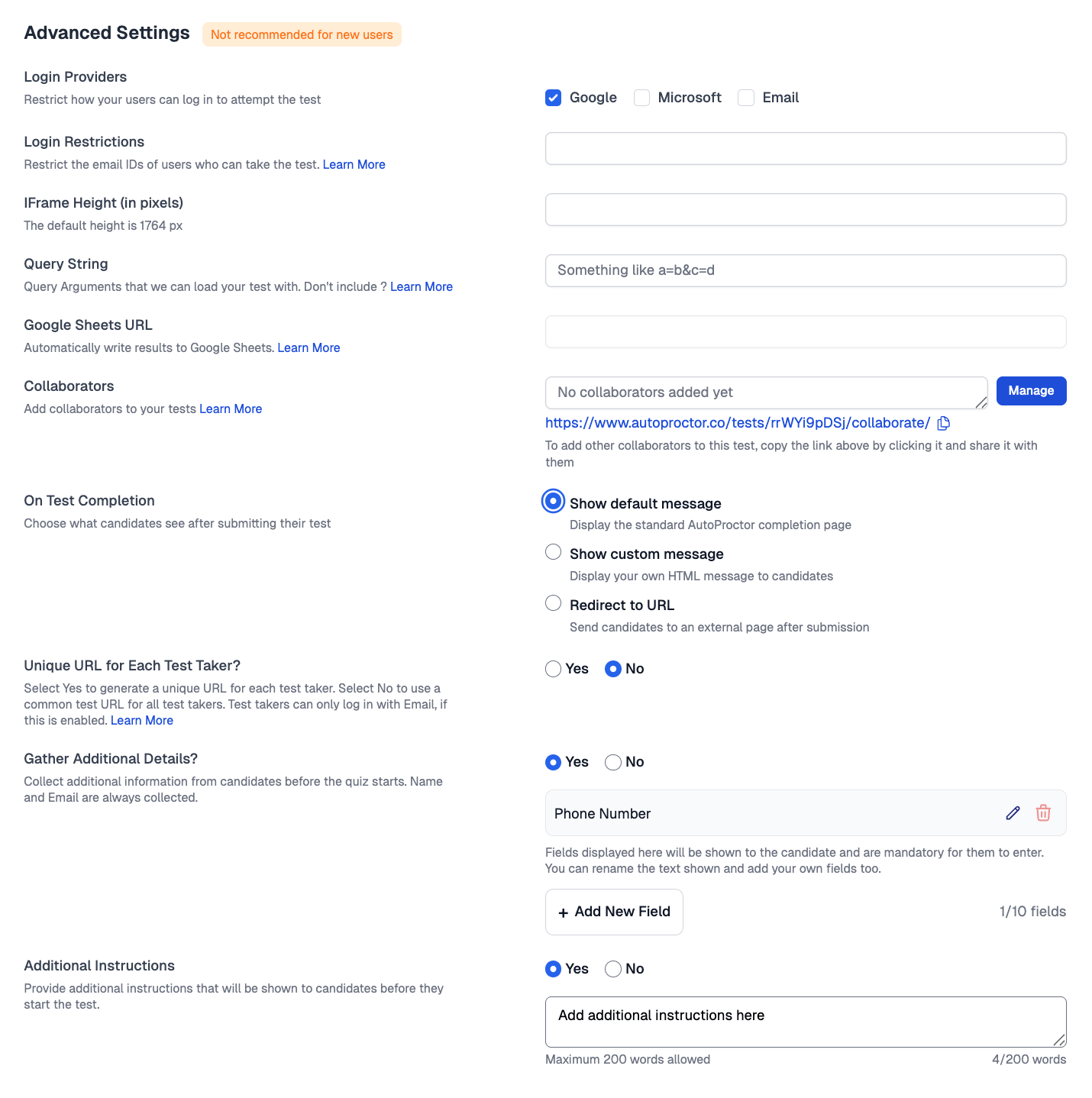 ## Login Providers
Choose which authentication methods candidates can use to sign in to your test:
| Provider | Description | Availability |
| ------------- | -------------------------------- | --------------------------------------------------------------------------------- |
| **Google** | Sign in with a Google account | **Required** for Google Forms tests. Optional for Socratease and IFrame tests. |
| **Microsoft** | Sign in with a Microsoft account | **Required** for Microsoft Forms tests. Optional for Socratease and IFrame tests. |
| **Email** | Sign in with any email address | Socratease and IFrame tests only. |
For Google Forms and Microsoft Forms tests, the login provider is locked to match the quiz platform. For Socratease and IFrame tests, you can enable one or more providers — including Google and Microsoft login.
For more details on how each login method works, see [Candidate Login Methods](/candidate-login-methods).
## Login Restrictions
Restrict which candidates can take your test based on their email address or domain.
* **Restrict by Email** — Allow only specific email addresses to access the test
* **Restrict by Domain** — Allow only candidates with email addresses from specific domains (e.g., @university.edu)
For detailed instructions, see [Restricting by Email](/restrict-access-by-email). If you want to invite a specific set of candidates, see [Inviting Candidates via Email](/invite-candidates-via-email).
## IFrame Height
When your test is embedded as an iframe inside AutoProctor, this setting lets you adjust the height (in pixels) of that iframe to match your test content. The default is 1764px. Increase it if your test content is getting cut off or candidates have to scroll within the iframe, or decrease it to remove extra whitespace.
## Collaborators
Add colleagues as collaborators on your test so they can edit settings and view results. You can set the test's Primary Admin by clicking the **Manage** button.
For more details, see [Adding Collaborators](/add-collaborators).
## Premium and Elite Features
### Google Sheets Integration (Premium)
Automatically write test results in a Google Sheet by entering the sheet URL in this field. For Socratease quizzes, both proctoring results and quiz scores are exported. For non-Socratease quizzes, only proctoring results are included.
For setup instructions, see [Google Sheets Integration](/write-results-to-google-sheets).
### On Test Completion (Premium)
Controls what candidates see after they submit their test. By default, all users see the standard AutoProctor completion page. Premium and above users can customize this with two additional options:
| Option | Description |
| ------------------------ | ------------------------------------------------------------------------------------------------------ |
| **Show default message** | Display the standard AutoProctor completion page (available on all plans) |
| **Show custom message** | Display your own HTML message to candidates (e.g., "Thank you for completing the assessment!") |
| **Redirect to URL** | Send candidates to an external page after submission (e.g., your company's website or a feedback form) |
### Unique URL per Candidate (Elite)
By default, all candidates share a single test link, which could be forwarded to unintended recipients. Enabling this feature generates a unique link for each candidate, ensuring only the people you share links with can take the test.
Unique URL per candidate is an Elite feature. See [Elite Features](/elite-plan-features) for more details.
### Gather Additional Details (Premium)
Collect custom information from candidates before the test starts — such as phone number, college name, or any custom question. These fields appear on the instructions page and the collected data is available in results and Excel exports.
You can add up to 10 custom information fields per test.
### Additional Instructions (Elite)
Add custom instructions to the candidate instructions page. This is shown to candidates before they start the test and can be used to provide specific guidelines, rules, or context for your test.
Additional Instructions is an Elite feature. See the [Instructions Page for Candidates](/candidate-instructions-page) for more on what candidates see before starting.
## Related Resources
* [Timer Settings](/timer-settings) — Configure test duration and time windows
* [Proctoring Settings](/proctoring-settings) — Camera, microphone, and tab-switching options
* [Restricting by Email](/restrict-access-by-email) — Restrict test access by email address or domain
* [Inviting Candidates via Email](/invite-candidates-via-email) — Send test invitations directly
* [Candidate Login Methods](/candidate-login-methods) — How each login method works
* [Google Sheets Integration](/write-results-to-google-sheets) — Auto-export results to spreadsheets
## Login Providers
Choose which authentication methods candidates can use to sign in to your test:
| Provider | Description | Availability |
| ------------- | -------------------------------- | --------------------------------------------------------------------------------- |
| **Google** | Sign in with a Google account | **Required** for Google Forms tests. Optional for Socratease and IFrame tests. |
| **Microsoft** | Sign in with a Microsoft account | **Required** for Microsoft Forms tests. Optional for Socratease and IFrame tests. |
| **Email** | Sign in with any email address | Socratease and IFrame tests only. |
For Google Forms and Microsoft Forms tests, the login provider is locked to match the quiz platform. For Socratease and IFrame tests, you can enable one or more providers — including Google and Microsoft login.
For more details on how each login method works, see [Candidate Login Methods](/candidate-login-methods).
## Login Restrictions
Restrict which candidates can take your test based on their email address or domain.
* **Restrict by Email** — Allow only specific email addresses to access the test
* **Restrict by Domain** — Allow only candidates with email addresses from specific domains (e.g., @university.edu)
For detailed instructions, see [Restricting by Email](/restrict-access-by-email). If you want to invite a specific set of candidates, see [Inviting Candidates via Email](/invite-candidates-via-email).
## IFrame Height
When your test is embedded as an iframe inside AutoProctor, this setting lets you adjust the height (in pixels) of that iframe to match your test content. The default is 1764px. Increase it if your test content is getting cut off or candidates have to scroll within the iframe, or decrease it to remove extra whitespace.
## Collaborators
Add colleagues as collaborators on your test so they can edit settings and view results. You can set the test's Primary Admin by clicking the **Manage** button.
For more details, see [Adding Collaborators](/add-collaborators).
## Premium and Elite Features
### Google Sheets Integration (Premium)
Automatically write test results in a Google Sheet by entering the sheet URL in this field. For Socratease quizzes, both proctoring results and quiz scores are exported. For non-Socratease quizzes, only proctoring results are included.
For setup instructions, see [Google Sheets Integration](/write-results-to-google-sheets).
### On Test Completion (Premium)
Controls what candidates see after they submit their test. By default, all users see the standard AutoProctor completion page. Premium and above users can customize this with two additional options:
| Option | Description |
| ------------------------ | ------------------------------------------------------------------------------------------------------ |
| **Show default message** | Display the standard AutoProctor completion page (available on all plans) |
| **Show custom message** | Display your own HTML message to candidates (e.g., "Thank you for completing the assessment!") |
| **Redirect to URL** | Send candidates to an external page after submission (e.g., your company's website or a feedback form) |
### Unique URL per Candidate (Elite)
By default, all candidates share a single test link, which could be forwarded to unintended recipients. Enabling this feature generates a unique link for each candidate, ensuring only the people you share links with can take the test.
Unique URL per candidate is an Elite feature. See [Elite Features](/elite-plan-features) for more details.
### Gather Additional Details (Premium)
Collect custom information from candidates before the test starts — such as phone number, college name, or any custom question. These fields appear on the instructions page and the collected data is available in results and Excel exports.
You can add up to 10 custom information fields per test.
### Additional Instructions (Elite)
Add custom instructions to the candidate instructions page. This is shown to candidates before they start the test and can be used to provide specific guidelines, rules, or context for your test.
Additional Instructions is an Elite feature. See the [Instructions Page for Candidates](/candidate-instructions-page) for more on what candidates see before starting.
## Related Resources
* [Timer Settings](/timer-settings) — Configure test duration and time windows
* [Proctoring Settings](/proctoring-settings) — Camera, microphone, and tab-switching options
* [Restricting by Email](/restrict-access-by-email) — Restrict test access by email address or domain
* [Inviting Candidates via Email](/invite-candidates-via-email) — Send test invitations directly
* [Candidate Login Methods](/candidate-login-methods) — How each login method works
* [Google Sheets Integration](/write-results-to-google-sheets) — Auto-export results to spreadsheets