> ## Documentation Index
> Fetch the complete documentation index at: https://help.autoproctor.co/llms.txt
> Use this file to discover all available pages before exploring further.
# Access Answers and Candidate Responses
> View individual candidate submissions, scores, and responses on AutoProctor for Socratease Quizzes and Google Forms tests.
After candidates complete a test, you can review their individual submissions to see detailed responses, scores, and grading status. The process differs depending on which quiz platform you use.
## For Socratease Quizzes
Visit your [AutoProctor dashboard](https://www.autoproctor.co/test-admin/home/) and locate the test you want to review.
Click the **View** button under the **Results** section of the relevant test. This opens a list of all candidate submissions.
 Each submission shows one of two states:
| State | What It Means | Action |
| ------------------------------ | ---------------------------------------------------------------------- | --------------------------------------------------- |
| **Score link with percentage** | The candidate finished the test and it has been graded | Click the score link to view their full responses |
| **Blue Grade button** | The candidate has not finished the test, or it has not yet been graded | Click **Grade** to review and grade their responses |
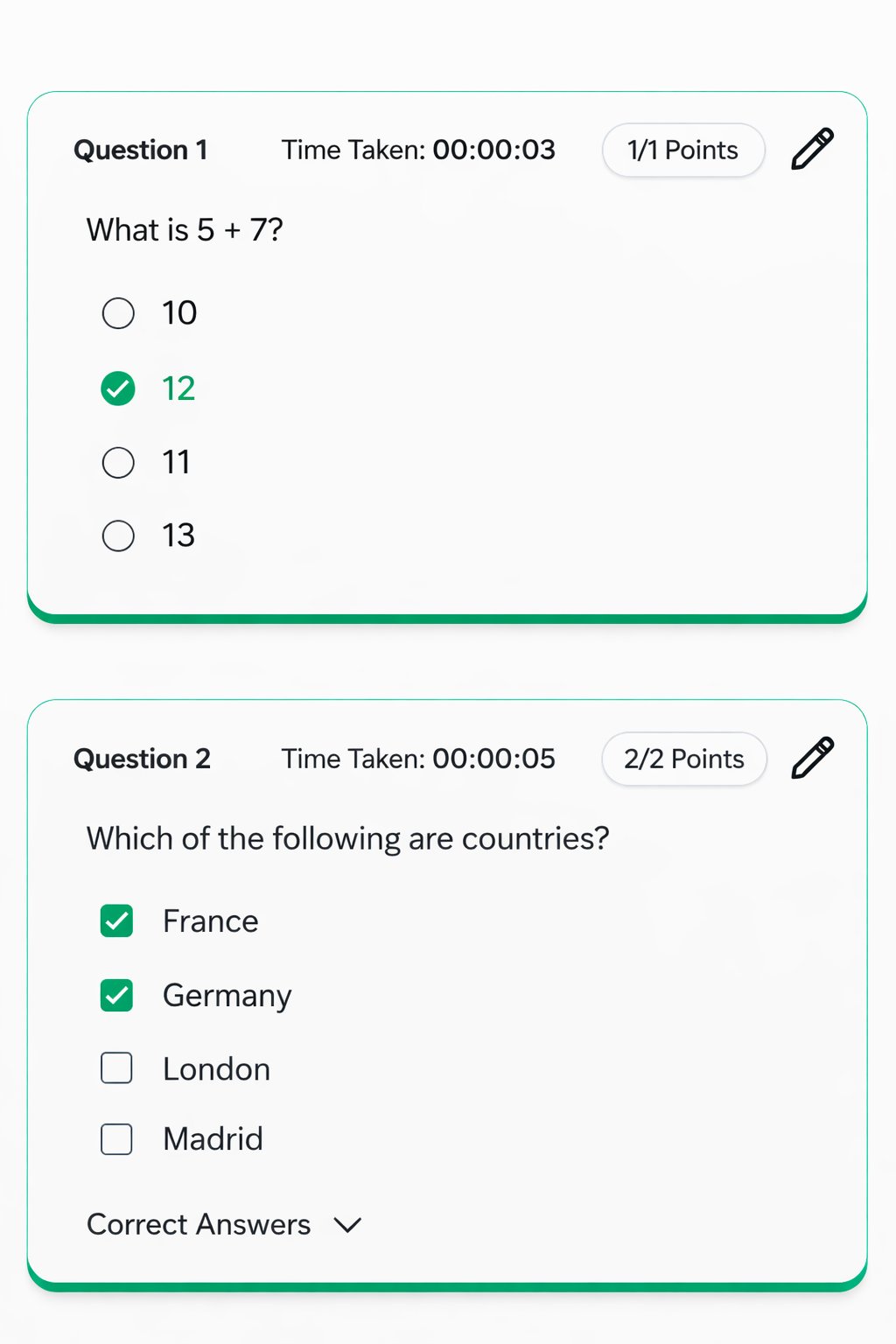
Clicking either link opens a detailed page showing all responses, points scored, and candidate-specific information.
Each submission shows one of two states:
| State | What It Means | Action |
| ------------------------------ | ---------------------------------------------------------------------- | --------------------------------------------------- |
| **Score link with percentage** | The candidate finished the test and it has been graded | Click the score link to view their full responses |
| **Blue Grade button** | The candidate has not finished the test, or it has not yet been graded | Click **Grade** to review and grade their responses |
Clicking either link opens a detailed page showing all responses, points scored, and candidate-specific information.
 For Google Forms, Microsoft Forms, and IFrame tests, quiz results appear in the platform where you created the quiz — not on AutoProctor. See [Where Can I See My Quiz Results?](/where-to-find-quiz-results) for where to find results for each platform.
## Related Resources
* [Where Can I See My Quiz Results?](/where-to-find-quiz-results) -- Overview of quiz results vs. proctoring results
* [Where Can I See Proctoring Results?](/where-to-find-proctoring-results) -- View proctoring reports for candidates
* [Export to Excel](/export-results-to-excel) -- Download all results as a spreadsheet
* [Showing Results to Candidates](/show-results-to-candidates) -- Control what candidates see after submission
* [Google Sheets Integration](/write-results-to-google-sheets) -- Automatically sync results to a Google Sheet
For Google Forms, Microsoft Forms, and IFrame tests, quiz results appear in the platform where you created the quiz — not on AutoProctor. See [Where Can I See My Quiz Results?](/where-to-find-quiz-results) for where to find results for each platform.
## Related Resources
* [Where Can I See My Quiz Results?](/where-to-find-quiz-results) -- Overview of quiz results vs. proctoring results
* [Where Can I See Proctoring Results?](/where-to-find-proctoring-results) -- View proctoring reports for candidates
* [Export to Excel](/export-results-to-excel) -- Download all results as a spreadsheet
* [Showing Results to Candidates](/show-results-to-candidates) -- Control what candidates see after submission
* [Google Sheets Integration](/write-results-to-google-sheets) -- Automatically sync results to a Google Sheet